
This article will walk you row by row through the "Dialer Settings" tab in the WAVV Power Dialer settings.
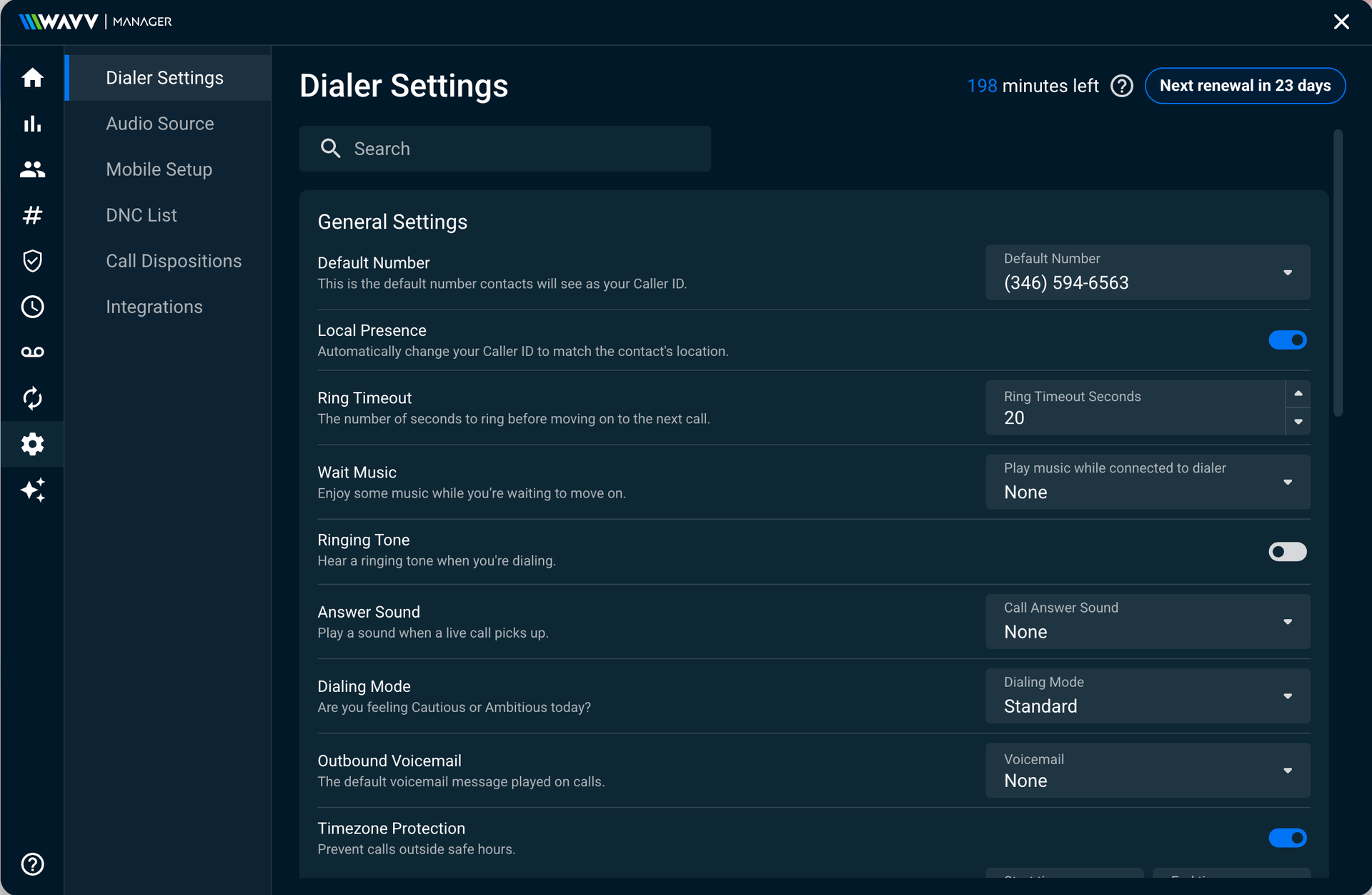
General Settings:
Default Number
Your Caller ID is the phone number that people see when you call them. It's also where they'll call you back.
Choose a verified number to display.
Click here for help adding and verifying a number.
Local Presence
When enabled, Local Presence automatically picks a phone number that matches the area code of the person you’re calling. (Local Presence)
Ring Timeout
Set how long the phone should ring before moving to the next call.
Example: If set to 30 seconds, the dialer will wait that long before moving on.
Wait Music
Choose from built-in music options (Rock, Jazz, Electronic, or Ponce) to play while waiting.
You can also try the Spotify Beta Feature for your own music.
Ringing Tone
Enable this if you want to hear a ringing sound when dialing, just like a regular phone.
Answer Sound
This is a sound alert that plays when someone picks up the call.
Useful if you're multitasking and not always looking at the screen.
Dialing Mode
Click to Start New Calls (Standard Mode)
You manually click to start each call.
Gives time for taking notes between calls.
Start New Calls Immediately (Advanced Mode)
Calls begin immediately after ending the last one.
Best for power users who want to call as many people as possible.
Outbound Voicemail
Record or upload a custom voicemail to drop automatically.
If set as default, the system drops it when an answering machine is detected.
Time Zone Protection
Prevents calling people outside of set hours in their area code.
Example: If set for 8 AM - 6 PM, calls won’t go through if it's outside that window.
Nuisance Protection
Avoid calling the same contact too often.
Set a waiting period before you can call them again.
The dialer will automatically skip them if it’s too soon.
You can still manually call them if needed.
Record Calls
Choose how calls are recorded:
Always record: every call.
Record manually: by clicking a button.
Forgetful mode: Records but deletes unless you choose to keep it.
Important: Follow state and federal laws about recording calls.
Call Transcription
WAVV can transcribe calls and create summaries.
Find past calls in WAVV Manager > Call History and search for keywords from the conversation.
Jump to Contact
When a contact answers, WAVV automatically opens their contact record so you have the full picture before saying a word. This includes notes from previous conversations, the last time they were contacted, their pipeline stage, any tags or custom fields, and other details saved to their profile in GoHighLevel.
This is especially useful during live campaigns — no scrambling to pull up context mid-call.
Turn this off if you don’t want the screen to switch automatically.
Troubleshooting Common Issues
If you encounter issues with contact details not displaying automatically:
Verify that the "Jump to Contact" setting is enabled in your Dialer Settings.
Ensure you are connected to a live conversation, as contact details only appear during active calls.
Restart your campaign or pipeline if the issue persists.Additionally, this feature applies to calls initiated from campaigns or the GoHighLevel pipeline, ensuring seamless access to contact details without manual intervention.
Multi-Line Dialing
Dialing Lines
If you have a multi-line dialer subscription, you can choose 1, 2, or 3 calls at the same time.
Callback Message
If multiple calls connect at once, the extra answered calls will hear this pre-recorded message.
Without a message, they’ll just be disconnected.
IVR Opt-Out (Press 1 to Stop Calls)
This feature lets your contacts press 1 to opt out of calls.
Opted-out numbers are added to the Do Not Contact (DNC) List.
Managers can manually add numbers to the DNC List.
Inbound Call Settings
Call Destination
Choose where incoming calls go:
Browser Pop-up (rings inside your browser).
Forward to a phone number.
Send to WAVV mobile app.
Straight to voicemail.
Missed Call Destination
If you miss a call, decide what happens:
Send to voicemail.
Forward to a different number.
Ringtone
Pick a ringtone for inbound calls.
Voicemail Greetings
Upload or record a personal voicemail for missed calls.
Managers can set a team voicemail greeting.
Unknown Caller Destination
If an unknown caller reaches a WAVV number and there’s no assigned agent:
Ring everyone.
Send to a specific person.
Send to team voicemail.