
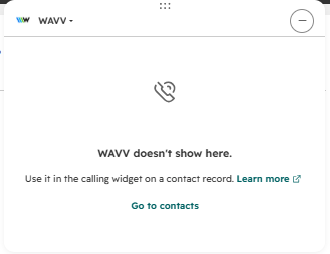
You've installed the WAVV app in HubSpot and invited your team, but when a rep opens HubSpot's calling panel they see "WAVV doesn't show here." Nothing is broken. In HubSpot, WAVV runs through the WAVV Chrome extension. Each rep needs the extension running in their own browser, and HubSpot's calling screen hands calls off to it.
Before you start
- The WAVV app is installed in HubSpot. One HubSpot admin does this once for the whole account. See How to Install the WAVV App in HubSpot.
- The rep has their own WAVV login. They were invited from WAVV's Team Management screen and accepted the invite. Use the same email in WAVV and HubSpot.
- The rep uses Google Chrome or Microsoft Edge for HubSpot.
What the rep sees
When WAVV is picked as the calling provider in HubSpot's calling panel, the panel shows:
- WAVV doesn't show here.
- "Use it in the calling widget on a contact record," with a Learn more link and a Go to contacts button.
Get WAVV working for each rep
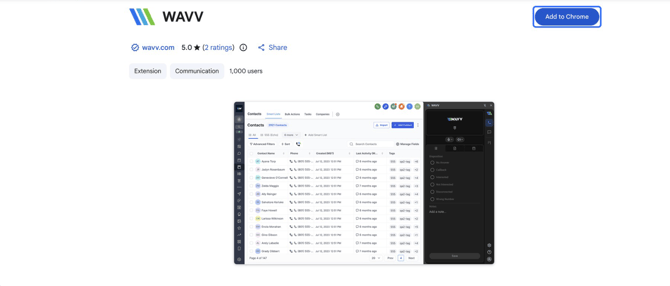
1. Go to link.wavv.com/chrome and click Add to Chrome.
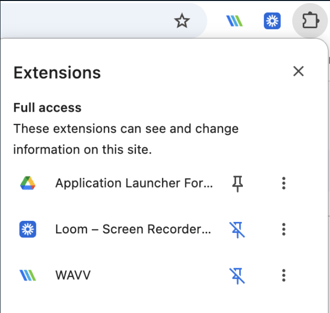
2. Click the puzzle-piece icon in Chrome and pin WAVV so it stays in your toolbar. Allow microphone access when asked.
3. Click the WAVV icon to open the side panel and sign in with your WAVV email.
4. Open HubSpot in the same Chrome window. You'll see WAVV docked on the right.
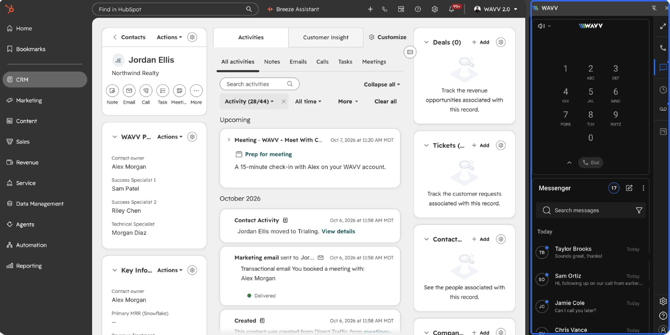
5. Start calling. You can dial from a call board in the WAVV side panel, or click the WAVV call icon next to a phone number in your HubSpot Contacts list.
Good to know: HubSpot's calling panel doesn't place WAVV calls by itself. It hands each call to the extension. If the extension is off, or you're in a different browser or window, WAVV won't show up.
Note: Using HubSpot's own Call button on a contact record to launch WAVV requires a HubSpot calling seat. Without one, dial from the WAVV side panel or the WAVV call icon in your Contacts list instead.
Still stuck?
Chat with WAVV Support using the chat icon in the bottom-right corner of the Help Center. Include a screenshot of what you see in HubSpot.
Related: How to Install the WAVV App in HubSpot · How to Call Contacts from HubSpot with Click-to-Call · WAVV for HubSpot: FAQs
Next step: WAVV for HubSpot: Setup Guide from Install to First Call
Frequently asked questions
Does every rep need to install the WAVV app?
No. One HubSpot admin installs the app once for the whole account. Each rep only needs to add the WAVV Chrome extension and sign in with their own WAVV email.
Do I need a HubSpot calling seat?
No. You can dial from the WAVV side panel without a calling seat. You only need one if you want HubSpot's own Call button to launch WAVV.
I installed the extension, but WAVV still doesn't show.
Make sure HubSpot and the WAVV side panel are in the same Chrome window. Turn the extension off and on (puzzle piece → Manage Extensions), refresh HubSpot, and try again.
I see an "Account Mismatch" screen.
Your WAVV email and your HubSpot email are different. See Account Mismatch screen: linking your WAVV account to your CRM.
Does WAVV work in the HubSpot mobile or desktop app?
No. WAVV runs through the browser extension, so use HubSpot in Google Chrome with the WAVV extension installed.