
Inbound Flows decide what happens when someone calls your team's WAVV numbers. Instead of one fixed forwarding setting, you build a short list of steps: ring the rep who called this person, then ring a group or a teammate, then send the call to voicemail or forward it to an outside phone. Every call ends somewhere known, and every missed call shows up with a Call back button.
Before you start
- Team accounts only. Solo accounts, and personal numbers that aren't shared with the team, keep their current call forwarding.
- Owners, managers and admins build and edit flows. Reps get the call pop, set themselves Available or Busy, and get missed-call alerts.
- We're rolling this out team by team. If you don't see Inbound Flows in your Dialer Settings yet, your team hasn't been switched over.
- Nothing changes when you're switched over. WAVV turns your current call forwarding settings into flows that route calls exactly as before, until you edit them.
| Step | What it does |
| Ring who called them | Rings the rep who called this person most recently (in the last 10 days), before anyone else. Always the first step when it's in the flow. |
| Ring a group | Rings a member group or everyone on the team: Round robin (one available rep per call, taking turns), Everyone at once (first to answer gets it) or One at a time (in the group's order). |
| Ring a person | Rings one teammate, or Their assigned rep: the rep the caller's contact is assigned to in WAVV. |
| Voicemail | Optional last step. Choose whose voicemail the caller reaches and who gets the missed-call alert. |
| Forward to a number | Optional last step, used instead of Voicemail. Sends the call to a US or Canadian phone outside WAVV, like a cell or an answering service. |
1. Find your inbound flows
1. Open Manager and go to Dialer Settings.
2. Click Inbound Flows in the section bar at the top.
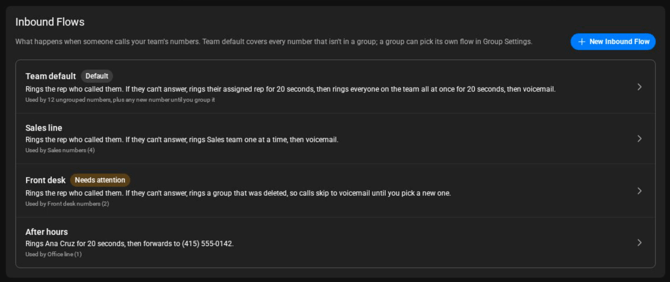
Each flow is listed as one sentence, with what uses it. Your team default flow covers every number that isn't in a number group, plus any new number until you group it.
Good to know: A flow WAVV built from your old settings shows "This flow matches your old call forwarding setting." Your calls route exactly as they did before until someone edits it.
2. Create a flow
1. In Inbound Flows, click New Inbound Flow.
2. Name the flow and click save. New flows start with the Ring who called them step and Voicemail.
3. Under Who should answer?, click Add a Step and choose Ring a group or Ring a person.
4. Set who to ring and the ring time (5 to 60 seconds per step).
5. Use the step's ⋮ menu to Move up, Move down or Delete step.
6. Click Save. Changes apply to the next call.
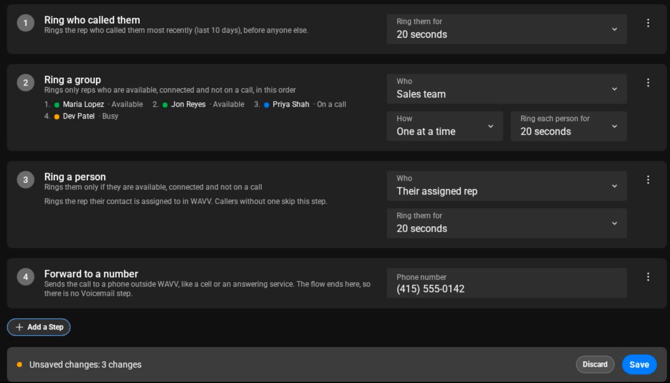
Calls run through the steps from top to bottom. A flow can have up to 20 steps. If nobody has answered after about 90 seconds, the call goes to the flow's last step. If there's no Voicemail or Forward step, the call hangs up after the last step.
Good to know: Only reps who are Available, connected and not already on a call get rung, and exactly one rep gets each call. The Ring a group step shows live counts of who's Available, On a call and Busy.
3. Give a number group its own flow
1. Go to Phone Numbers and open the number group.
2. Open Group Settings and choose the flow for that group.
The Inbound Flow column on the Phone Numbers page shows which flow each number uses.
4. Answer an inbound call
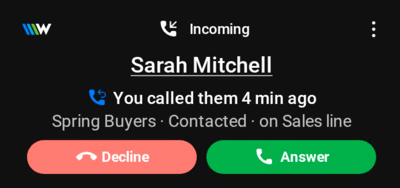
When a call rings you, your mini dialer shows Incoming with:
- The caller's name (click it to open the contact), or "Not in your CRM"
- Who on your team called them and when, like "You called them 4 min ago"
- The call board, stage and number they called
Click Answer or Decline. After an answered call, the Inbound Call Outcome prompt opens so you can disposition it with that board's dispositions.
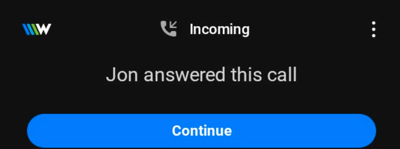
Good to know: If the call stops ringing for you, the pop says why, like "Maria answered this call" or "This call went to the next rep." Click Continue.
5. Set yourself to Busy
1. In the mini dialer, click ⋮.
2. Under Inbound calls, choose Busy. Inbound calls skip you while you're Busy.
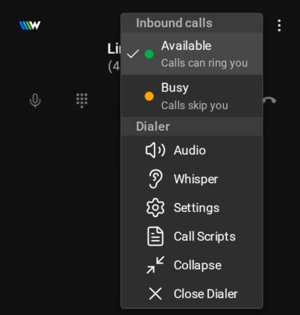
The dialer shows "Busy · inbound calls skip you" with a Set Available button. Your status resets to Available at midnight in your time zone.
6. Handle a missed call
When a call meant for you is missed, you get a Missed call alert with a Call back button. If no WAVV tab is open, it comes as a browser notification.
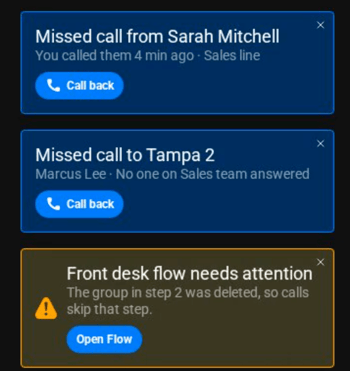
Every missed call also:
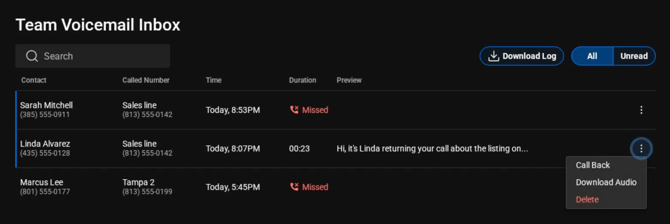
- Shows in the Team Voicemail Inbox with a red Missed label, until someone deals with it
- Shows Missed with the time on the lead's call board card for 48 hours (or Answered by and the rep's name)
- Is logged to your CRM
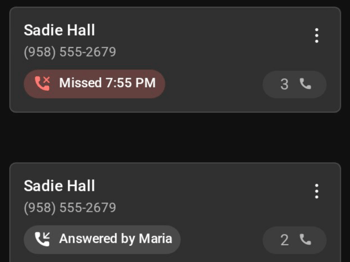
To call back from the inbox, open the row's ⋮ menu and click Call Back. That marks it read.
Good to know: You get one Missed call alert per call, even if the caller left a voicemail. Group and admin alerts show in the bell menu only, not as a pop-up.
7. Look up what happened to a call
1. In Manager, go to History and open Inbound History.
2. Use the Team Member picker to narrow it to one rep, or click Download Log to export it.
Inbound History is the permanent record of every inbound call: answered, missed and voicemail. The Outcome column shows what happened next, like "Called back by Sam" or "Not called back yet." Click any row to see the call details, recording and transcript.
8. Call back inbound leads first on a call board
1. On your call board, click Call Priority +.
2. Choose Recent inbound calls and click Add.
Contacts who called your board's numbers in the last 48 hours, answered or missed, now come up first.
Still stuck?
Chat with WAVV Support using the chat icon in the bottom-right corner of the Help Center.
Related links: Inbound Calling · Voicemails · How to create Number Groups in WAVV · Get Started with Call Boards
Next step: Get Started with Call Boards
Frequently asked questions
I don't see Inbound Flows in Dialer Settings.
Your team may not be switched over yet, since we're rolling this out team by team. Only owners, managers and admins can see Inbound Flows.
Calls aren't ringing me.
Check that you're set to Available, connected to WAVV, and not already on a call. When you're Busy, the dialer shows "Busy · inbound calls skip you." Also open your team's flow and make sure one of its steps rings you.
Why did the call ring someone else instead of me?
Ring who called them rings the rep who called that number in the last 10 days. A Ring a person step set to Their assigned rep rings the contact's assigned rep. Otherwise, the flow's next steps decide who gets the call.
I clicked Answer and it said someone else answered.
That's expected. Another rep answered first, and only one rep gets each call.
Why can't I delete a flow?
It's being used by a number group, or it's your team default. The Can't Delete message names what's using it, with a link to Group Settings.
My flow says Needs attention.
One of its steps points to a group that was deleted or a rep who left the team. Open the flow. The step explains what callers get until you fix it.
Will my calls route differently after we're switched over?
No. Your flows match your old call forwarding settings until someone edits them. If a flow still says "This flow matches your old call forwarding setting" and calls route differently, contact support.
Why is a missed call in both the Voicemail Inbox and Inbound History?
The Voicemail Inbox is your to-do list of calls someone still needs to handle. Inbound History is the permanent record. Clearing a call from the inbox doesn't remove it from History.
I called them back, but the missed call is still unread.
Only a call back started from the Voicemail Inbox marks it read. Open the call in the inbox to mark it read.
Does WAVV text missed callers back?
No. You can set up a missed-call text back with your CRM's workflows.
Can I set business hours or a phone menu?
Not yet. Business hours, phone menus, hold music and transfers aren't part of Inbound Flows today.