
The queue panel sits under your lines in the mini dialer. It shows how far you are through a campaign or Call Board, the calls you made this session and who you'll call next. You can also skip a contact for the rest of the session without leaving the dialer.
Good to know: The queue is rolling out to accounts in stages. If you don't see it yet, it hasn't reached your account.
Before you start
- You're dialing a campaign or Call Board from the floating mini dialer or the side panel dialer (the Chrome extension you use with HubSpot).
- There's nothing to set up. Anyone who can dial can use the queue.
- Click-to-call, the dialer bar and the mobile app don't show the queue.
| What you see | What it means |
|---|---|
| 25/62 | You've dialed 25 of the 62 contacts the dialer will call. With three lines dialing, you'll see a range such as 25–27/62. |
| Next | The next contact the dialer will call. |
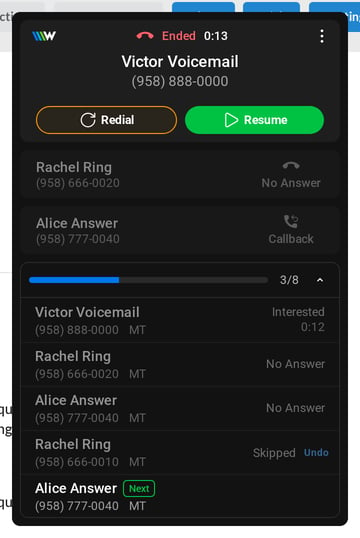
| Connected, Voicemail, No Answer, Busy, Failed | The result of a call you made this session. Once you save a disposition, it shows instead. Connected calls also show talk time. |
| Skipped | A contact you set aside for this session. Click Undo to put them back. |
| +62 earlier / +400 more | The list shows your last 50 calls and next 50 contacts. These rows count the rest. |
See your progress and who's next
1. Start dialing a campaign or Call Board. A progress strip shows under your lines with a count of how far you are.
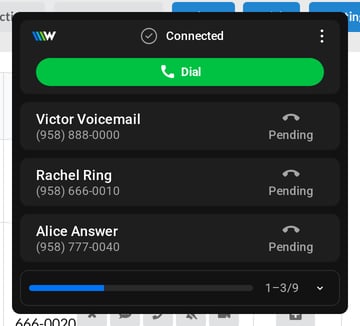
2. Click the progress strip to open the list. The list starts closed every session. It shows up to five rows in the floating mini dialer and three in the side panel.
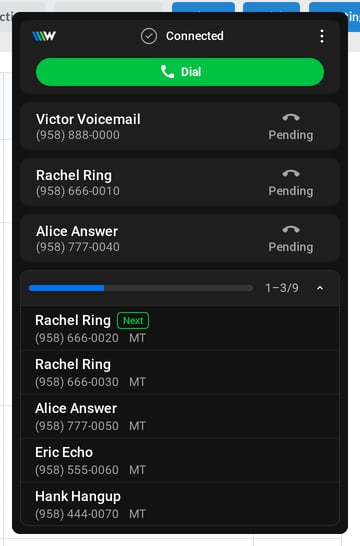
3. Scroll down to see who's next, with each contact's number and time zone. Scroll up to see this session's calls and how each one went.
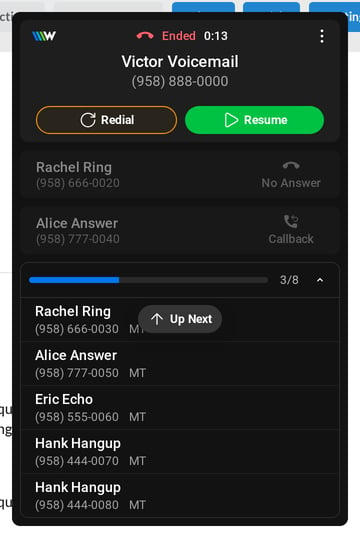
4. If you scroll away from the next contact, click Up Next to jump back.
Skip a contact
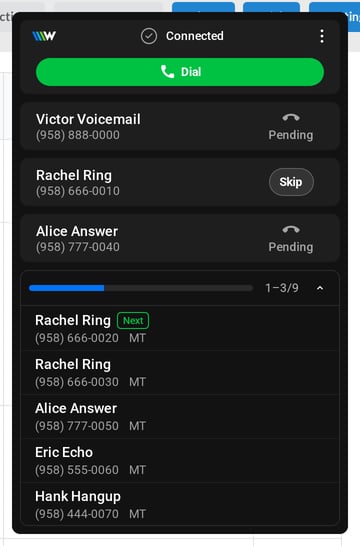
1. Hover over a contact in the up-next list and click Skip. On a touch screen, Skip is always showing.
2. The contact moves up into this session's calls, marked Skipped.
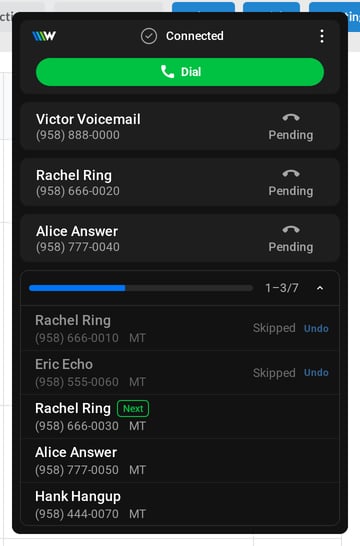
3. To skip a contact already on a line, hover over a Pending line and click Skip. The line fills with the next contact.
Good to know: Skip only lasts for this session. Nothing is saved to the contact, campaign or Call Board, so the contact is back in the queue the next time you dial the list.
Undo a skip
1. Scroll up in the list to the Skipped contact.
2. Click Undo. The contact goes back in the queue.
Still stuck?
Reach out to WAVV Support through the chat icon in the bottom-right corner of the Help Center.
Related links: How to Skip a Contact Before Dialing · How to Use Bulk Actions on Call Boards
Next step: How to Skip a Contact Before Dialing
Frequently asked questions
Why don't I see the queue?
The queue is rolling out in stages, so your account may not have it yet. It also only shows when you're dialing a campaign or Call Board from the floating mini dialer or the side panel dialer, not for click-to-call or in the dialer bar.
Why do I only see a progress bar?
The list starts closed every session. Click the progress strip to open it.
Why doesn't the count match my list?
Contacts on the DNC list or held back by nuisance protection aren't counted. On a saved campaign, the count includes contacts dialed in earlier sessions. On a Call Board, the total grows as more leads load. Contacts waiting for their local calling hours are counted but don't show in the list until they can be called.
Why did my skipped contacts come back?
Skip only lasts for the current session. When the session ends or you close the dialer, skipped contacts go back in the queue.
Why did a contact I skipped get called anyway?
The dialer queued them again, for example for a callback, an inbound call or a time zone requeue, or you redialed them. Either one clears the skip.
The dialer says "Everyone left is skipped." What do I do?
Only skipped contacts are left. Click Undo on a skipped contact to keep calling, or end the session.
Can I skip the contact the dialer is calling?
No. You can only skip contacts in the list or on a Pending line. Once the dialer is calling, hang up instead.
Can I reorder the queue or choose who to call next?
No. The queue shows the order the dialer will call in, but you can't change it from the list.
Can my manager see who I skipped?
No. Skips aren't saved or reported anywhere.
Why doesn't clicking a contact's name open their record?
Names open the contact's page in your CRM. If a number has no CRM contact, the name isn't a link.