
You can now call contacts straight from your HubSpot Contacts list. A WAVV call icon sits next to each phone number. Click it, and WAVV opens and dials that contact, and the call is saved to their HubSpot timeline like any other WAVV call.
Before you start
- You'll need Google Chrome with the WAVV Chrome extension installed. The icon doesn't appear in HubSpot's desktop or mobile apps, or in other browsers.
- Click-to-call works in the Contacts list only. It doesn't appear on contact records, Companies or Deals yet.
- Only US and Canada phone numbers can be dialed.
- There's nothing to turn on. The icon comes with the WAVV Chrome extension.
| Where the icon appears | Shows the WAVV icon? |
|---|---|
| Phone Number column | Yes |
| Mobile Phone Number column | Yes |
| WhatsApp Phone Number column | Yes |
| Custom phone columns | No |
| Empty numbers or numbers under 10 digits | No |
Call a contact from your Contacts list
1. In Chrome, open HubSpot and go to CRM → Contacts.
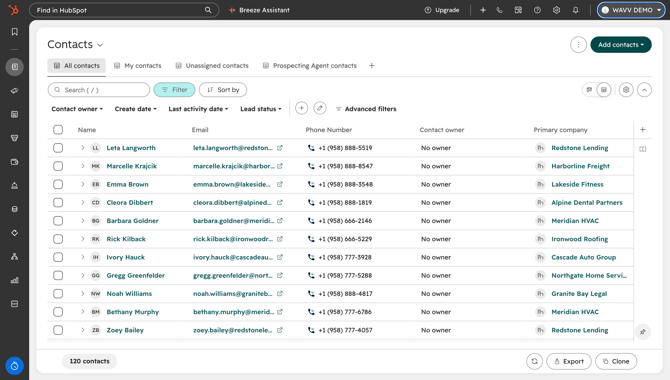
2. Find the contact you want to call. The WAVV call icon is just to the left of their phone number. Hover over it to see Call with WAVV.
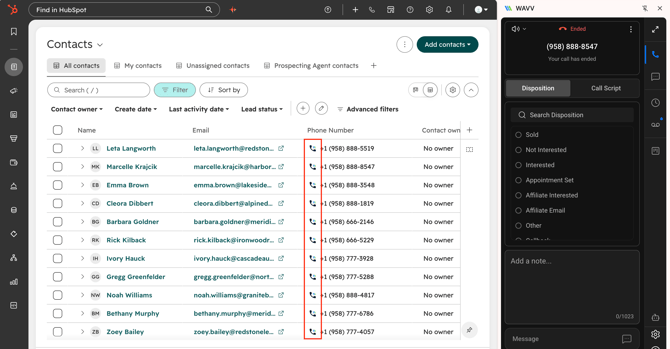
3. Click the WAVV call icon. WAVV opens in the side panel and starts dialing.
4. When the call ends, it's saved to the contact's timeline in HubSpot.
Note: Click the WAVV icon, not the phone number itself. Clicking the number opens HubSpot's own calling.
Good to know: The icons keep up as you scroll, sort, filter or switch views, and they appear in every HubSpot tab you have open.
If you're signed out of WAVV
1. Click the WAVV call icon as usual.
2. The side panel opens to WAVV's sign-in. Sign in, and your call goes through.
Still stuck?
Chat with WAVV Support using the chat icon in the bottom-right corner of the Help Center. Include a screenshot of your Contacts list and the contact you tried to call.
Related: Account Mismatch screen: linking your WAVV account to your CRM · How to Install the WAVV App in HubSpot
Next step: WAVV for HubSpot: Setup Guide from Install to First Call
Frequently asked questions
I don't see the WAVV icon in HubSpot.
Make sure you're in Chrome with the WAVV extension, on the Contacts list (not a contact record, Companies or Deals). Then reload the tab and give it up to a minute. If it still doesn't show, restart Chrome so the extension updates.
Why do some contacts have an icon and others don't?
The icon only shows when the contact has a phone number with at least 10 digits in the Phone Number, Mobile Phone Number or WhatsApp column.
My call went through but didn't log in HubSpot.
You're probably in a different HubSpot account than the one WAVV is connected to. Compare the number in your browser's address bar after /contacts/ to your connected account. Switch to the connected account, or reconnect WAVV to the right one. The dialer may also not show the contact's name in this case.
Can I call international numbers?
Not right now. Click-to-call is built for US and Canada numbers, and international numbers won't dial correctly.
Can I text from HubSpot too?
Not yet. This release is for calls only. You can still text from WAVV directly.
Does this work in the HubSpot mobile or desktop app?
No. Click-to-call only works in Google Chrome with the WAVV extension installed.