
Overview
Learn how to leave outbound voicemails and listen to inbound voicemail messages.
Recording your Voicemail Message
Record a voicemail message that you can drop so you don't have to manually leave a voicemail each time you're connected to an answering machine.
Open your WAVV Dialer Manager and navigate to Settings.
Scroll until you find Outbound Voicemail
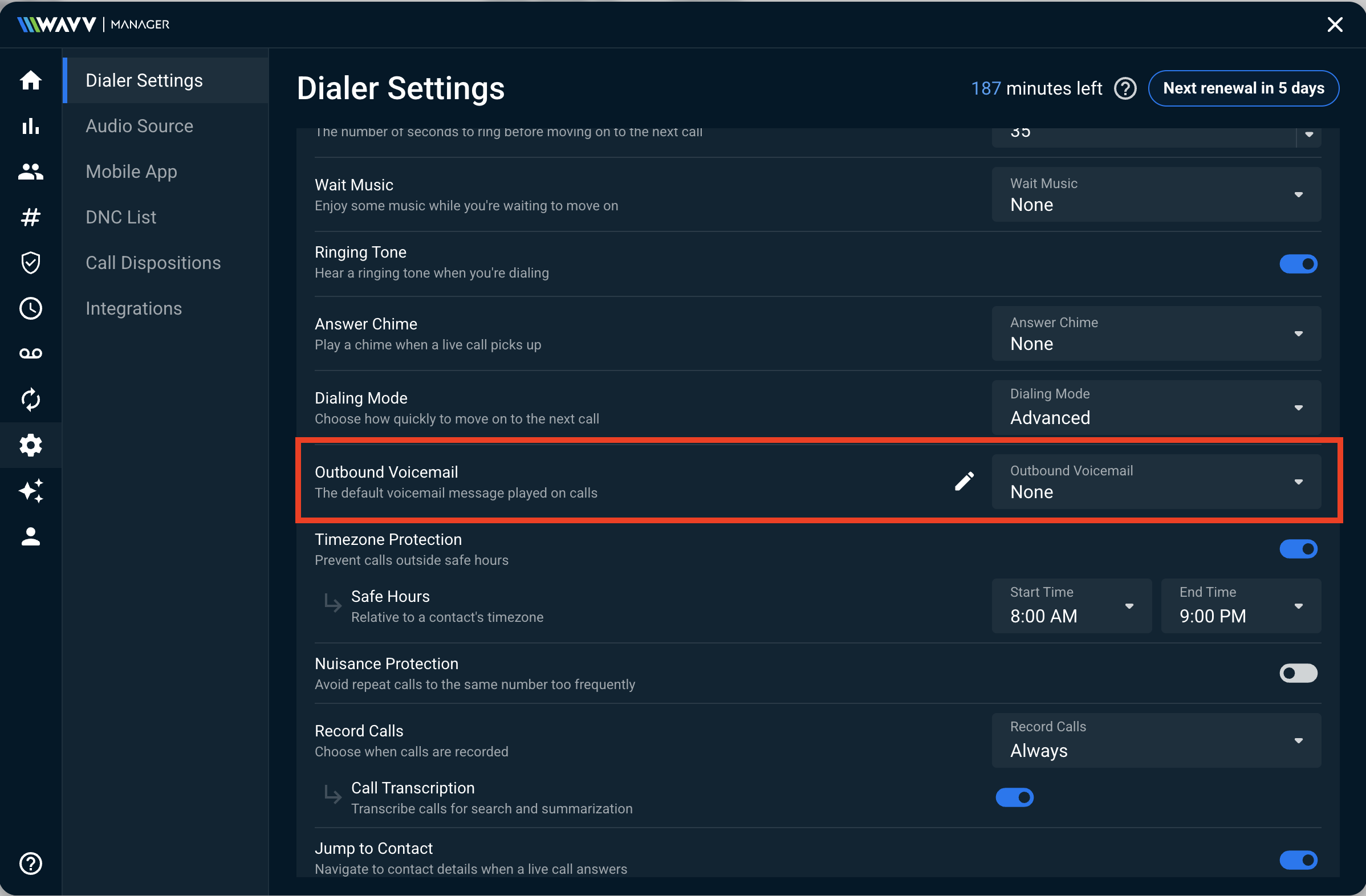
Click the pencil icon to edit the outbound voicemail.
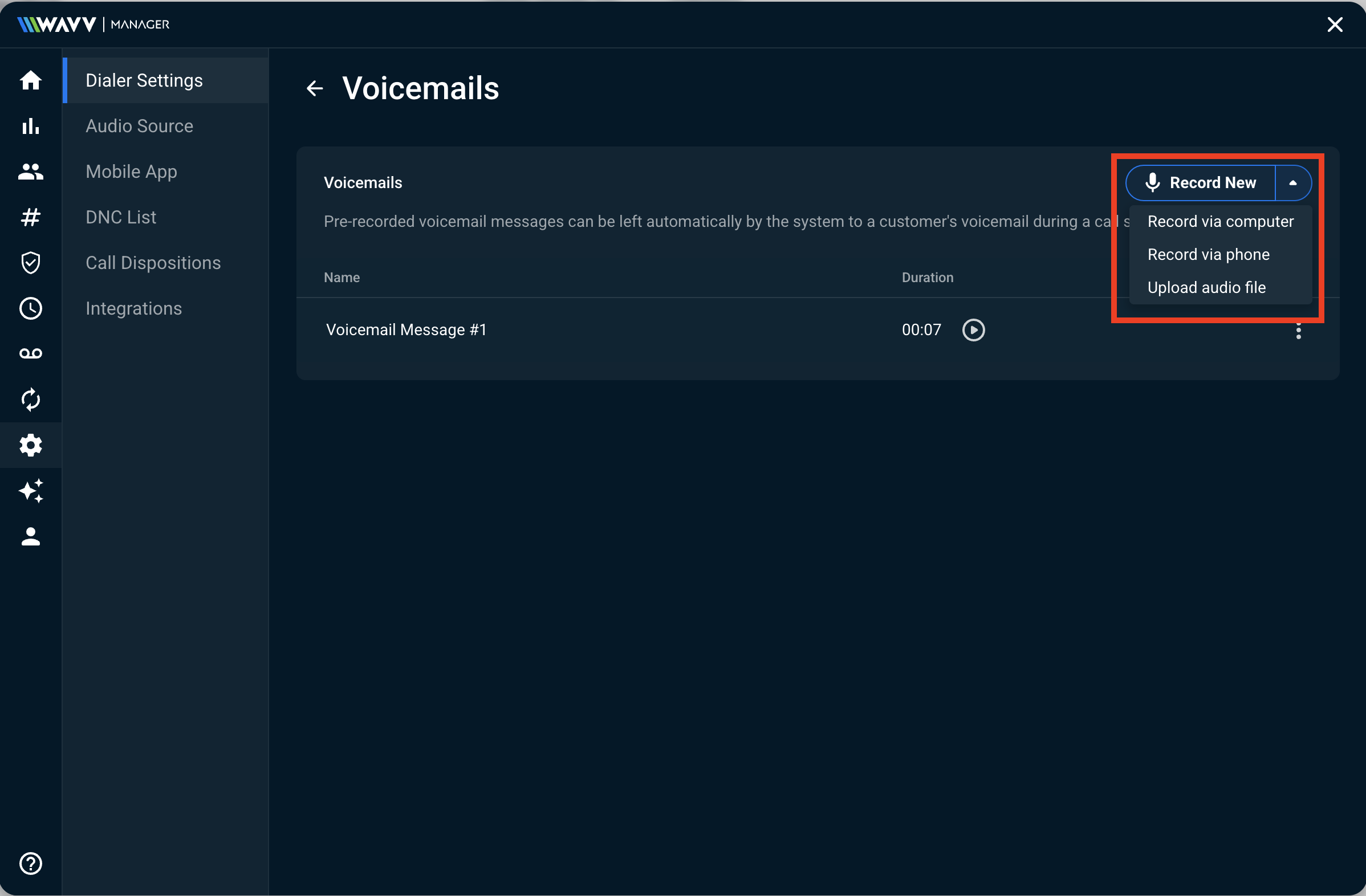
These voicemails can be created through the following methods:
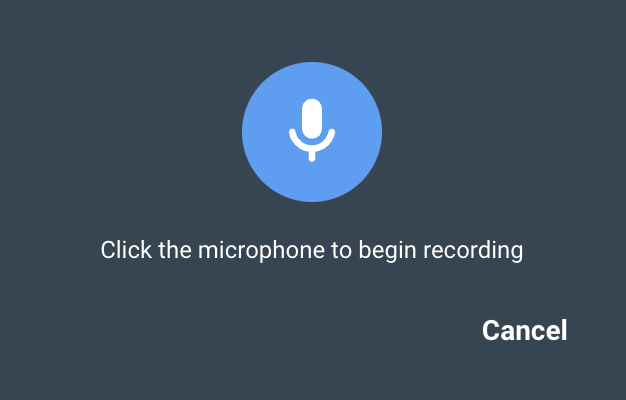
Record Via Computer - If your computer has a microphone or a connected bluetooth headset, you can create a new voicemail from your computer. After granting your browser permission, you can click the microphone to begin recording.
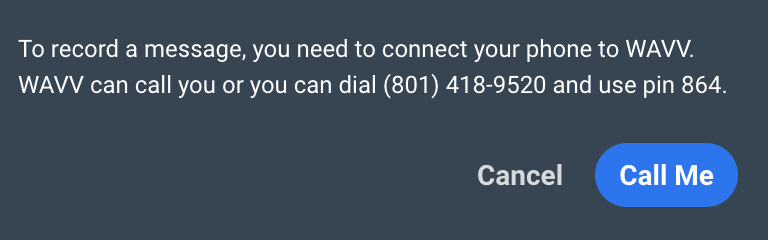
Record Via Phone - Select Record Via Phone from the drop down menu next to the Record Voicemail button. You will then be prompted to have WAVV call you or call in yourself. For help setting up your phone number, click here.
Upload an Audio File - You can upload a prerecorded audio file (.mp3, .wav, and .m4a) as a voicemail. Select Upload an Audio File from the drop down menu. You will then be prompted to select a file from your computer.
How to Leave YOUR Voicemail Message
Voicemails can be left in 2 ways:
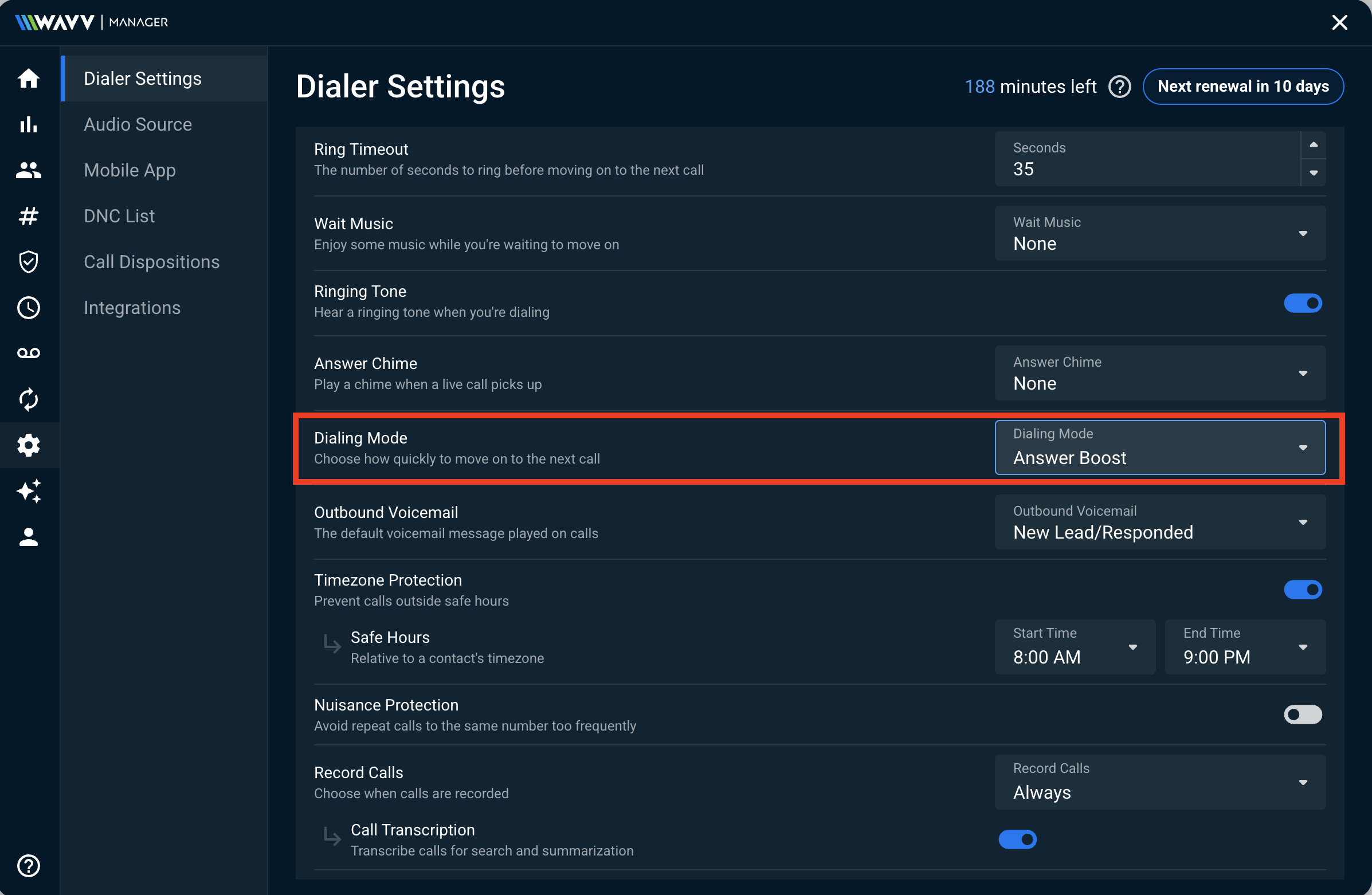
If you have "Standard" or "Advanced" selected as your Dialing Mode (see above):
When you're connected to someone's answering machine, click the voicemail icon to drop your pre-recorded voicemail message.
If you're multiline dialing and you're connected to additional answering machines in the background, WAVV will drop your voicemail message automatically in the background since you're already connected with someone else.
Tip: Adjusting the ring timeout to 30–35 seconds can improve the reliability of voicemail drops, ensuring calls have enough time to reach the answering machine.
When Answer Boost is active, WAVV will attempt to skip answering machines and only connect you with live calls. If WAVV connects with an answering machine in the background while you're talking to a live call, your outbound voicemail message will be left automatically! To learn more about Answer Boost, check out this article! Note: If consistent voicemail drops are required, consider disabling Answer Boost as it prioritizes connecting to live calls over leaving voicemails.
Listening to Inbound Voicemails
In order to receive voicemails from inbound calls, make sure you have it included in one of your inbound call destination settings:
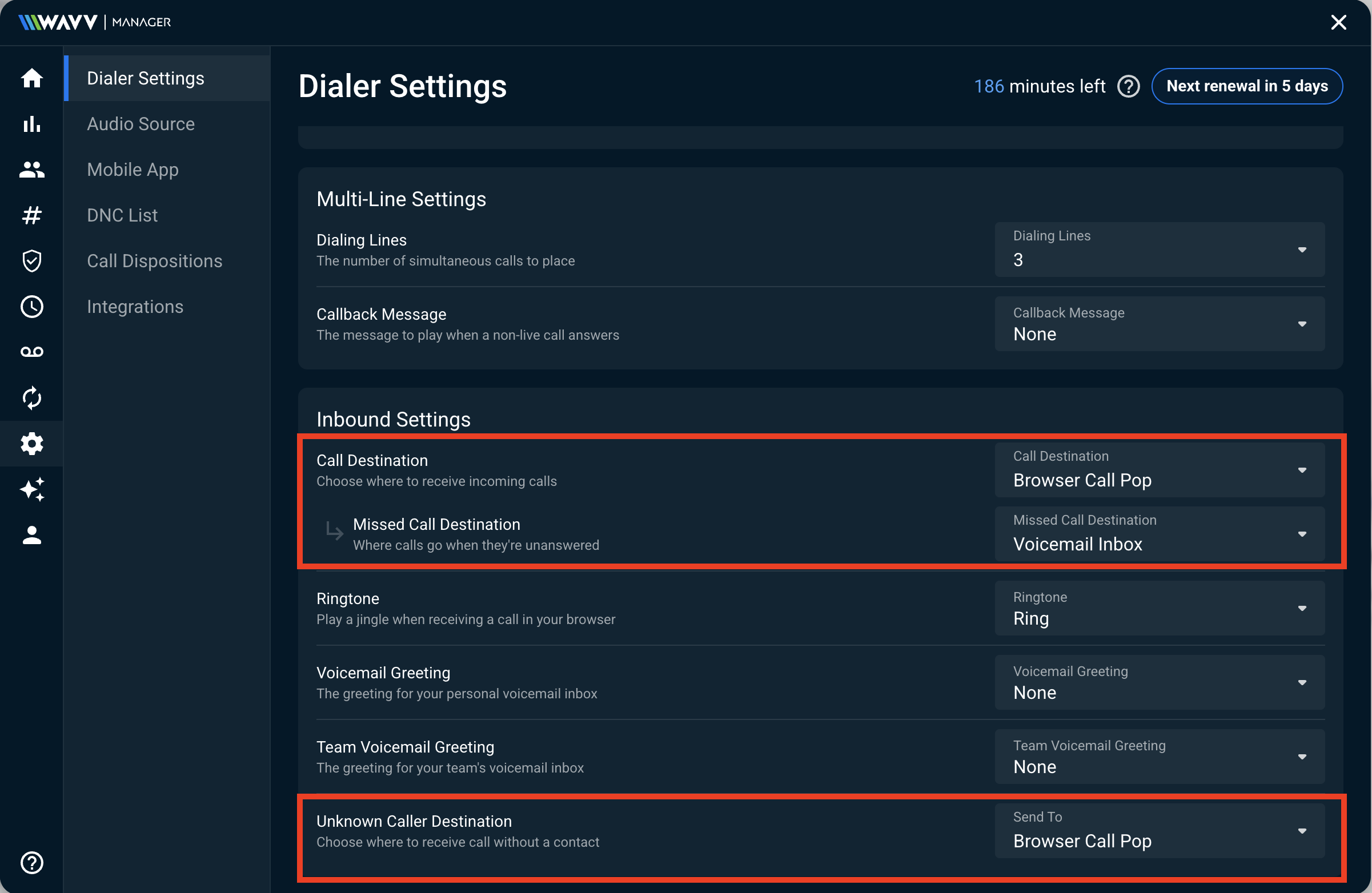
If you don't have any inbound call destinations set to voicemail, then inbound callers won't be connected to your answering machine. We recommend having at least your missed call destination set to "Voicemail Inbox."
To find these inbound voicemails, go to the Voicemail tab on the left:
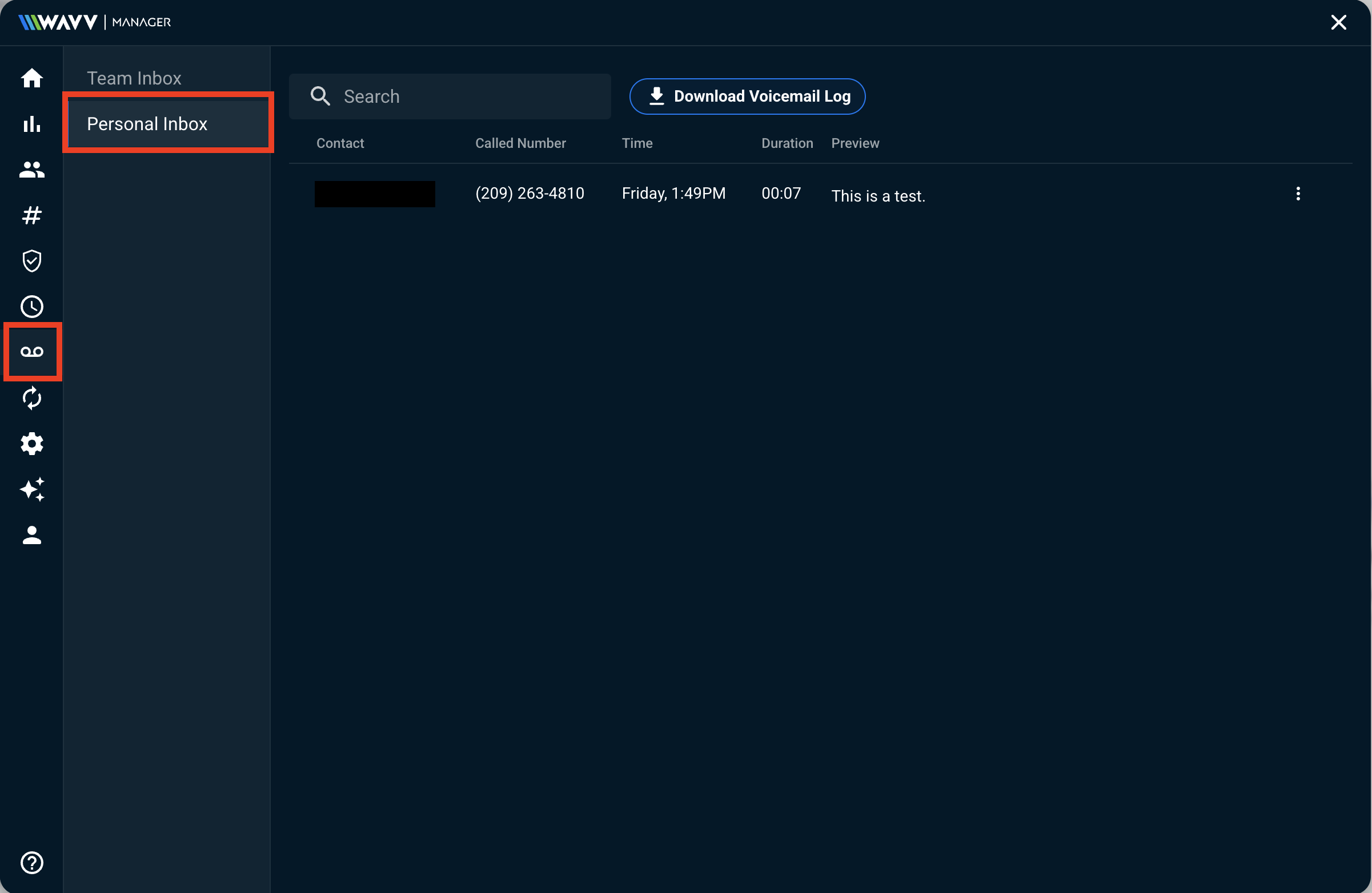
IMPORTANT: Admins can't see their team members' personal inbox. They only have access to the Team Inbox which would be for teams who use the "Team Voicemail Greeting" option and receive Team voicemail messages.