
This guide takes you from installing WAVV to making your first call in HubSpot. It also explains how the pieces connect: your HubSpot contacts, the segments that decide who you call, the call board that organizes the work, and the WAVV side panel where calls happen.
How it all fits together
WAVV doesn't replace HubSpot. It sits on top of it. Your contacts stay in HubSpot. WAVV reads them through a segment, lays them out on a call board, and writes every call back to the contact record.
- Contacts · Where: HubSpot · What it does: Your source of truth: names, numbers, owners, lead status
- Segment · Where: HubSpot · What it does: The filter that answers "who should we call?"
- Call board · Where: WAVV · What it does: Sorts contacts into stages so reps know who's next
- Side panel · Where: WAVV · What it does: Where you dial, talk, pick a disposition and add notes
After each call, the call outcome, notes and recording link are written back to the HubSpot contact timeline, and the contact moves to its next stage on the board.
The one rule to remember: In HubSpot, you dial from call boards, and call boards get their contacts from segments. HubSpot doesn't have tags the way GoHighLevel does, so anything you'd normally do with a tag (group leads, move them into a stage) you do with a segment instead. If a contact isn't in a segment connected to your board, it won't show up to be called.
Before you start
You'll need:
Google Chrome or Microsoft Edge. Safari and Firefox aren't supported.
A HubSpot admin to install the WAVV app once for the whole account. Reps who join later don't need admin rights.
Your WAVV account email. WAVV links to HubSpot by matching your email, so use the same one everywhere.
At least one segment of contacts you want to call. If you don't have one yet, Phase 2 shows you how to build it.
Moving from GoHighLevel or another CRM? A WAVV account is tied to one CRM at a time. HubSpot needs its own WAVV account and phone number, and your existing account can't be carried over.
Who does what
- HubSpot admin · Does once: Installs the WAVV app and invites the team (Phase 1) · Does every day: —
- Manager · Does once: Builds segments and call boards (Phases 2–3) · Does every day: Adjusts segments and stages as the process changes (Phase 5)
- Agent / rep · Does once: Installs the Chrome extension and signs in · Does every day: Opens the call board and dials (Phase 4)
Phase 1: Install and connect
There are two installs. Do them in this order: first the WAVV app inside HubSpot (once per account), then the Chrome extension (every rep).
A. Install the WAVV app in HubSpot (admin, one time)
While signed in to HubSpot as an admin, open the WAVV app install link from your WAVV onboarding email, or find WAVV in the HubSpot Marketplace.
Approve the connection. WAVV links to your WAVV account by matching your email, and you become the WAVV admin for your team.
B. Install the WAVV Chrome extension (every rep)
Go to link.wavv.com/chrome and click Add to Chrome. The extension doesn't come up when you search the Chrome Web Store, so use this link.
Click the puzzle-piece icon in Chrome's toolbar and pin WAVV so it stays visible.
When asked for microphone access, click Grant Access. Allow notifications too.
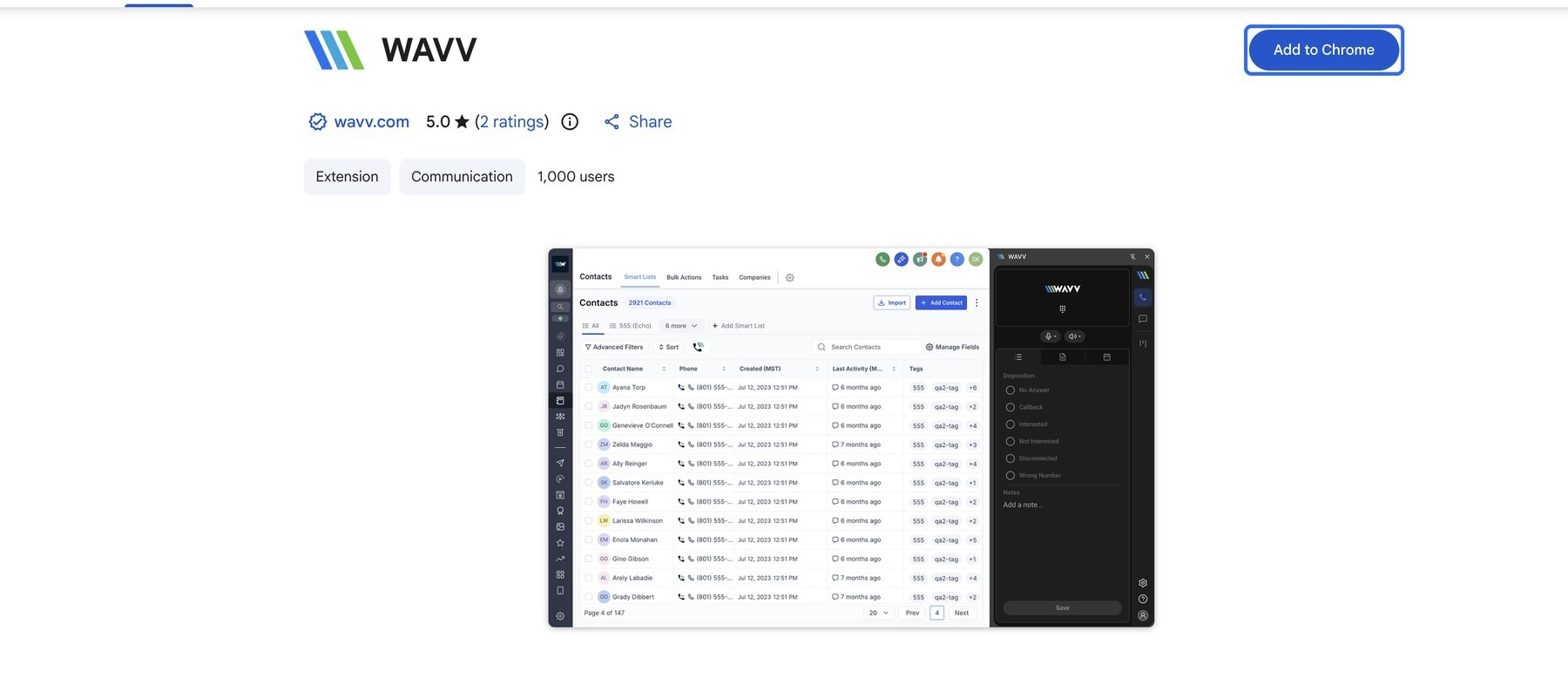
The WAVV extension in the Chrome Web Store. Click Add to Chrome.
C. Sign in and open the side panel
Click the pinned WAVV icon to open the side panel.
Sign in with your WAVV email. You'll get a 6-digit code or a sign-in link by email.
Open HubSpot in the same Chrome window. The side panel stays docked on the right while you move around HubSpot.
Make a test call from the dial pad to make sure your audio works.
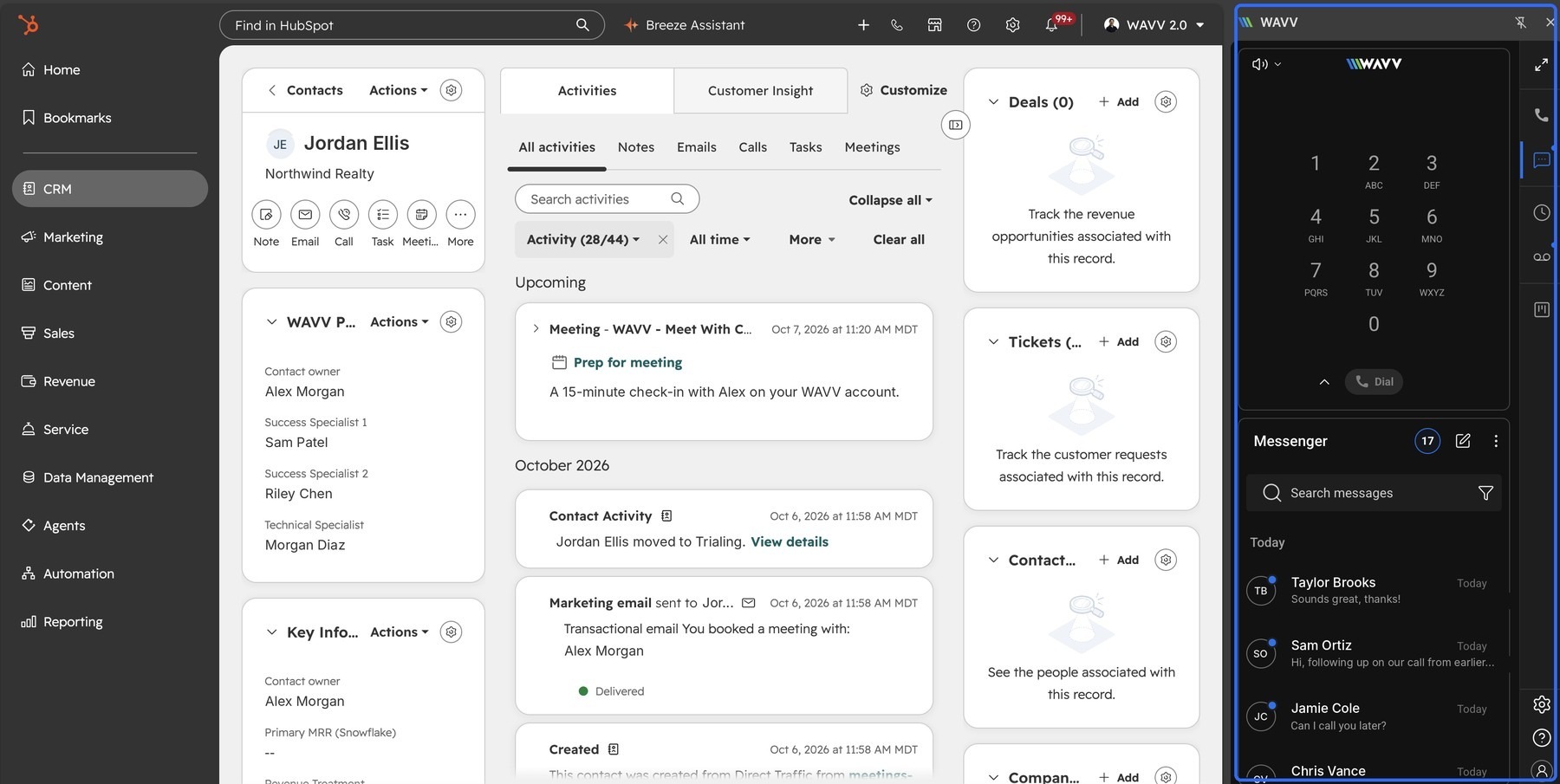
A HubSpot contact record with the WAVV side panel open on the right: dial pad on top, Messenger below, and the toolbar for calls, history, voicemail and call boards on the far right.
How this connects: The side panel is your phone. Everything you do in it (calls, texts, dispositions, notes) is written back to whichever HubSpot contact you're working on, so the contact timeline always shows the full history without anyone typing it in.
D. Invite your team
From WAVV's team management screen, invite your reps. Names auto-suggest from HubSpot.
Choose a role for each person: Agent for dial-only access, or Manager for full access, including building call boards.
Each rep then completes steps B and C on their own computer.
Phase 2: Build the segment you'll call
A segment (HubSpot's new name for lists) is the "who." Your call board can only show contacts that are in a segment, so this is where you decide what your reps work on.
Pick the right kind of segment
- Active (filter-based) · What it does: Updates itself. Contacts join and leave as they match or stop matching your filters. · Use it when: You want an ongoing process, like "new leads from the last 7 days" or "Lead status = Attempting."
- Static · What it does: A fixed snapshot of exactly who you added. It doesn't change on its own. · Use it when: One-time campaigns, a list you uploaded, or "everyone I've selected right now."
Fastest way: create a static segment from your contacts view
In HubSpot, go to CRM → Contacts.
Use the filters at the top (Contact owner, Lead status, Last activity date, Advanced filters) to narrow the list to the people you want to call.
Check the box at the top of the table to select all. Then choose to select all contacts that match, not just the visible page.
Click More in the bar that appears above the table.
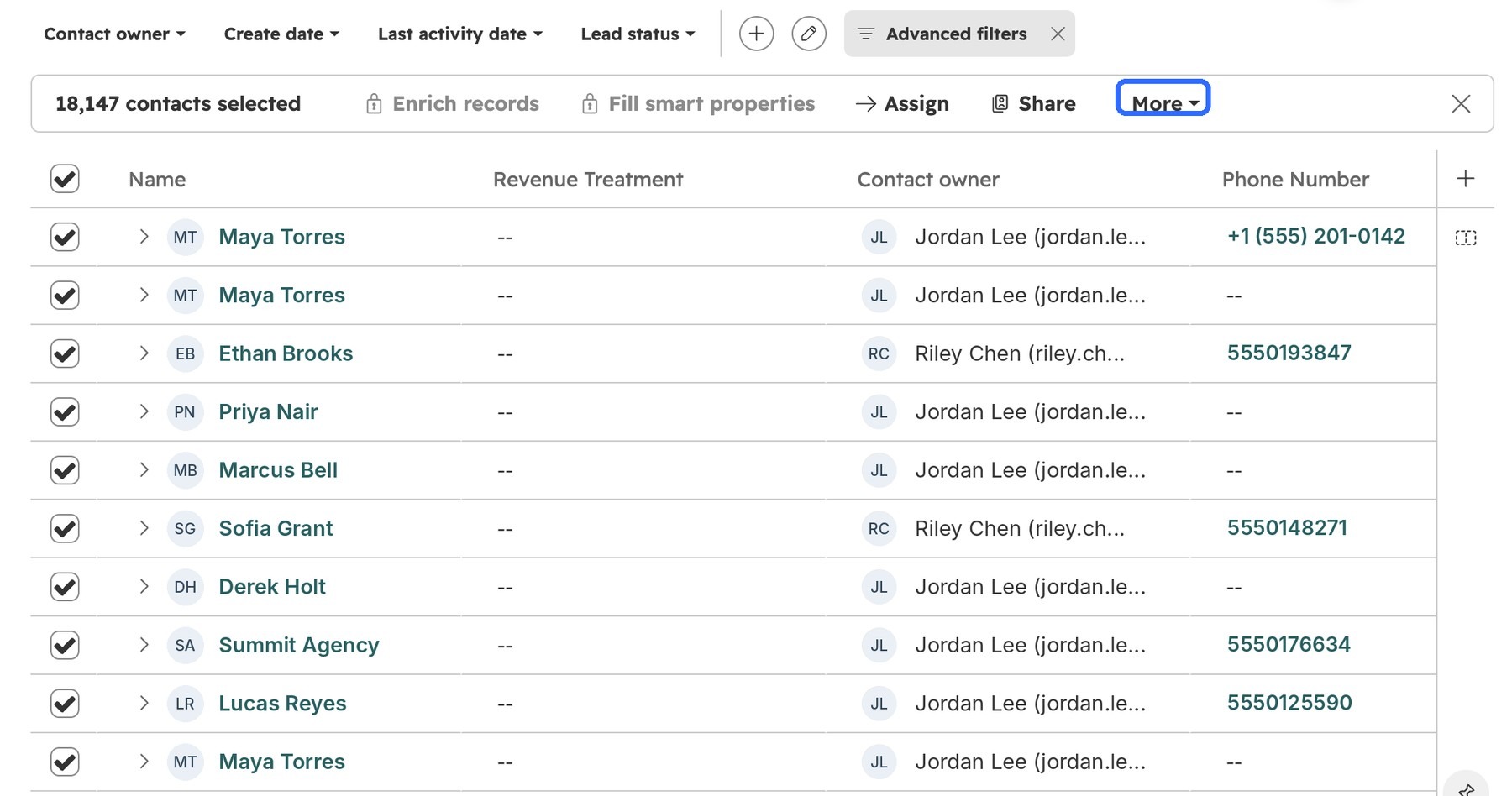
Contacts filtered and selected. The More menu holds the segment option.
5. Choose Add to static segment.
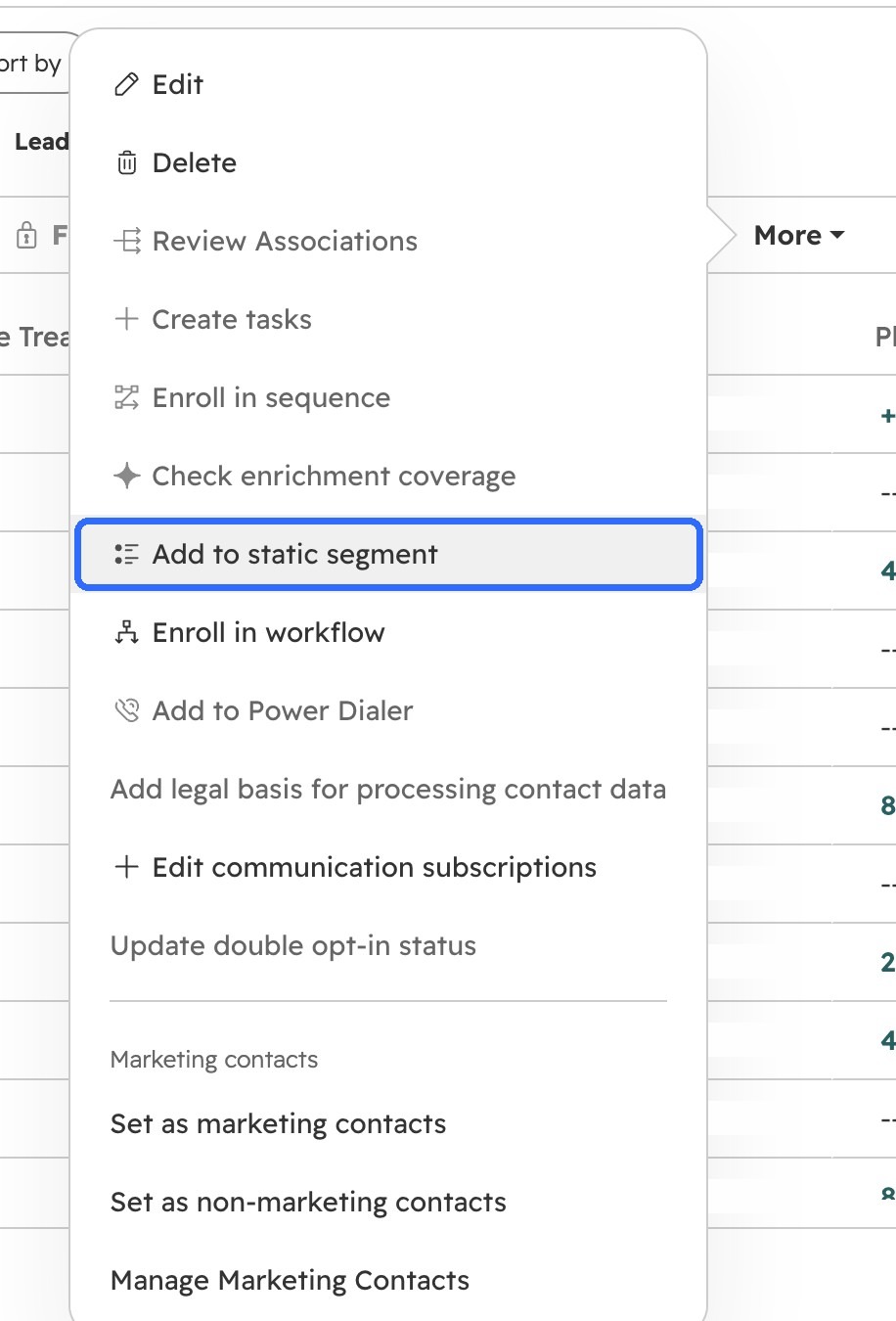
6. Pick an existing segment, or click Create new segment and give it a name your
team will recognize.
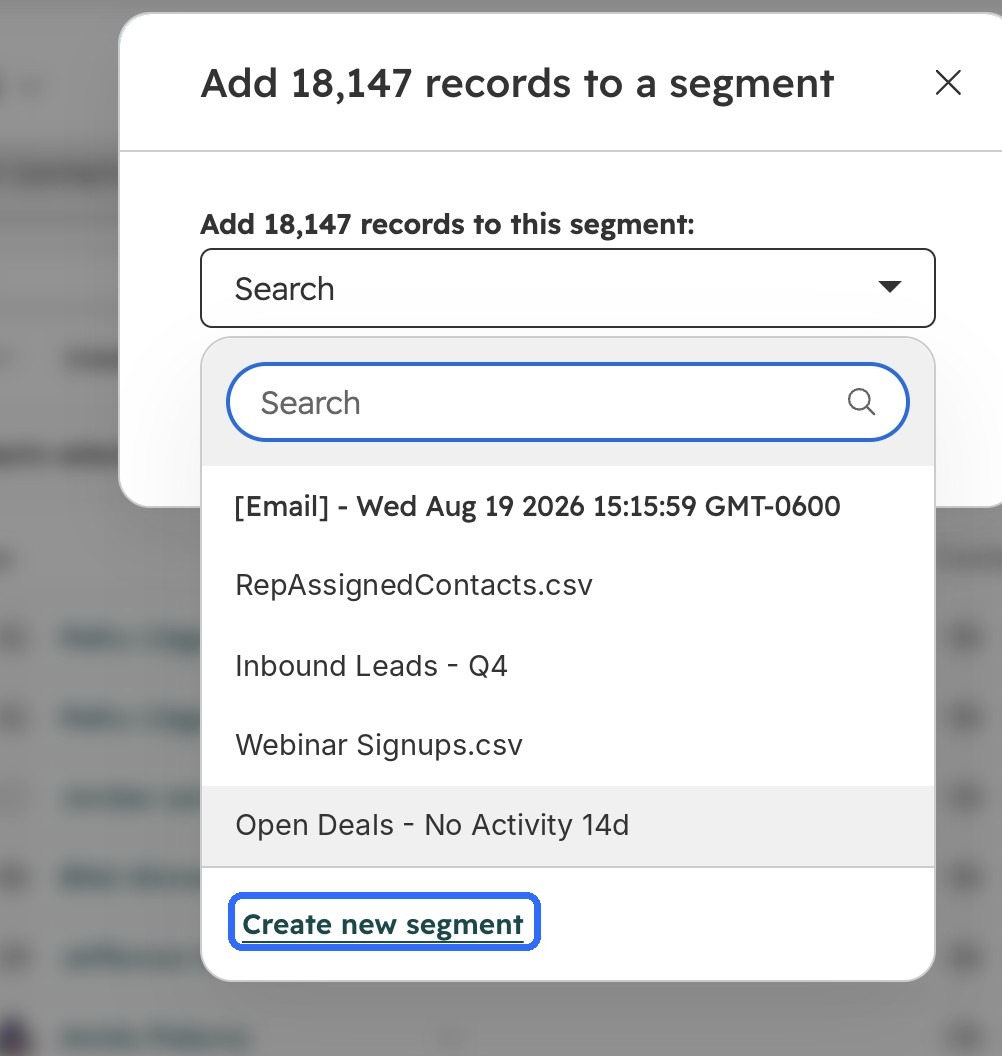
7. HubSpot confirms how many contacts were added. Click the segment name to
open it.
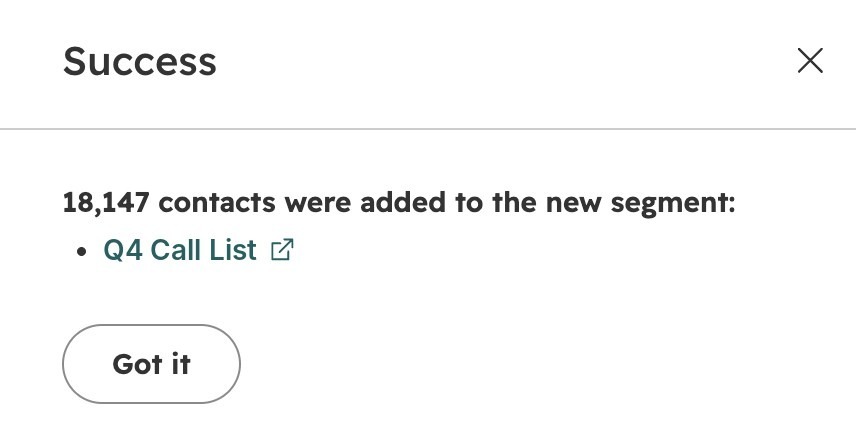
8. Check the segment page to make sure the size and contacts look right. This is
the list your call board will pull from.

Tip: Name segments after the job they do (for example, "Q4 Call List"), not after a person. You'll pick them by name in Phase 3.
Phase 3: Bring the segment onto a call board
The call board is your working view. It shows contacts in columns (stages), sorted so reps know who to call next. In HubSpot, the call board is the only place you dial from.
In the side panel, click the call boards icon and create a new board or open an existing one. Default stages and dispositions are set up for you, and you can rename or add stages to match your process.
Open the board's settings (gear icon), then click Contacts in the left menu.
Choose how contacts get onto the board:
Imports: a one-time bulk pull. Good for static segments.
Connections: keeps the board in sync with a segment as people join or leave it. Good for active segments.
For a one-time import, click Add Import.
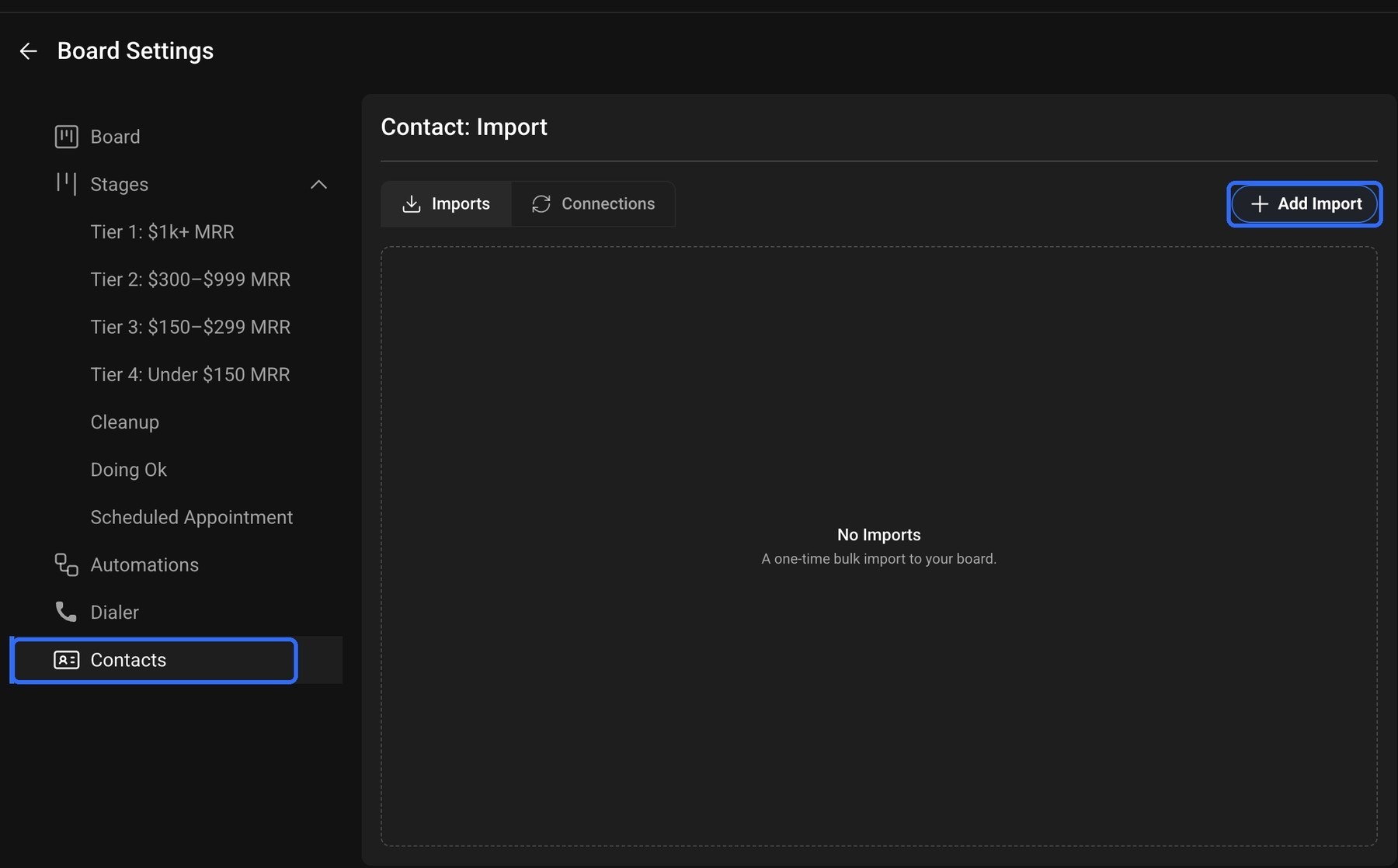
Board Settings → Contacts. Your stages are listed on the left, and Add Import is at the top right.
5. Choose Segment ("Bring in everyone in a HubSpot segment, once"). Open the Segment dropdown and pick the segment you built in Phase 2.
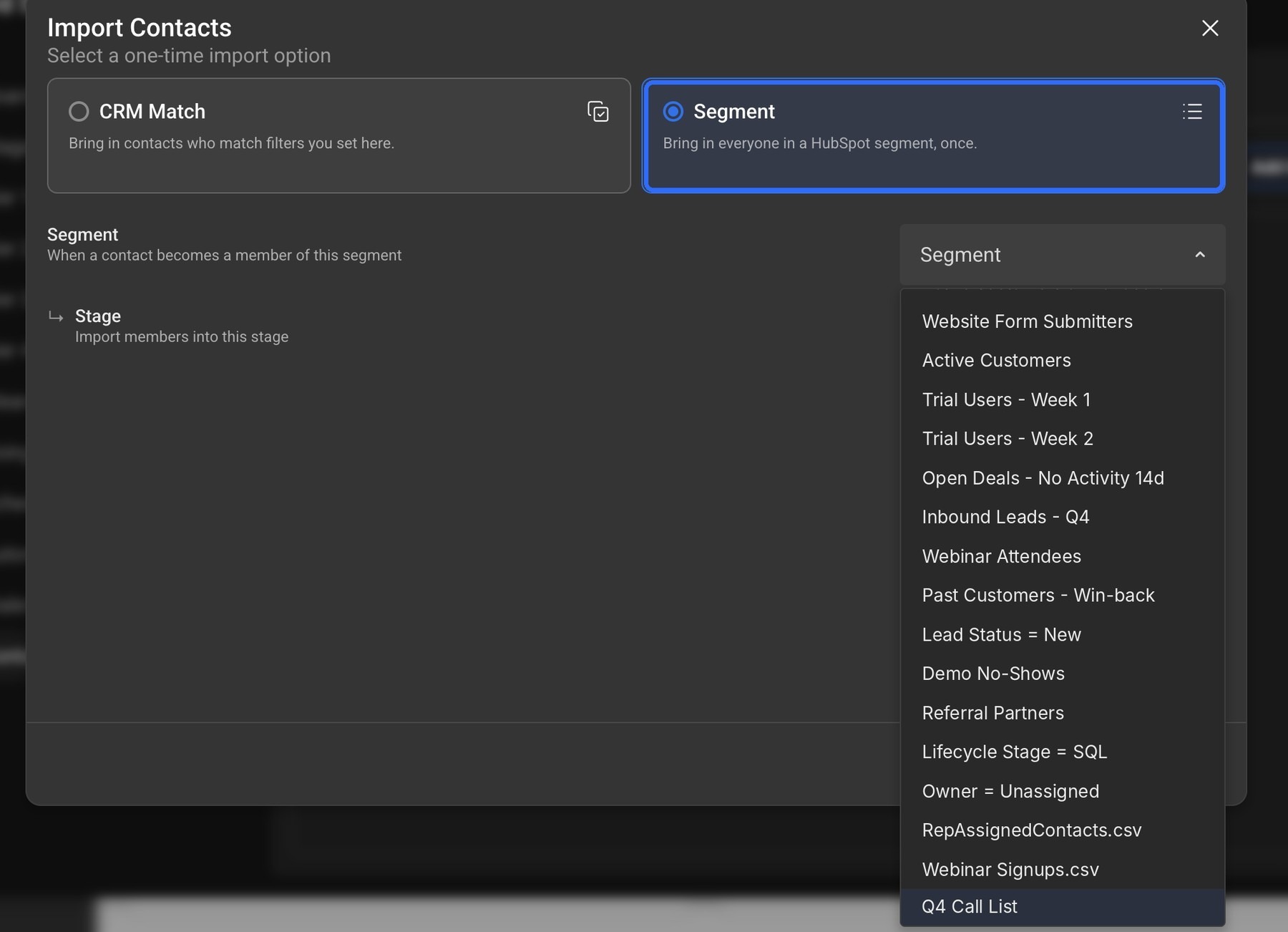
6. Under Stage, pick the column these contacts should land in.
7. Check the contact count at the bottom, then click Import.
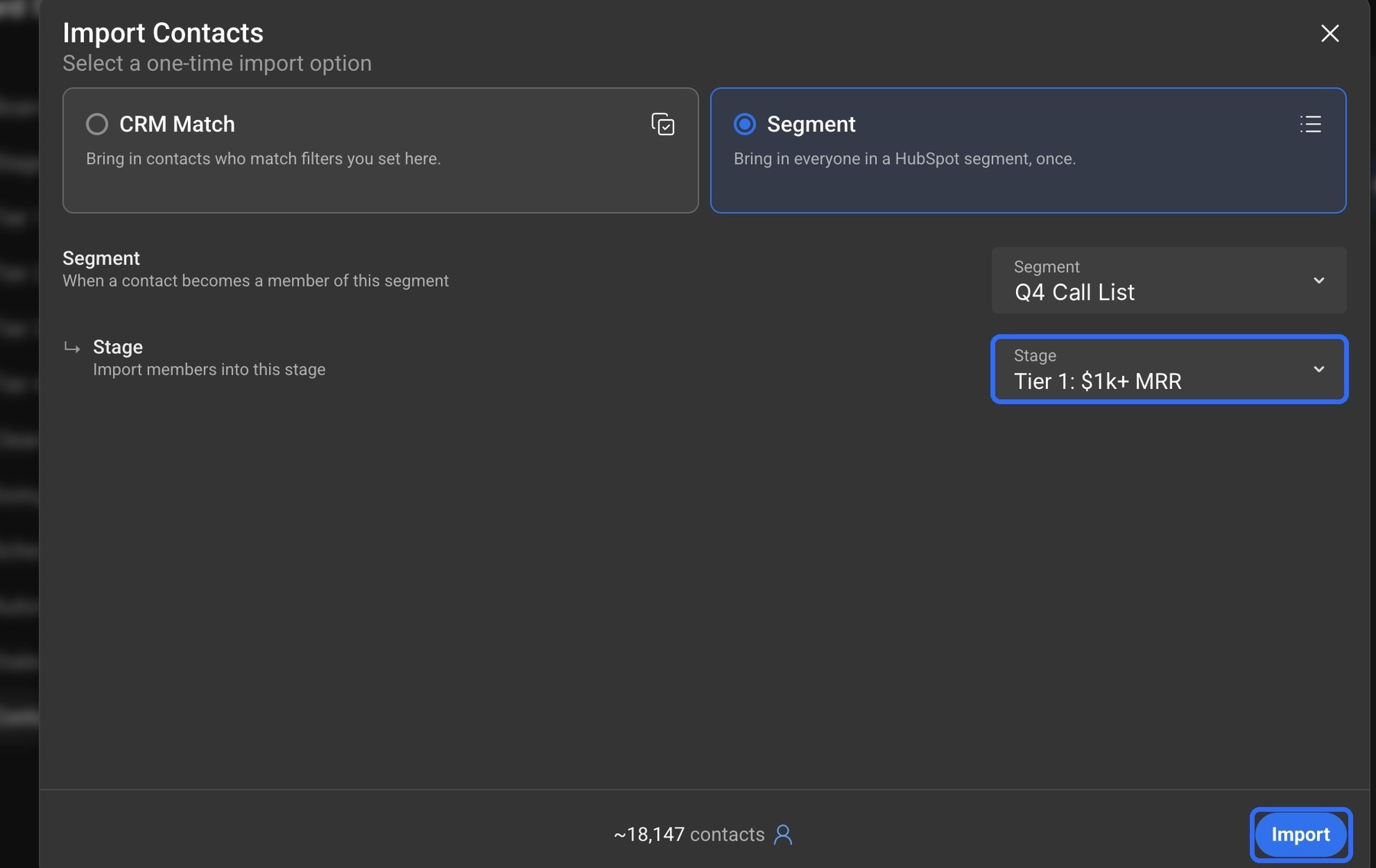
Other option: CRM Match. CRM Match skips the segment and lets you set filters right inside WAVV. Use it for quick pulls. Use segments when you want the list to live in HubSpot, where your whole team can see it.
How this connects: One board can hold several segments, each landing in its own stage. For example, a "New leads" segment goes to the New stage, and a "No answer twice" segment goes to the Follow up stage. That's how you get the same organization that tags give you in GoHighLevel. If a contact is already on the board, importing again leaves them where they are, so you won't get duplicates.
Phase 4: Make calls from the board
Once contacts are on the board, the daily routine is: open the board, work through a stage from top to bottom, and disposition every call.
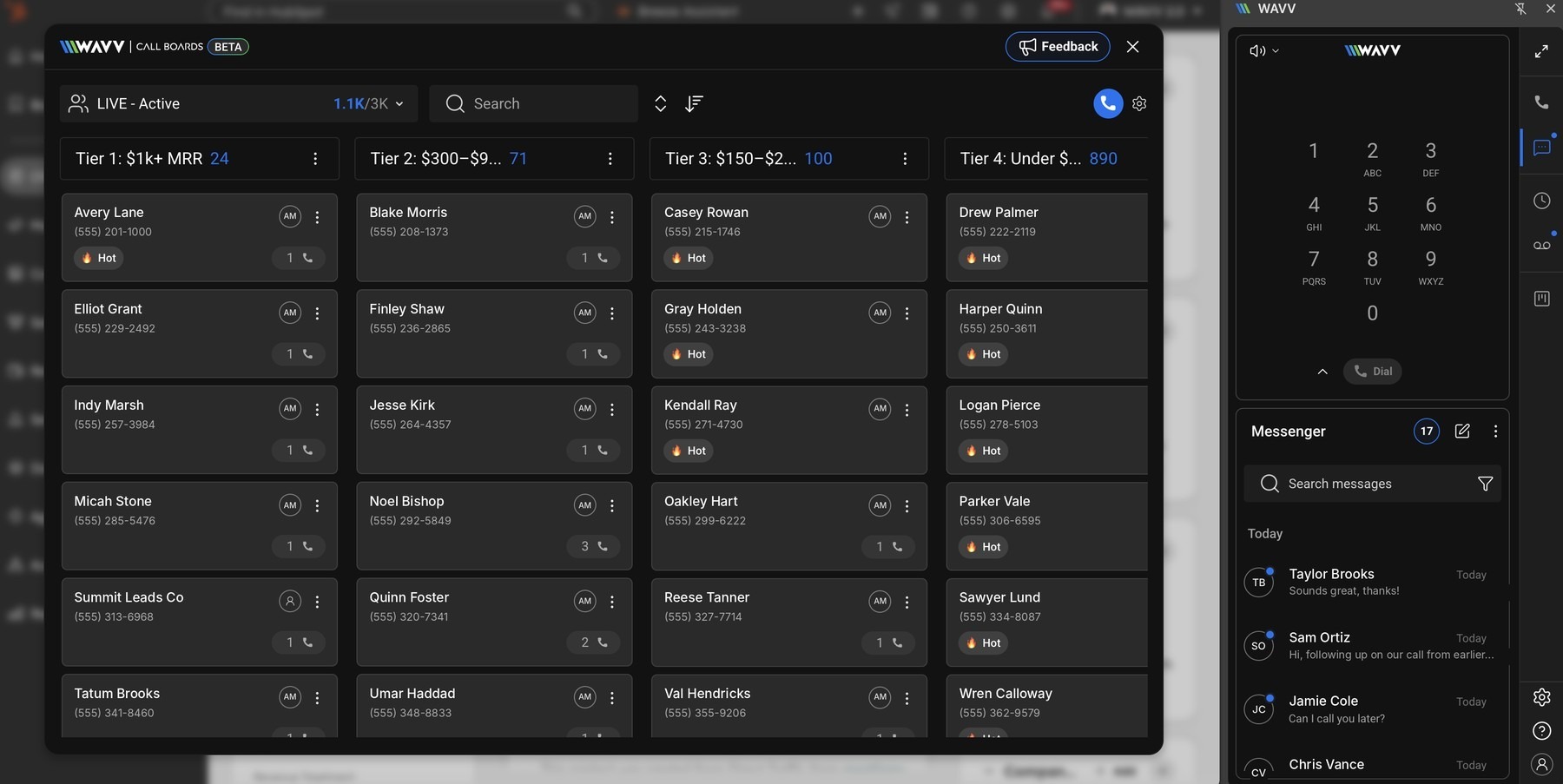
A call board with four stages. Each card shows the contact, number, assigned rep, Hot flag and how many times they've been called. The side panel stays open on the right.
Open your call board from the side panel. Pick the stage (or segment view) you're working on today.
Click the blue phone button to start dialing. The contact's details and your script show in the side panel during the call.
When the call ends, choose a disposition and add notes. You have to do this before WAVV moves you to the next contact.
WAVV writes the outcome, notes and recording link to the contact's HubSpot timeline, and the card moves to its next stage.
Need to call someone back later? Choose Schedule callback in the disposition. It becomes a call task assigned to you.
How this connects: Dispositions move contacts between stages, and stages tell the next rep who to call. Skipping notes or picking the wrong disposition is the fastest way for a board to stop making sense, so treat the disposition as part of the call.
Do I need a HubSpot calling seat?
No. You can dial from the WAVV side panel on any HubSpot plan. A HubSpot calling seat only matters if you want HubSpot's own Call button on a contact to launch WAVV. In that case, set WAVV as your calling provider using the phone icon in HubSpot.
Ending a session
When you're done, click the three dots at the top right of the side panel and choose End Session. If it gets stuck, use the reset steps in Troubleshooting below.
Phase 5: Keep the system running
Your process will change over time. Here's where to make each change so everything stays connected.
- Add new leads to the board · Change it here: Add them to the segment in HubSpot. Connected (active) segments sync onto the board in about 30–60 seconds. For static segments, add the contacts and run another import.
- Stop calling someone · Change it here: Remove them from the segment, or change the field your active segment filters on (for example, lead status).
- Update a name, number or owner · Change it here: Edit it in HubSpot and the board picks it up. Assignment changes made on the board sync back to HubSpot.
- Change how leads are organized · Change it here: Board Settings → Stages. Add, rename or reorder stages, then point segments at them.
- Start a HubSpot follow-up after a call · Change it here: Board Settings → Automations. Use Add to Segment or Add to Workflow so a disposition can start a HubSpot workflow or email sequence.
What's different from WAVV in GoHighLevel
Segments instead of tags. Group and route contacts with HubSpot segments.
Call boards are the dialer. There's no separate campaign launch from a contact list.
Priority Stacks aren't available in HubSpot yet. They're coming in an upcoming update.
Troubleshooting
The reset that fixes most extension issues
Click the puzzle-piece icon → Manage Extensions and switch WAVV off.
Refresh your HubSpot tab.
Switch WAVV back on and reopen the side panel. This clears the extension's cache and resets your session.
Quick fixes
- Side panel won't connect to HubSpot · What to do: Make sure HubSpot and the side panel are in the same Chrome window, then run the reset above. Check that you're on the latest extension version ( Manage Extensions ).
- "Account Mismatch" screen · What to do: Your WAVV email and your HubSpot email are different. See Account Mismatch screen: linking your WAVV account to your CRM .
- "Your HubSpot integration is disconnected" · What to do: WAVV can't find a working install on your hub. Check that the app is still installed and that you're logged into the right hub.
- Call won't hang up / stuck after a call · What to do: Click the three dots → End Session . If that doesn't work, run the reset.
- Contacts missing from the board · What to do: Check the segment's filters in HubSpot and give it up to 60 seconds. Make sure the board is pulling from the right segment and stage.
- Call board won't open · What to do: It may already be open in another tab. WAVV only opens one copy of a board at a time.
- HubSpot's Call button doesn't use WAVV · What to do: That requires a HubSpot calling seat. Without one, dial from the side panel.
Still stuck?
Reach out through chat at help.wavv.com or contact your WAVV Success manager.
Related: BETA Release: WAVV in HubSpot · Chrome Extension (BETA) Setup Guide
Frequently asked questions
I’m moving from GoHighLevel to HubSpot. Can my WAVV account and number come with me?
No. A WAVV account works with one CRM at a time, so HubSpot needs its own WAVV account and phone number. You also can’t use one WAVV account in GoHighLevel and HubSpot at the same time. Contact support and we’ll help you cancel your current subscription so you can start fresh in HubSpot.
How do I start dialing in HubSpot? I click my segment and nothing happens.
In HubSpot, you dial from a call board, and the call board gets its contacts from a HubSpot segment. Build your segment in HubSpot first, then add it to your call board. If a contact isn’t in a segment connected to your board, it won’t show up to be called.
How do I connect HubSpot to WAVV? Do I need my own WAVV login?
Yes, each rep needs their own login. A HubSpot admin installs the WAVV app once for the whole account. Each rep is then invited from WAVV’s team management screen, installs the WAVV Chrome extension, and signs in with their own WAVV email. Use the same email in WAVV and HubSpot.
My call won’t hang up, or I can’t end my session.
Click the three dots at the top right of the WAVV side panel and choose End Session. If that doesn’t work, go to Manage Extensions in Chrome, switch WAVV off, refresh HubSpot, then switch WAVV back on.
WAVV says I’m connected to a different CRM.
Your WAVV account may still be linked to another CRM, or your WAVV email and HubSpot email don’t match. Contact support and we’ll check which CRM your account is linked to.
If I switch CRMs, what happens to my phone numbers and call history?
Once your old subscription is cancelled, its phone numbers and call history are no longer available. Download your call history before you switch if you want to keep it.