
Call Boards now gives you more flexibility when it comes to getting leads from your CRM onto your board.
With the updated Contacts section, you can:
Perform one-time imports of existing leads
Import leads from a CRM pipeline
Create ongoing connections that automatically bring tagged leads into specific Call Board stages
Preview contacts before importing
See why contacts were skipped during an import
Create multiple connections to one stage or across multiple stages
Imports vs. Connections
Before getting started, it's important to understand the difference between the two options:
Imports are used when you want to bring existing leads onto your Call Board one time.
Connections are used when you want leads to automatically be added to your Call Board whenever they meet a specific condition, such as having a particular tag.
Imports
Imports are useful when you already have leads in your CRM and want to bring them onto your Call Board.
An import is a one-time action. It does not continuously sync new leads to your board.
How to create an import
Open your Call Board.
Go to Settings.
Select the Contacts tab.
Select Imports.
Click Add Import.
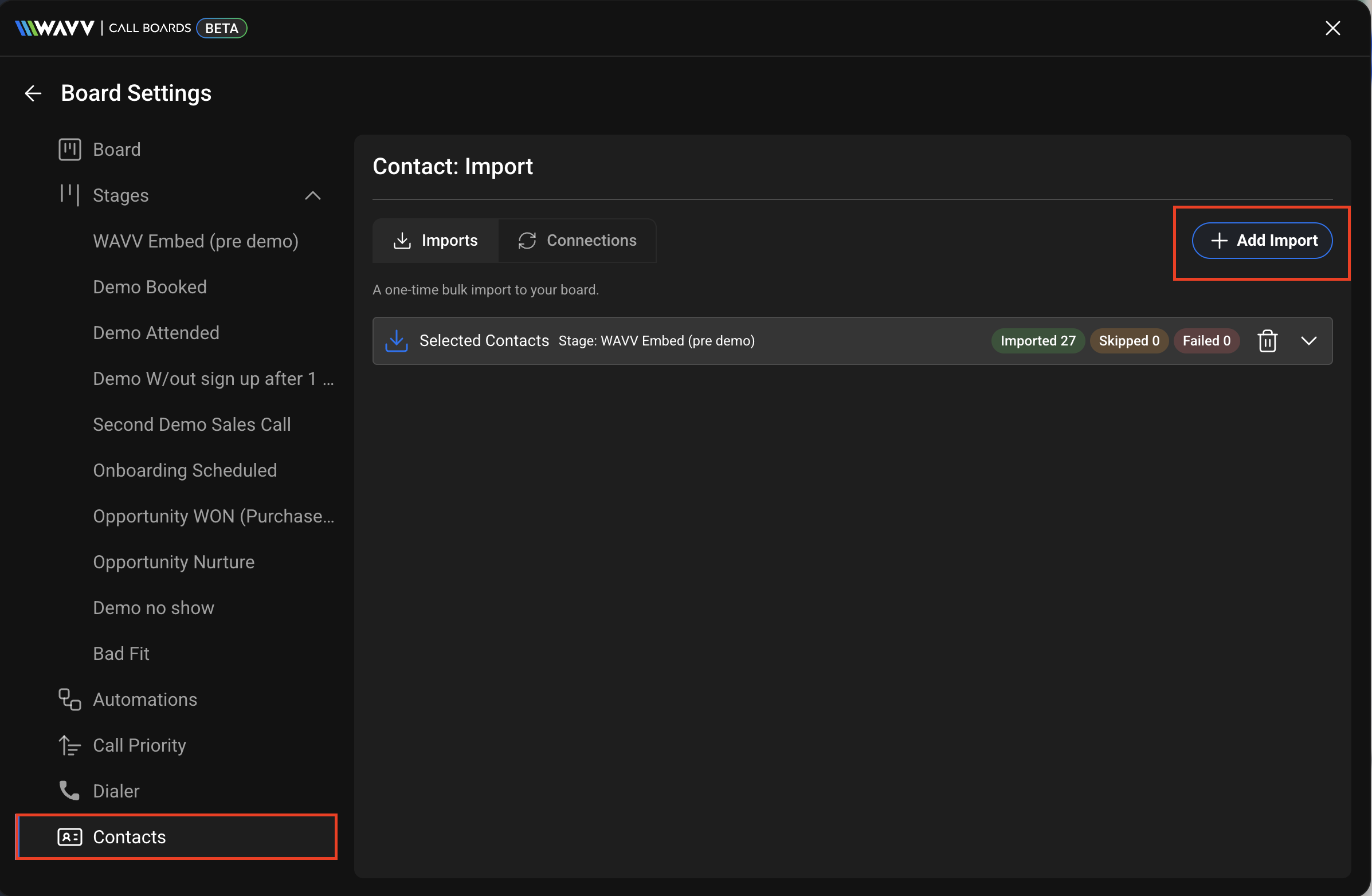
You can create an import based on CRM tags or import contacts from a CRM pipeline.
Import Contacts Using Tags
If you know which tags you want to use, you can select them directly.
You can also use the AI Helper to describe the contacts you want to import in a sentence.
For example:
"Import leads that have the Scheduled Appointment tag, but exclude leads with the Sold tag."
The AI Helper will use your request to populate the appropriate import criteria.
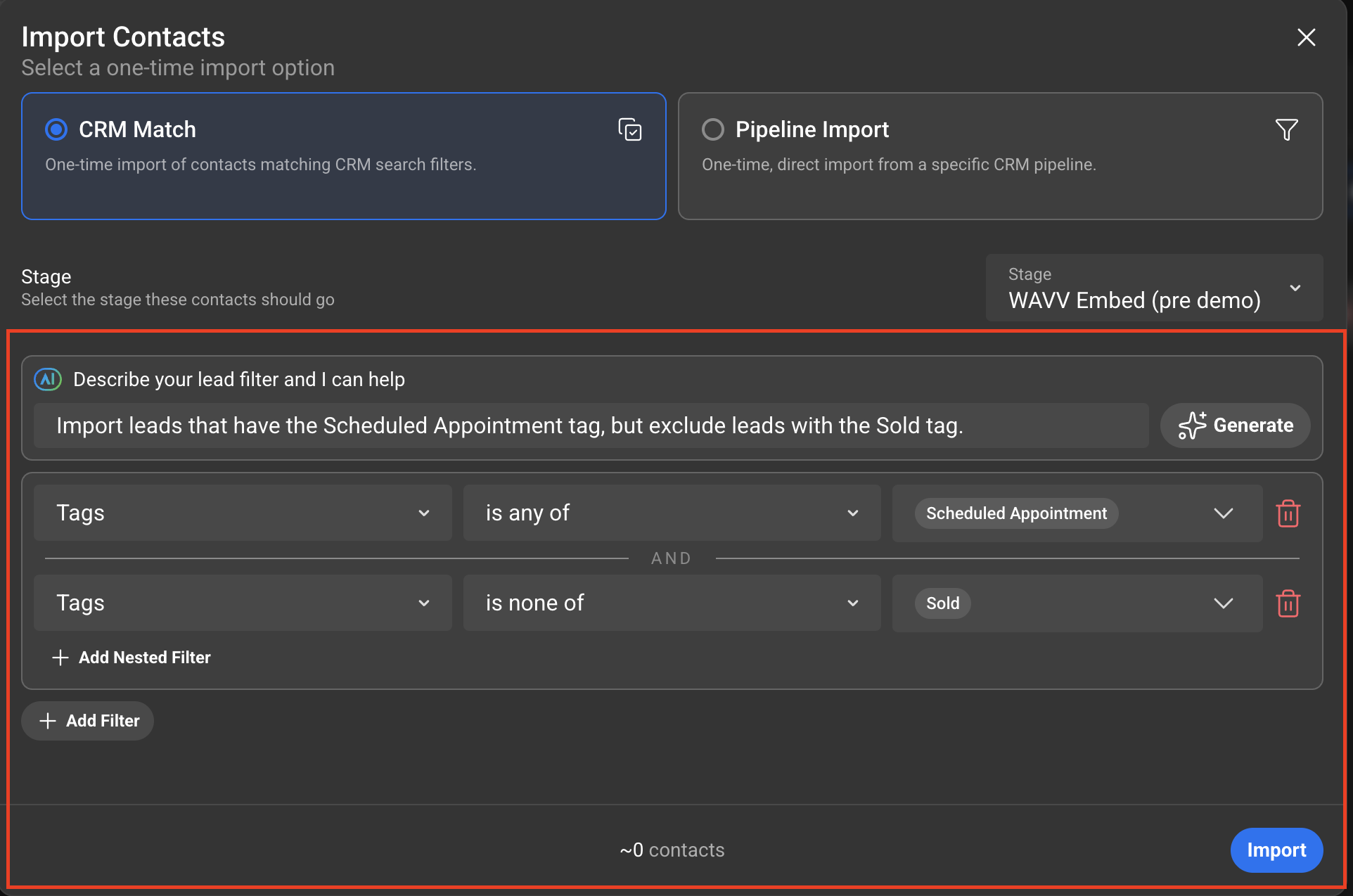
Review the generated criteria before continuing. You can adjust the tags included or excluded from the import.
Preview Your Contacts
Before importing, Call Boards provides a preview of the contacts that match your criteria.
You'll be able to see:
The number of contacts that will be imported
A preview of the contacts that will be pulled into the board
This allows you to verify that you're importing the correct contacts before completing the import.
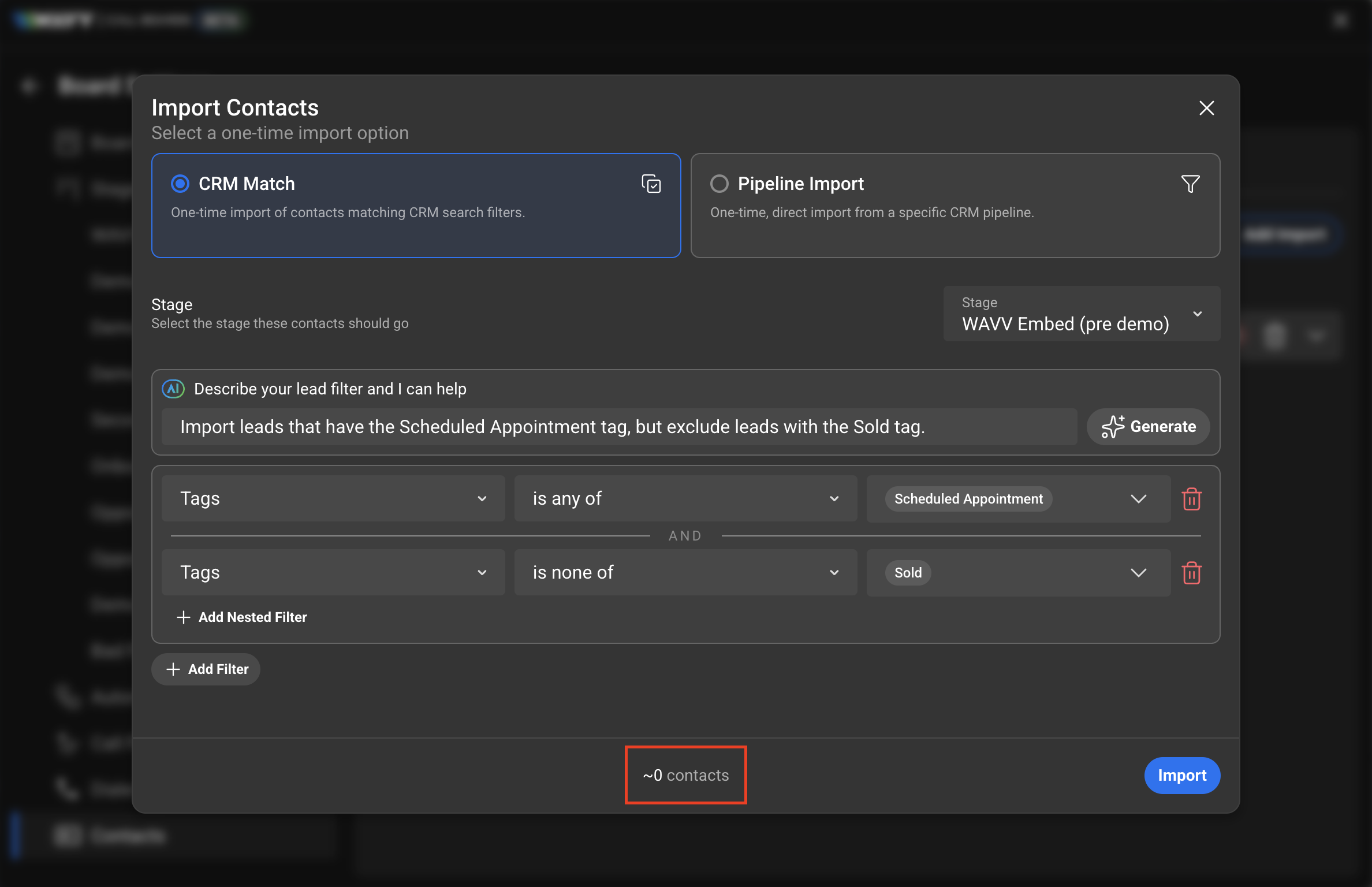
When everything looks correct, click Import.
Why Were Some Contacts Skipped?
After an import is completed, Call Boards will show you how many contacts were successfully imported and how many were skipped.
If contacts were skipped, you can view additional information explaining why.
Common reasons a contact may be skipped include:
The contact is on the Do Not Call list
The contact is already on the Call Board
Call Board contacts cannot be duplicated, so contacts that are already on the board will not be imported again.
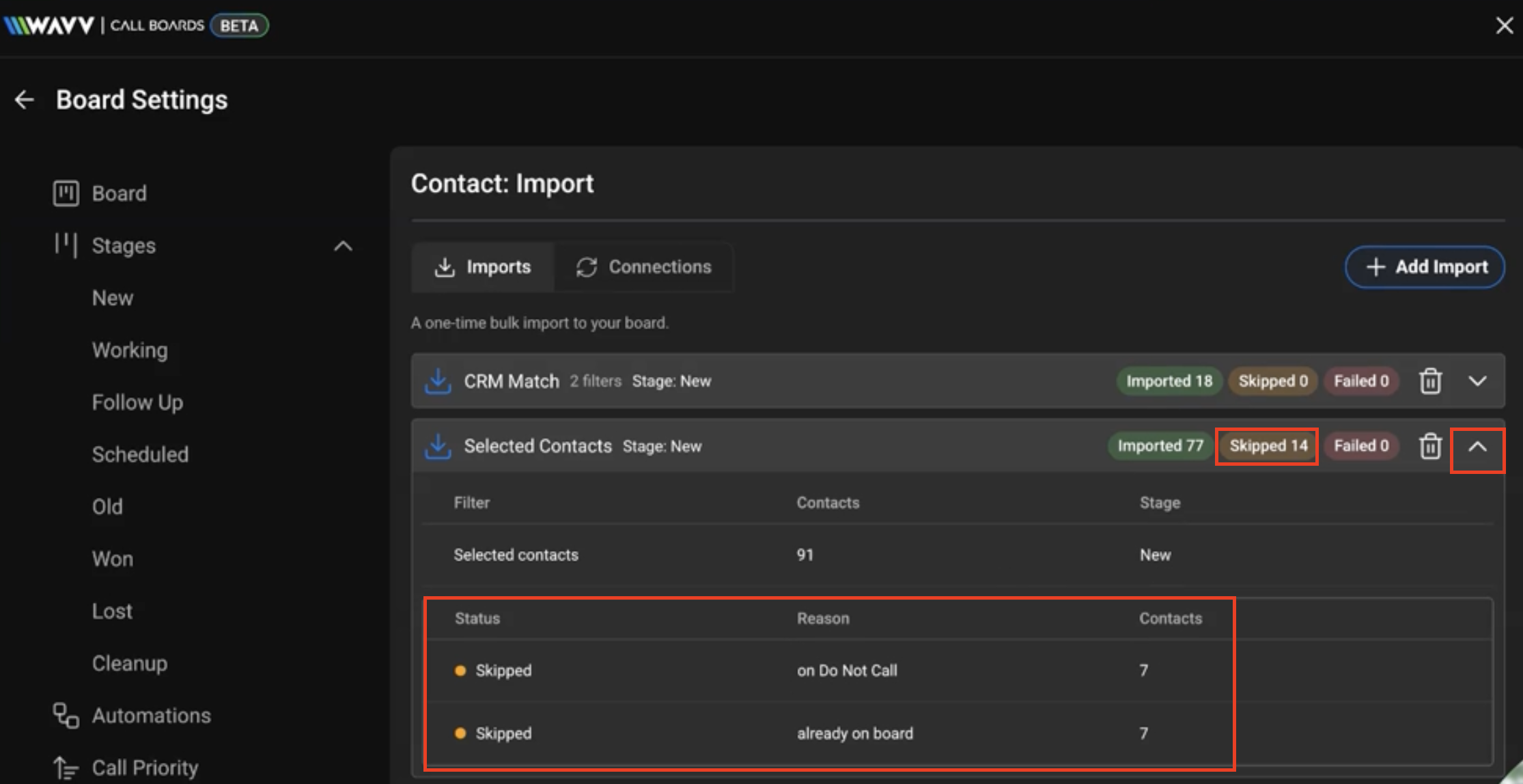
Click into the skipped contacts to see additional details about why they were not imported.
Import Contacts From a Pipeline
You can also import contacts directly from a CRM pipeline.
This is helpful when you want to bring contacts from an existing pipeline into specific Call Board stages.
To import from a pipeline:
Go to Settings → Contacts → Imports.
Select the option to create a Pipeline Import.
Select the pipeline you want to import from.
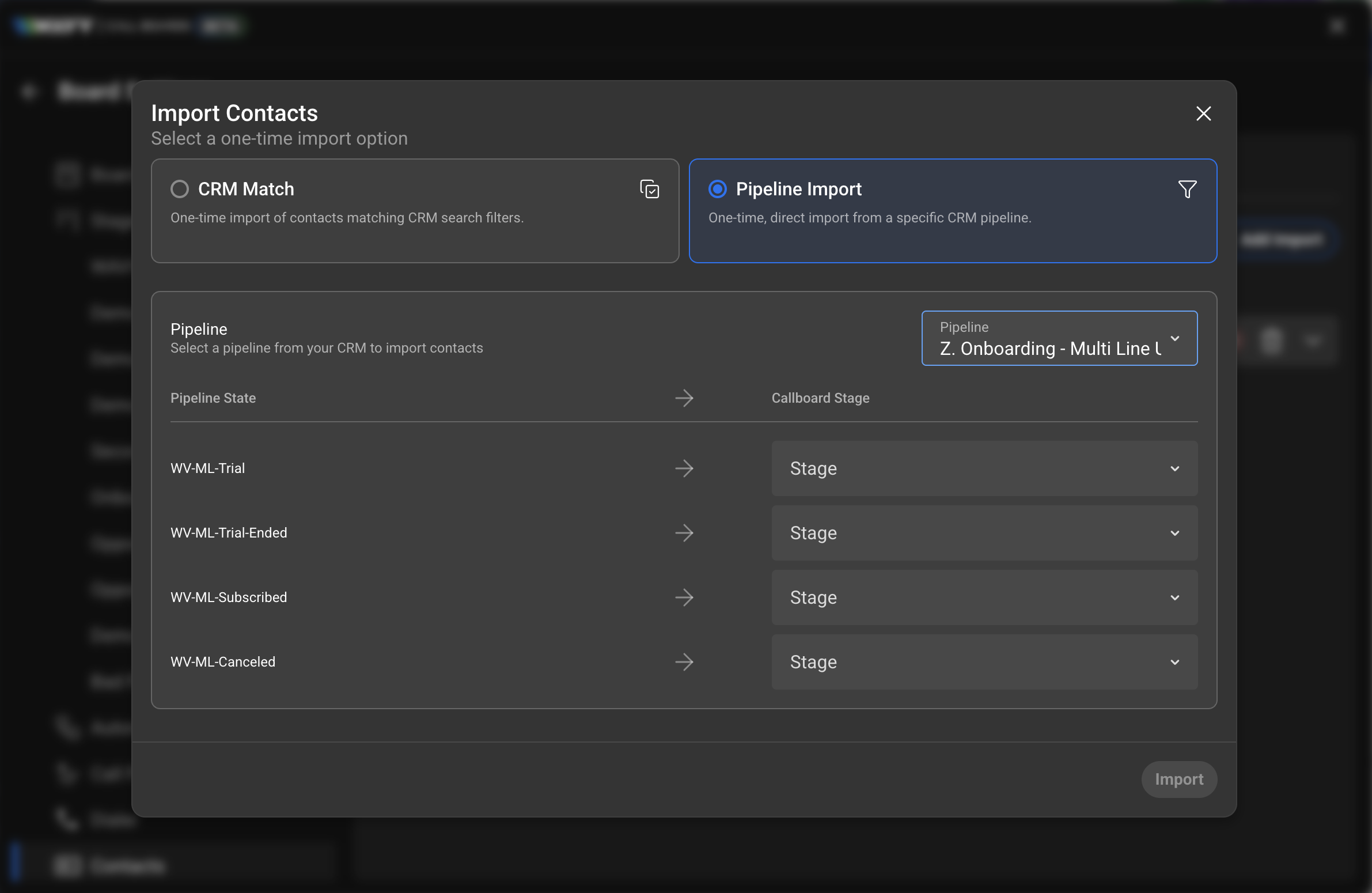
Call Boards will display the pipelines currently available in your CRM.
Map Pipeline Stages to Call Board Stages
After selecting your pipeline, you'll map the CRM's pipeline stages to the appropriate Call Board stages.
For example:
- New Lead · Call Board Stage: New
- Callback · Call Board Stage: Follow-Up
- Appointment · Call Board Stage: Scheduled
You don't have to import every pipeline stage. If you don't want contacts from a particular stage added to your board, you can skip that stage.
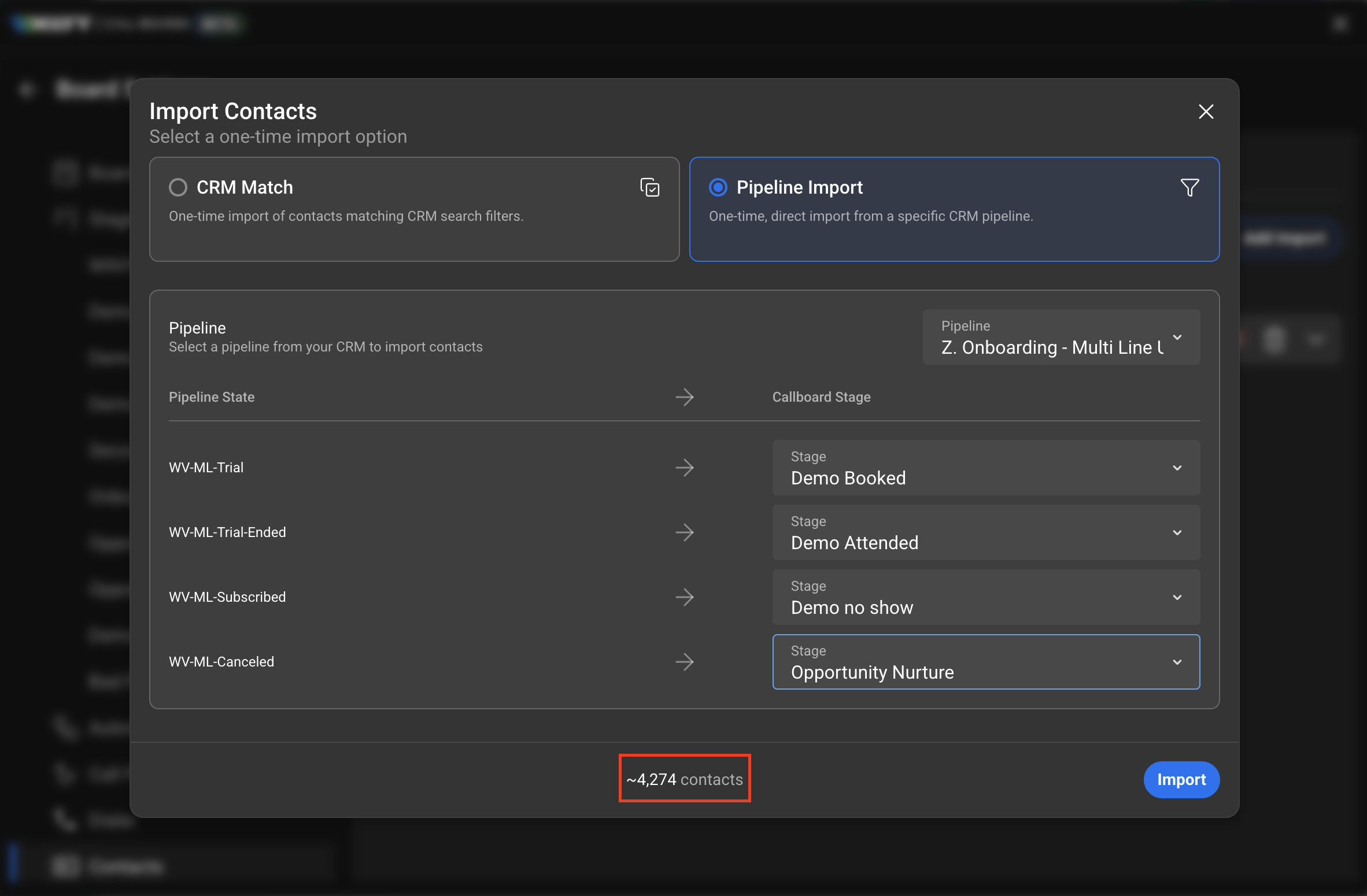
Once your stages are mapped, review the number of contacts that will be imported and click Import.
Connections
Connections are different from imports.
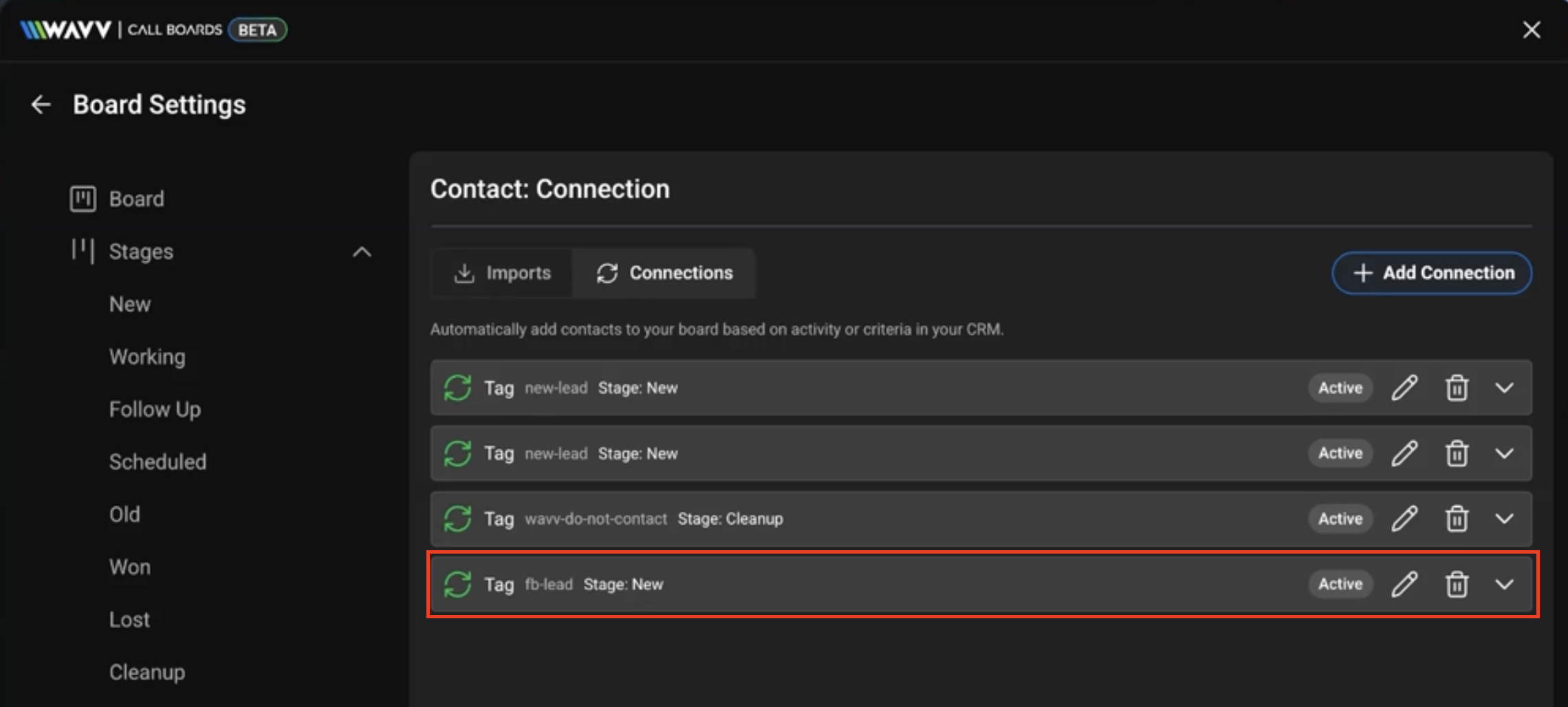
Use Connections when you want contacts to be continuously added to your Call Board based on a specific CRM tag.
How to create a connection
Go to Settings.
Select Contacts.
Select Connections.
Click Add Connection.
Select the CRM tag you want to use.
Select the Call Board stage where those contacts should be added.
Click Save.
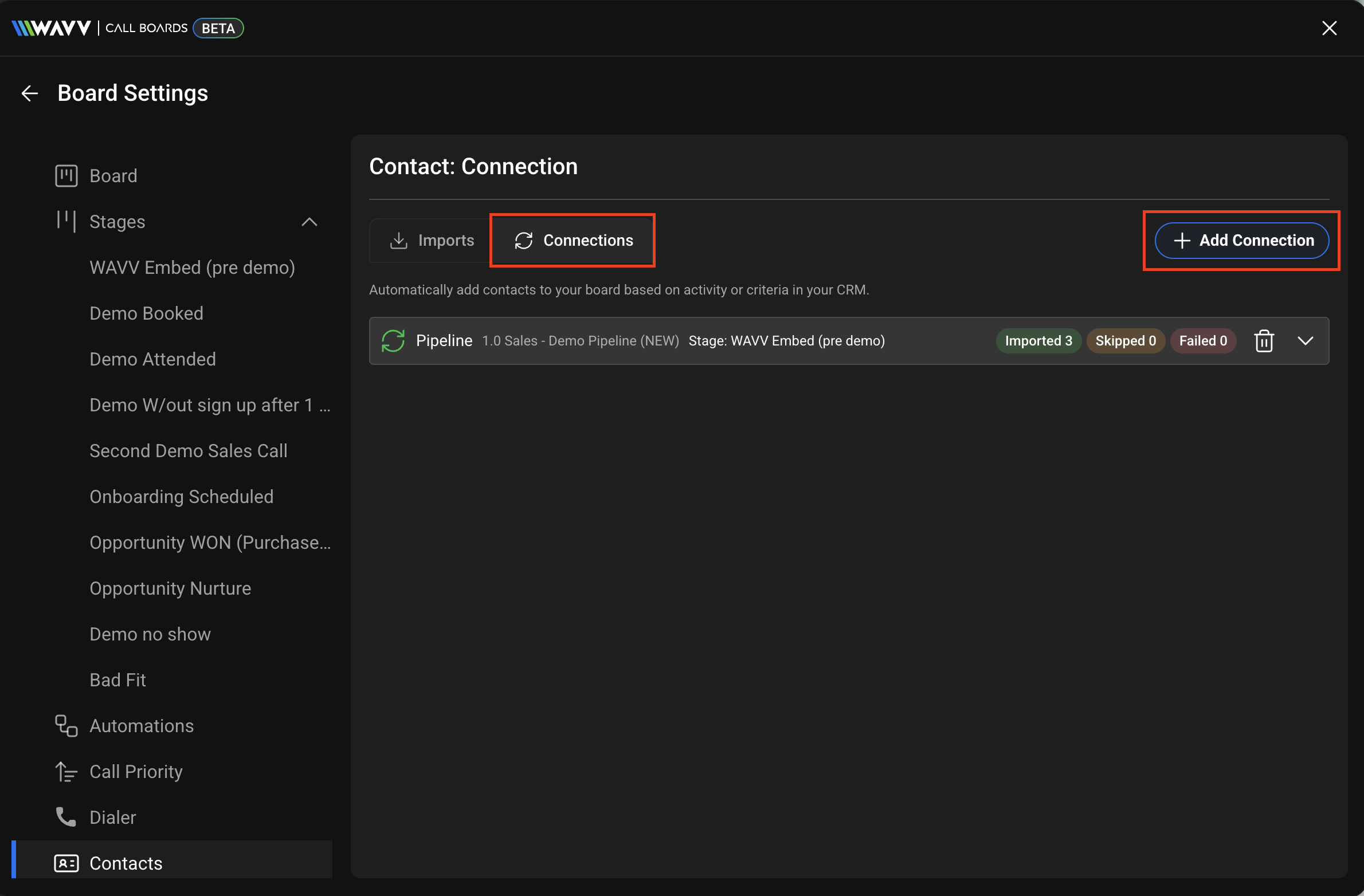
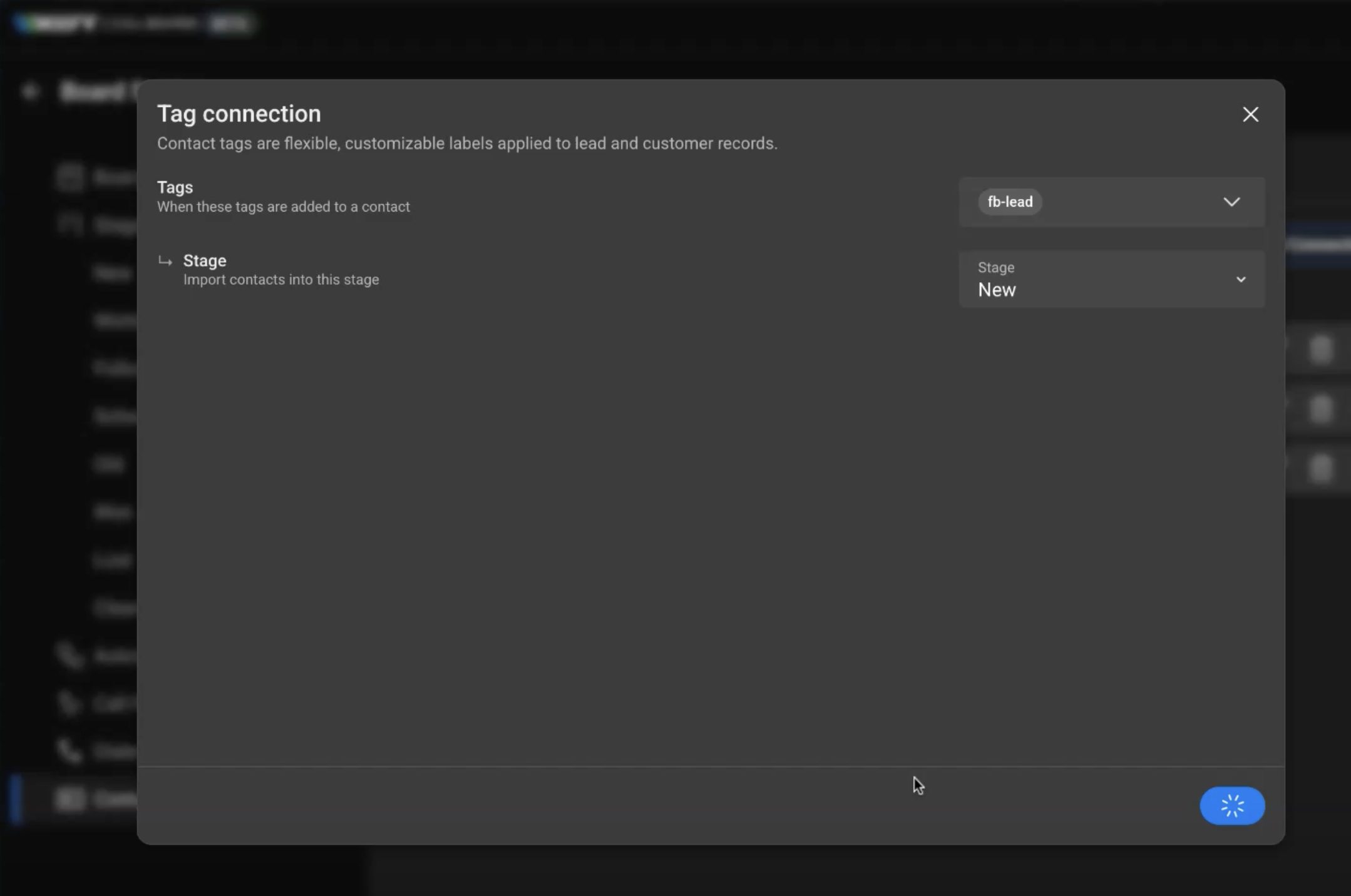
Once the connection is saved, contacts that receive that specific tag will automatically be added to the selected Call Board stage.
Example: Connecting a Tag to a Stage
Let's say you have a CRM tag called Facebook Lead.
You want every contact with that tag to automatically appear in your New Call Board stage.
You would create a connection:
CRM Tag: Facebook Lead
Call Board Stage: New
Once saved, any new contact that receives the Facebook Lead tag will automatically be pulled into the New stage.
Multiple Connections
You can create multiple connections to help organize different types of leads.
For example:
- Facebook Lead · Call Board Stage: New
- Do Not Contact · Call Board Stage: Cleanup
- Appointment · Call Board Stage: Scheduled
- Callback · Call Board Stage: Follow-Up
You can have multiple connections going into the same stage, or create connections that send different tags into different stages.
This allows you to customize how contacts enter your Call Board based on your workflow.
Imports vs. Connections: Which Should I Use?
- You need to bring existing contacts onto your board · Use Connections when...: You want contacts to continually enter your board
- You only need to import contacts once · Use Connections when...: You want an ongoing process
- You're bringing contacts in based on tags · Use Connections when...: You want a specific tag to automatically trigger a stage
- You're importing contacts from a pipeline · Use Connections when...: You want to automate how new contacts enter a stage
Keep in mind
Once a contact is on your Call Board, you can continue working that contact through your board stages and workflows.
Imports get existing contacts onto the board.
Connections help keep new contacts flowing onto the board automatically.
Together, these features give you more flexibility in how you populate and manage your Call Boards.