COMING SOON: BETA Call Boards will be released to a few customers at a time, so stay tuned!
Call Boards help you know who to call next. They give teams a clear, measurable way to move contacts from first touch to outcome, without relying on messy campaigns or heavy CRM customization. Call Boards replace “one-and-done” dialing with structured stage progression, priority logic, and automation-driven movement.
The goal of Call Boards is to make outbound calling more focused & efficient by organizing leads into stages, surfacing priority leads, and tracking progress without complex automation. With Call Boards, you always know who to call next.
Call Boards Jobs
Prioritize calls by stage
Track lead progression
Surface high-priority leads
Simple stage rules
Avoid repeat calls
Follow-up reminders
Assign leads to reps (teams only)
Schedule calls
Setting up a Call Board
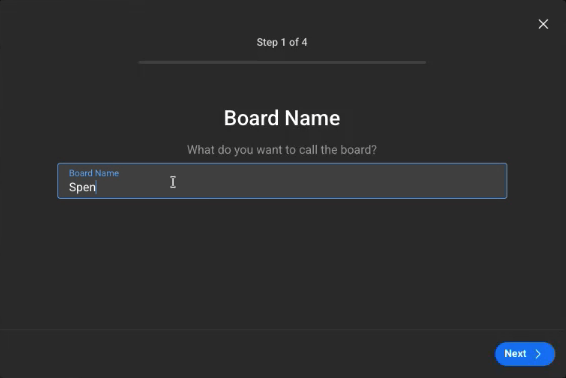
Step 1: Give it a name.
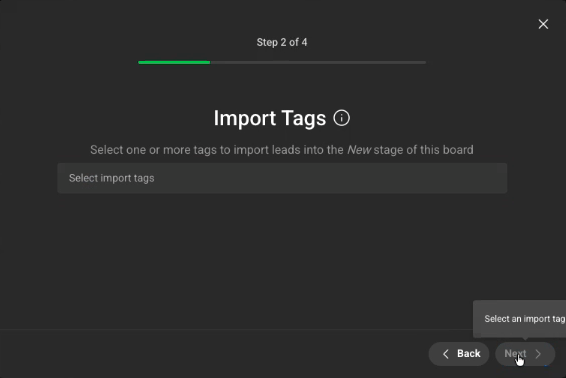
Step 2: Select tags to import leads into the New stage of this board.
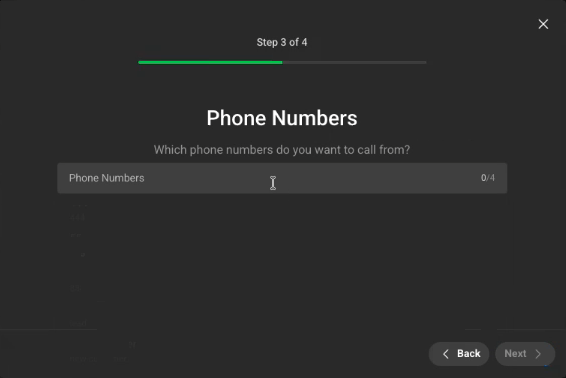
Step 3: Select the phone number(s) you want to call from on this board.
Step 4: Select the team member(s) you want to be part of this board. (You can skip this step)
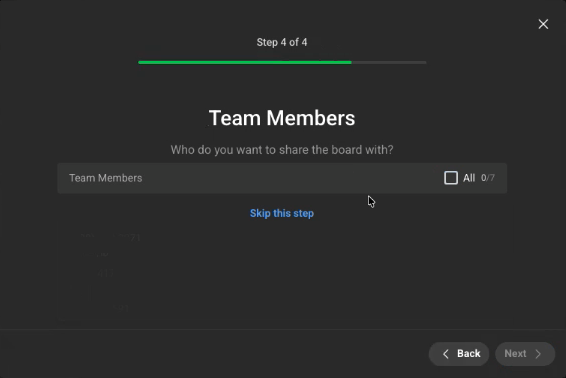
After setting up your Call Board, you'll see the stages: New, Working On, Appointment Set, Won, Lost, Old Leads, and Clean Up. Leads will already start populating in the "New" stage based on the tags you selected.
Call Board Settings
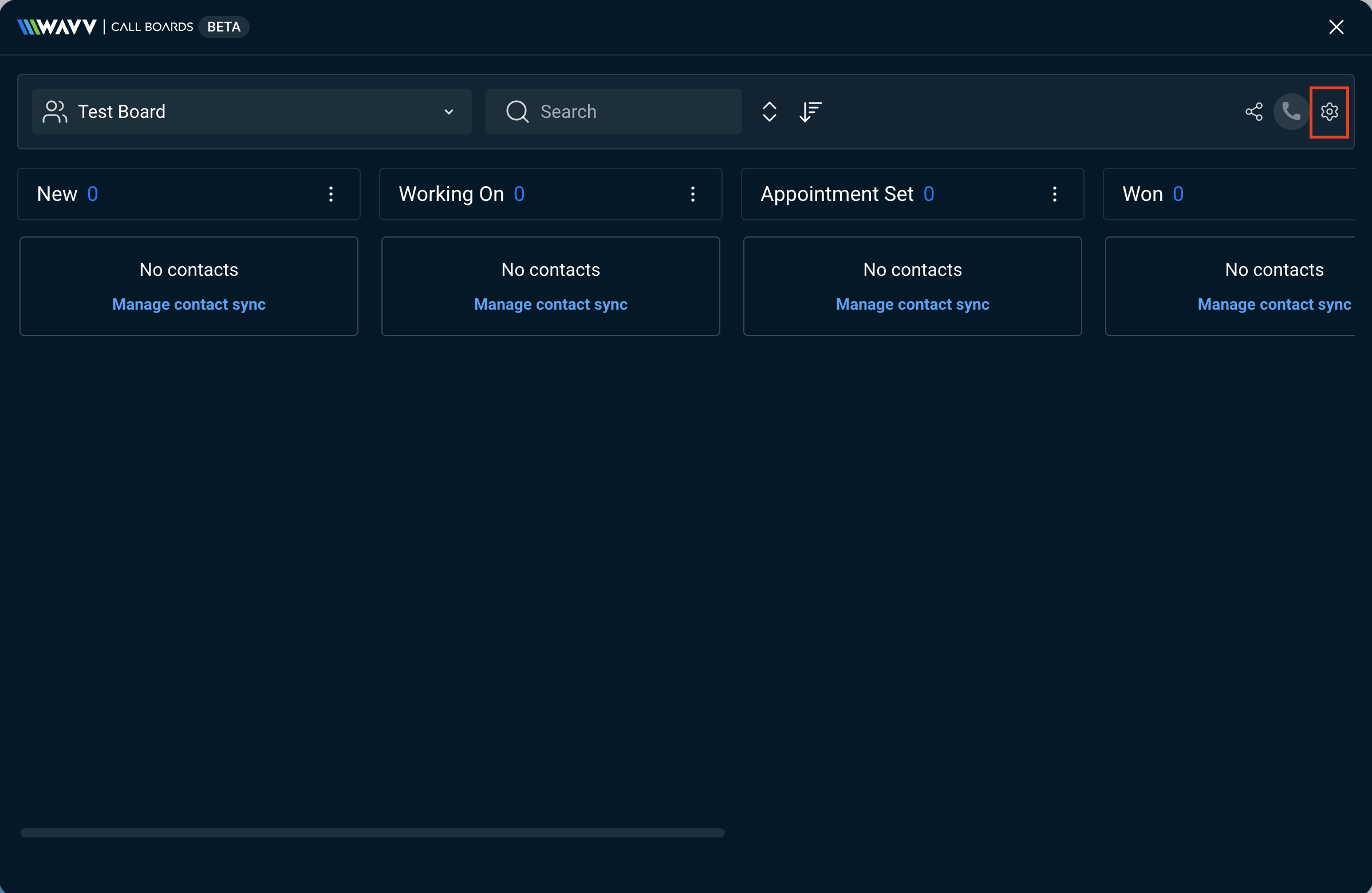
Board
Under the Board tab, you can edit the settings you selected upon set up. Things like Call Board Name, Team Members assigned, and phone numbers. You can also duplicate and delete the board here.
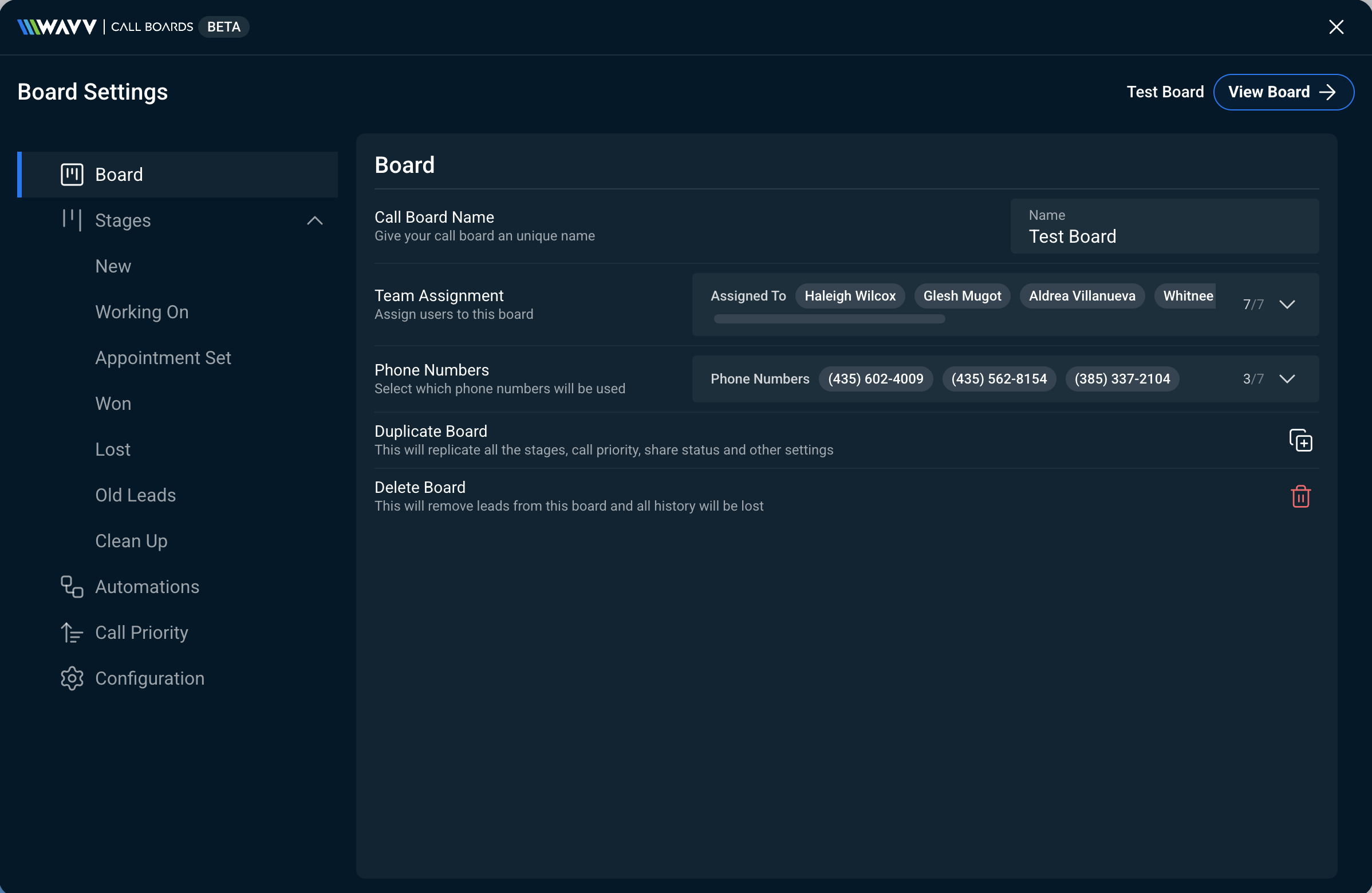
Stages
Under the Stages tab, you can edit, reorder, add, and delete your stages.
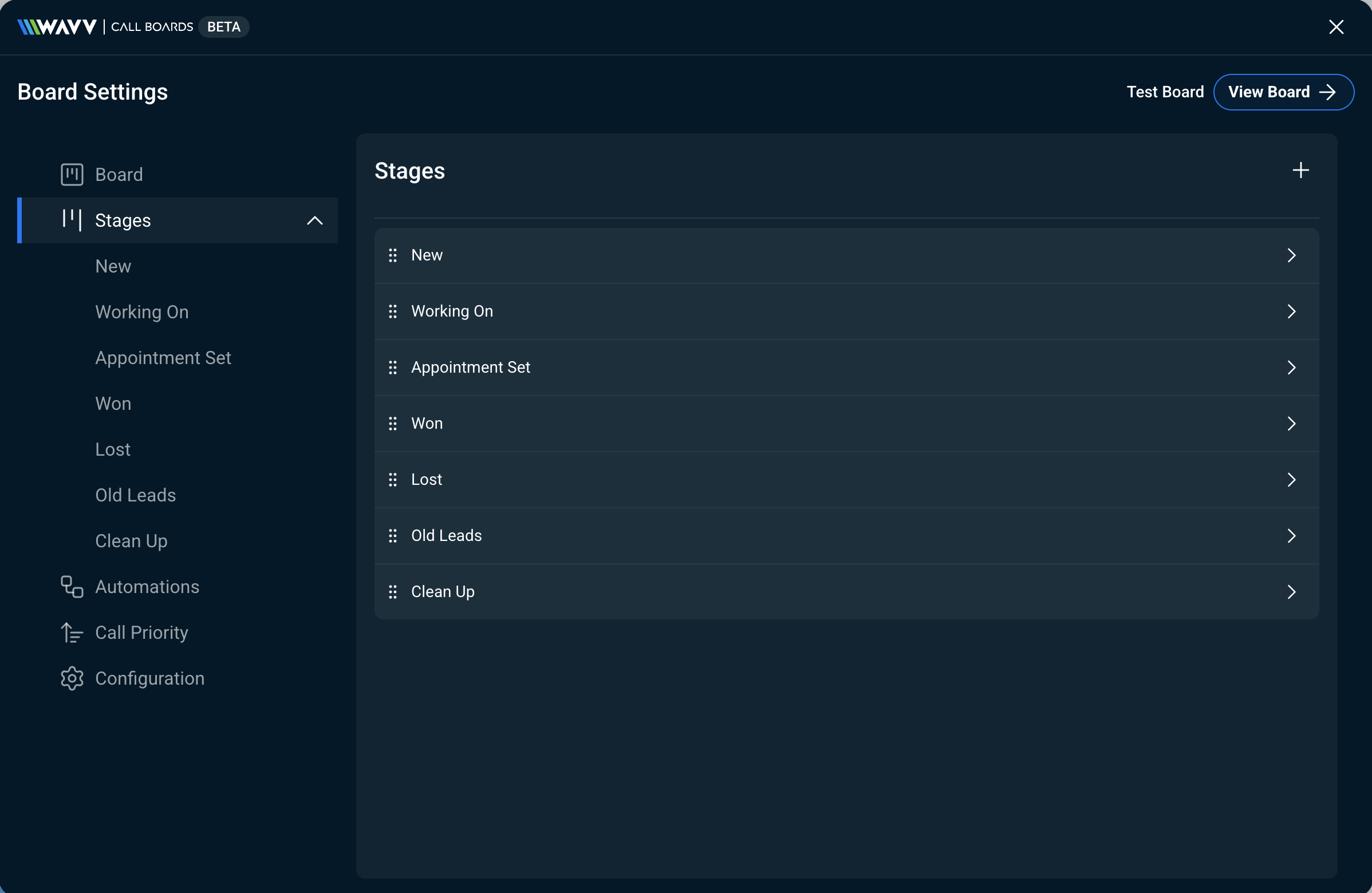
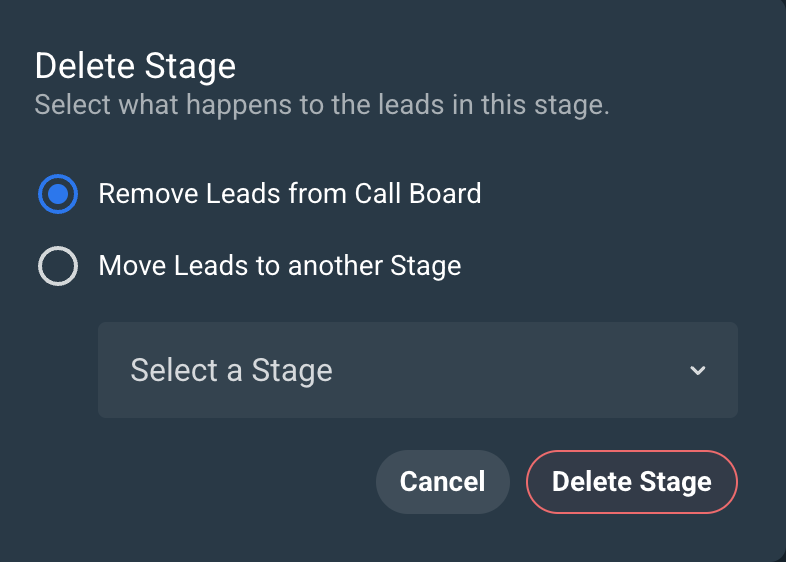
If you delete a stage, you'll be given two options on what to do with the leads in that stage:
Remove them completely
Move the leads to another stage
Within the Stages tab, you can click into each stage to configure additional settings:
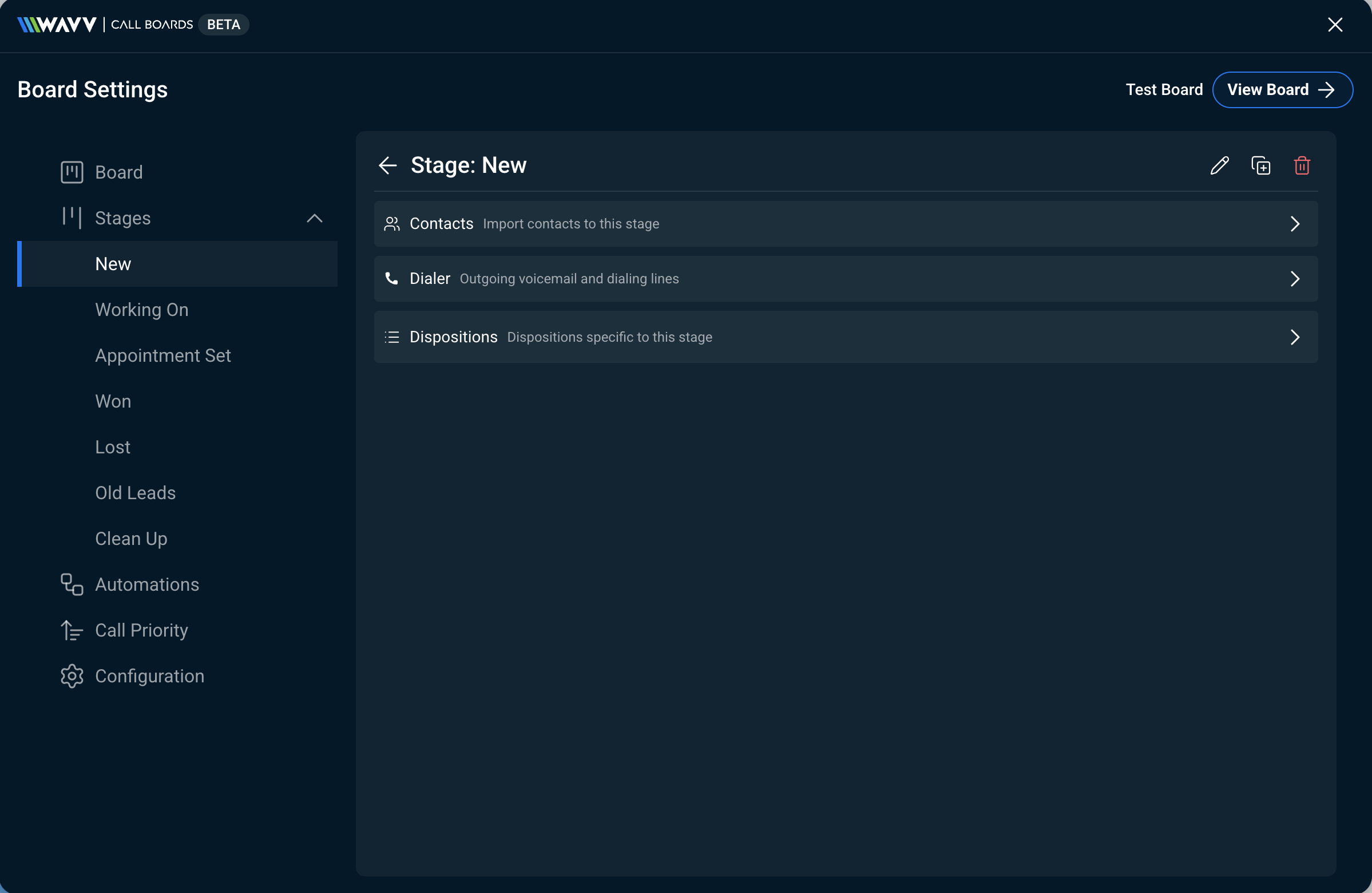
Contacts
Import contacts using tags:
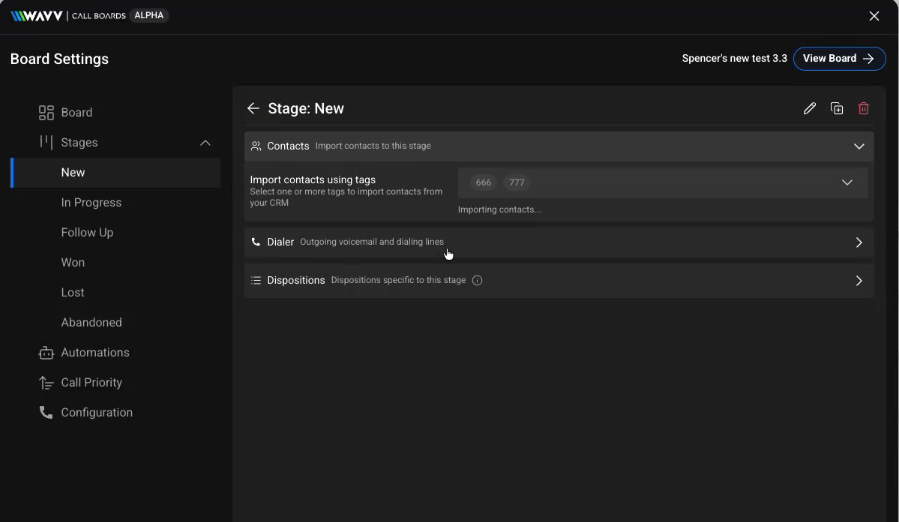
Dialer
This is where things get really powerful! Within each stage, you can have specific settings that only apply to that stage:
Double Dial
Dialing Mode
Ring Timeout
Dialing Lines
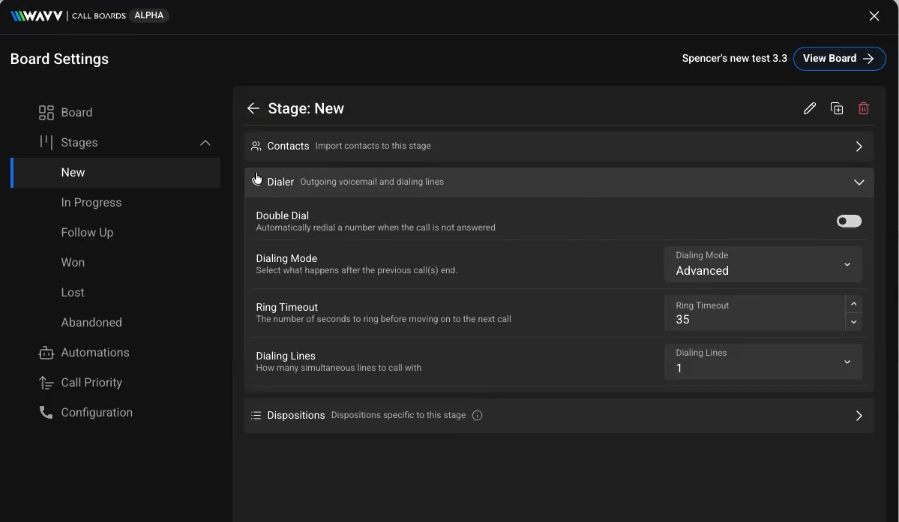
Dispositions
These are specific dispositions for your Call Board stage. You can add, edit, and delete these.
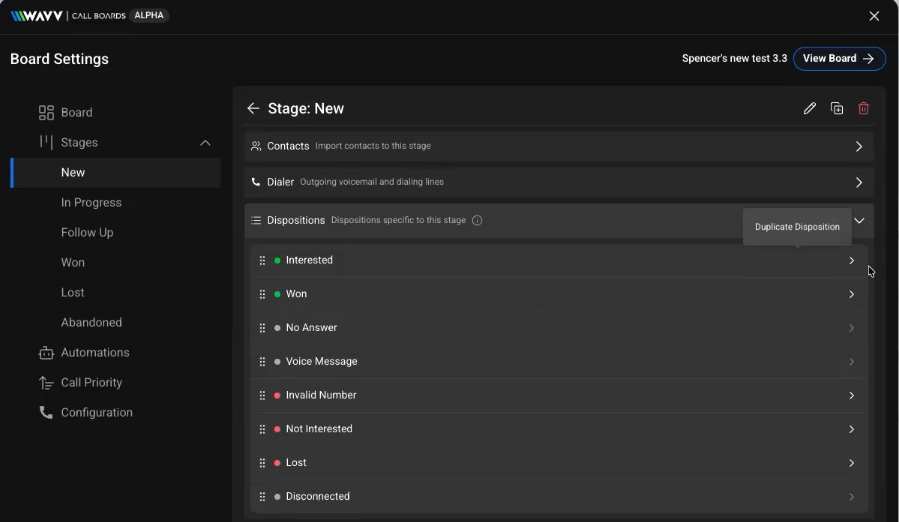
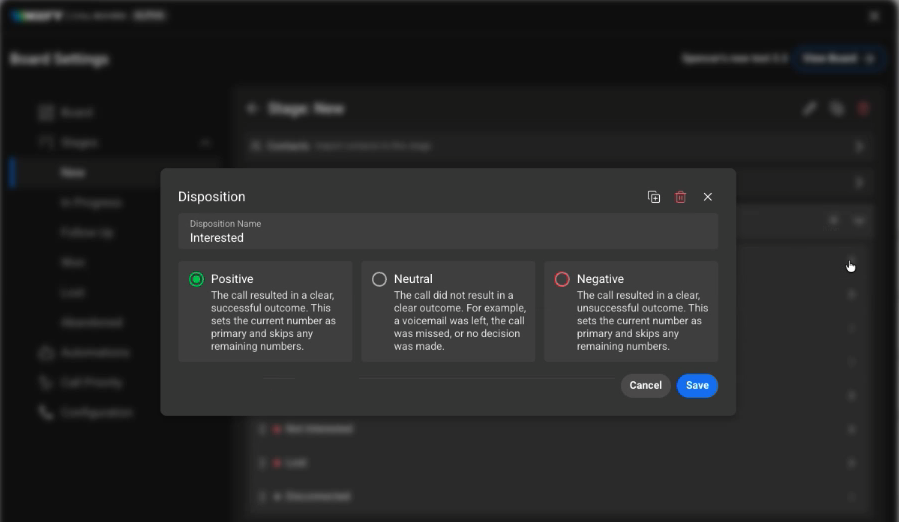
When you click on a specific disposition within Call Boards, you can add a "positive," "neutral," and "negative" label.
Automations
Create automated triggers and actions to keep your leads organized.
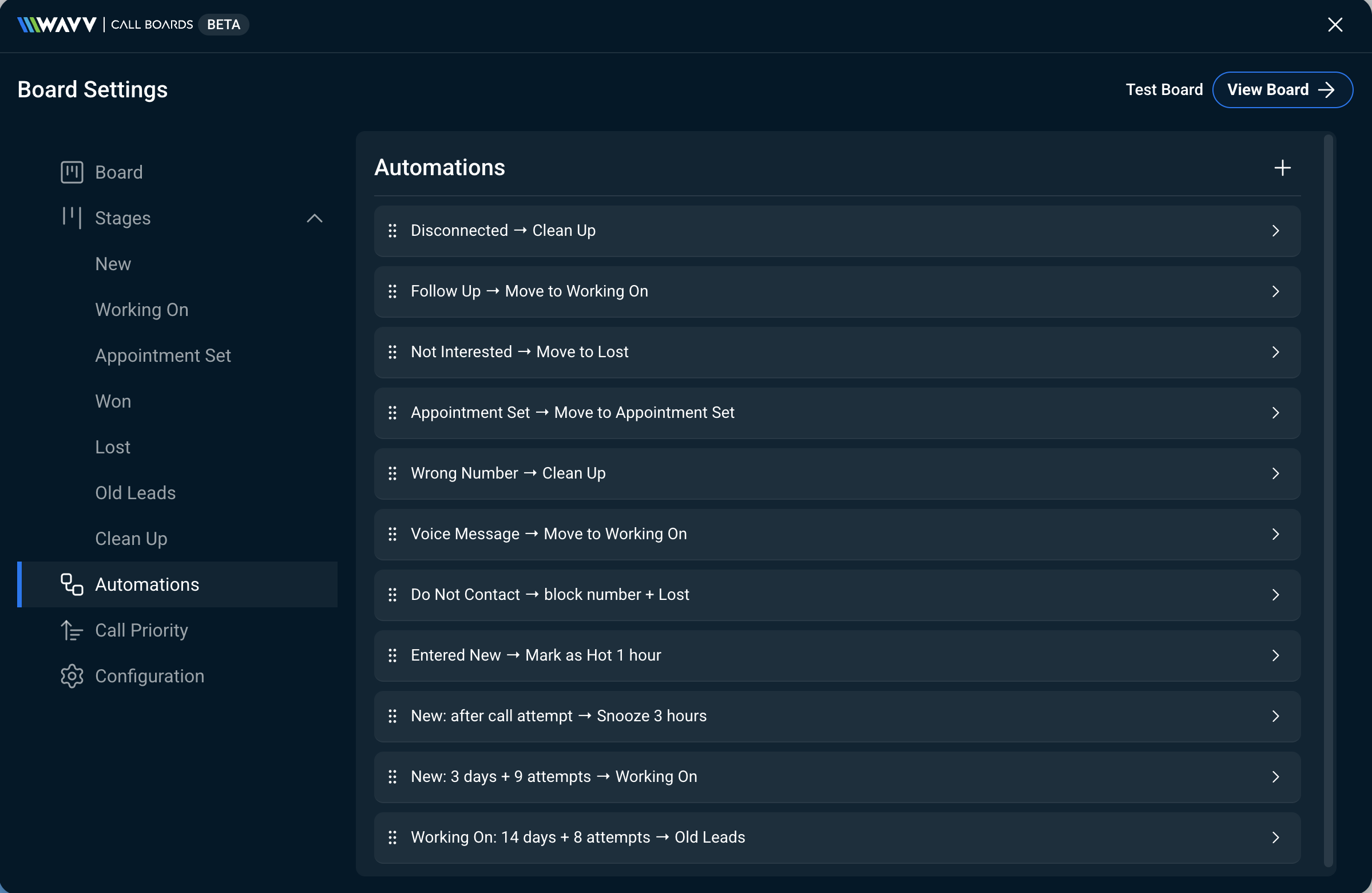
To create an automation, click the (+) in the top right corner:
Name it
Select a trigger
Select "if" criteria
Select "then" actions
Save
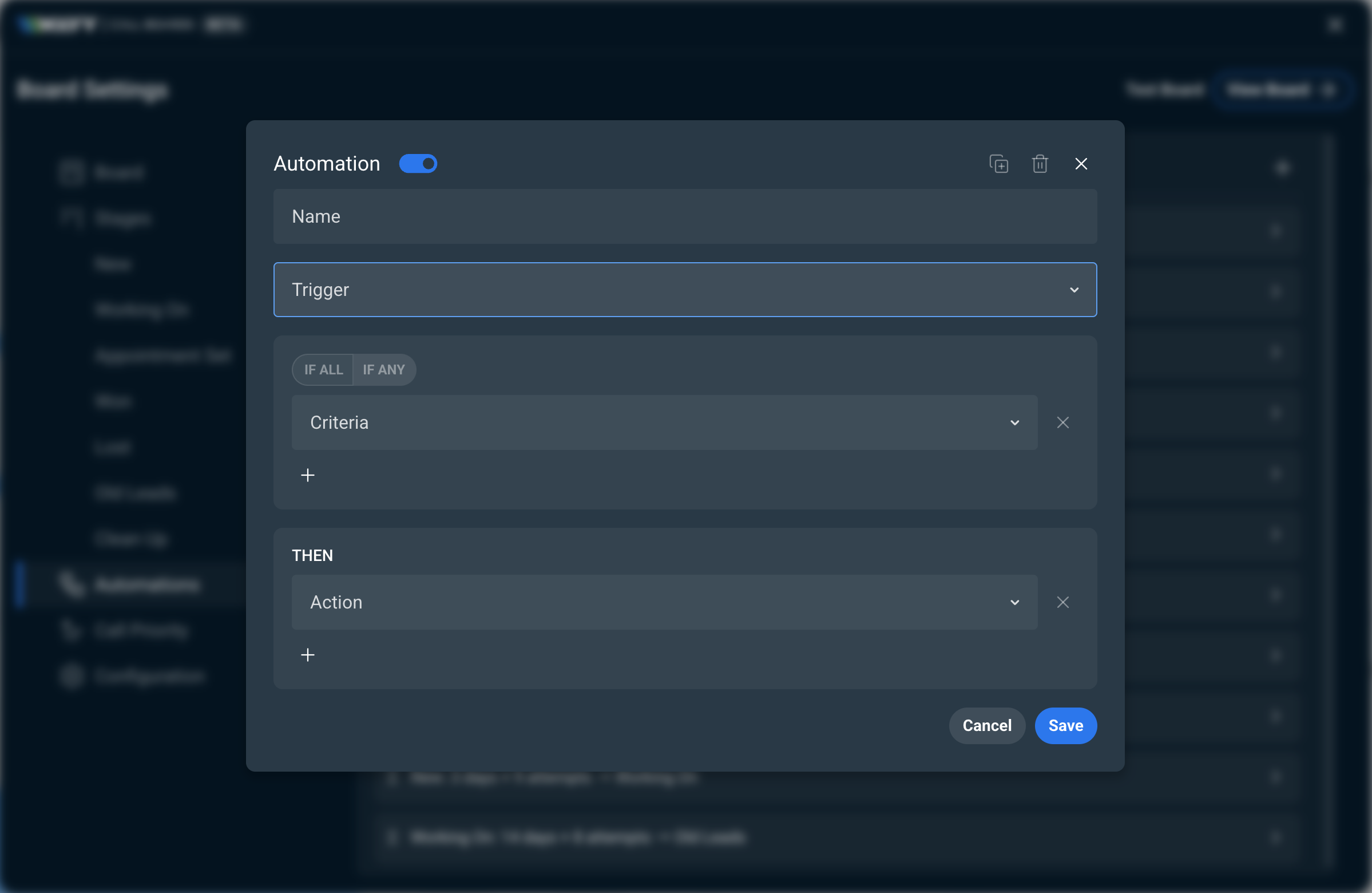
You can also edit the default or existing automations by clicking on them.
Call Priority
This helps you set a sequence in which calls are made when dialing from this Call Board. You can configure the Call Priority for your board by defining individual Call Priority criteria, and setting the order. Every board has a system default ‘Hot’ priority.
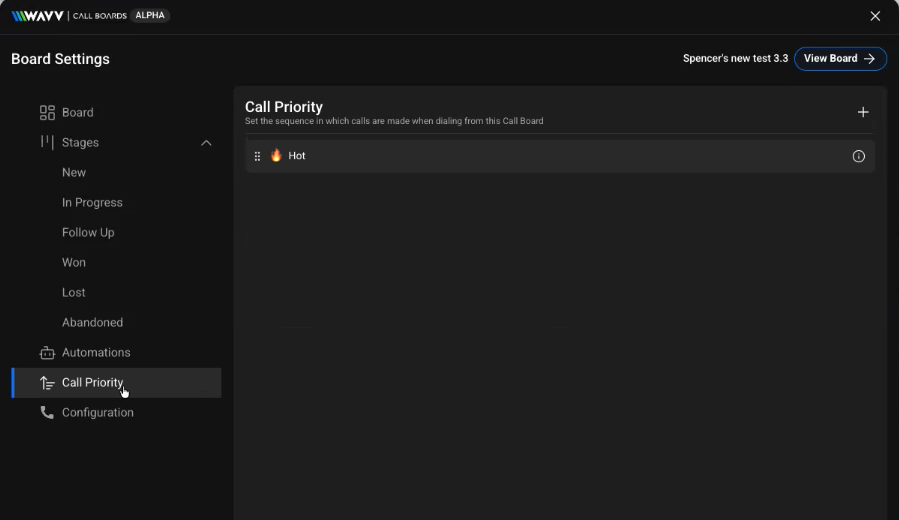
To add a new priority, click the (+) icon, then click on the "New Priority" that populates below the existing priorities.
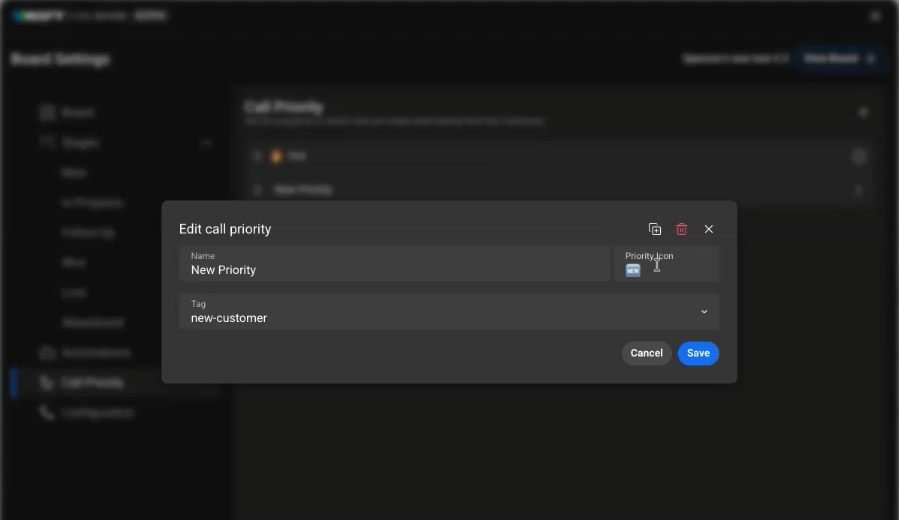
Give it a name, choose an icon, and select a tag that reflects the leads with this priority. Then put your priorities in the order you want WAVV to call them.
Configuration
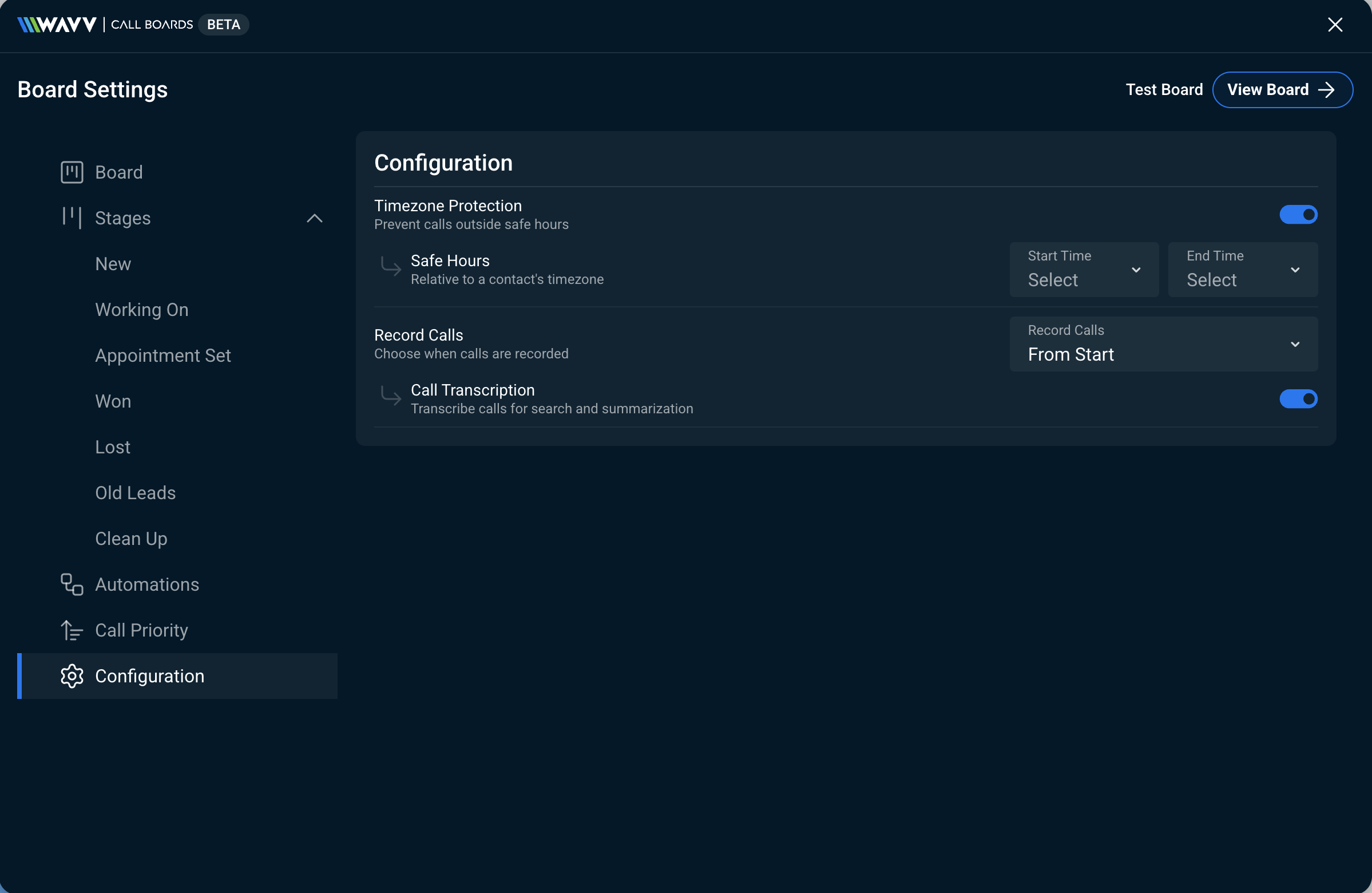
In the Configuration tab, you can set timezone protection to prevent calls outside of your designated safe hours. You can also turn on call recordings.
Dialing from your Call Board
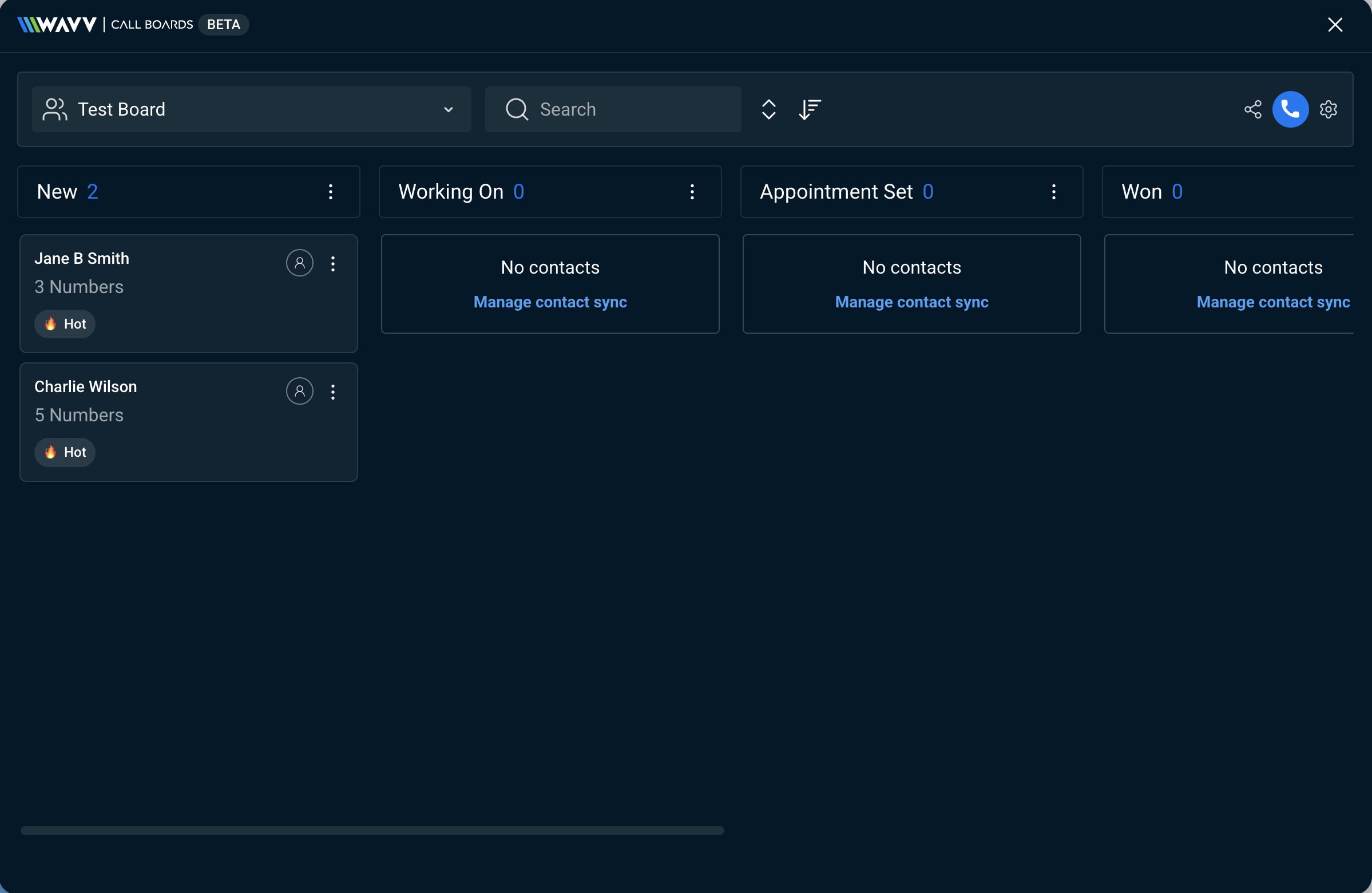
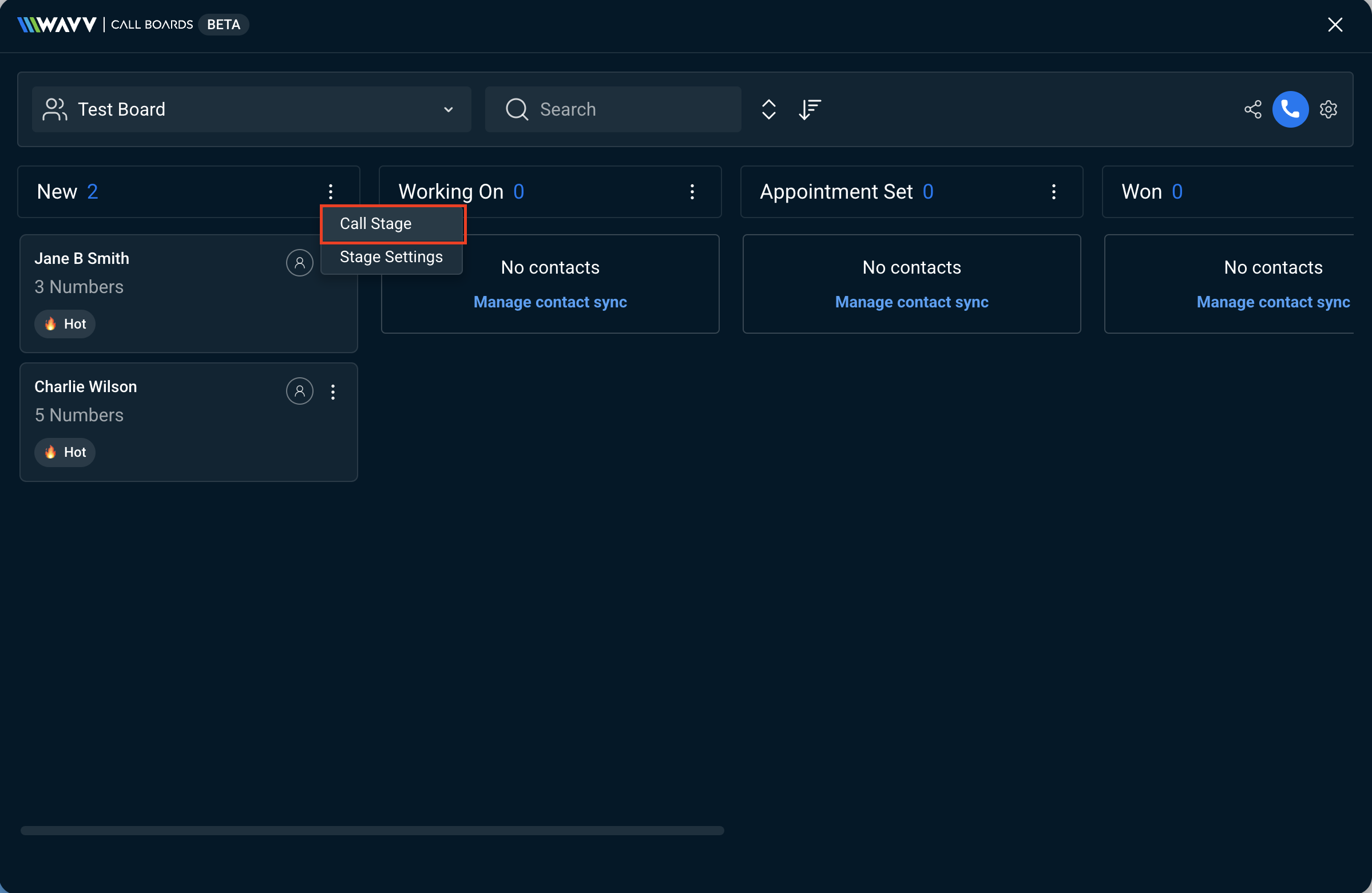
Under your Call Board, you will see leads in the stages. To call through the leads in a stage, click the 3 dots above the stage, then click "Call Stage."
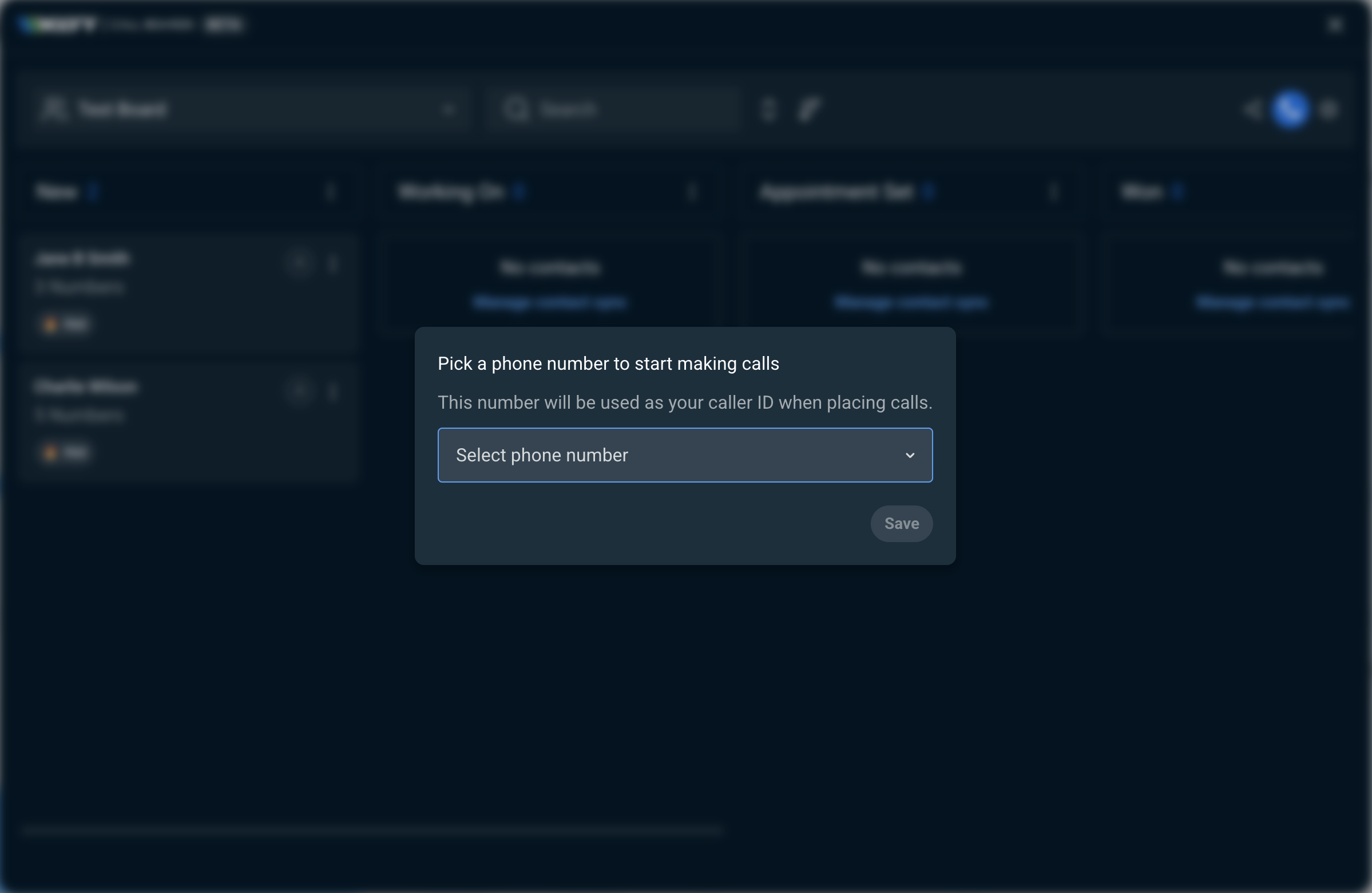
You'll need to select a phone number to use to start making calls:
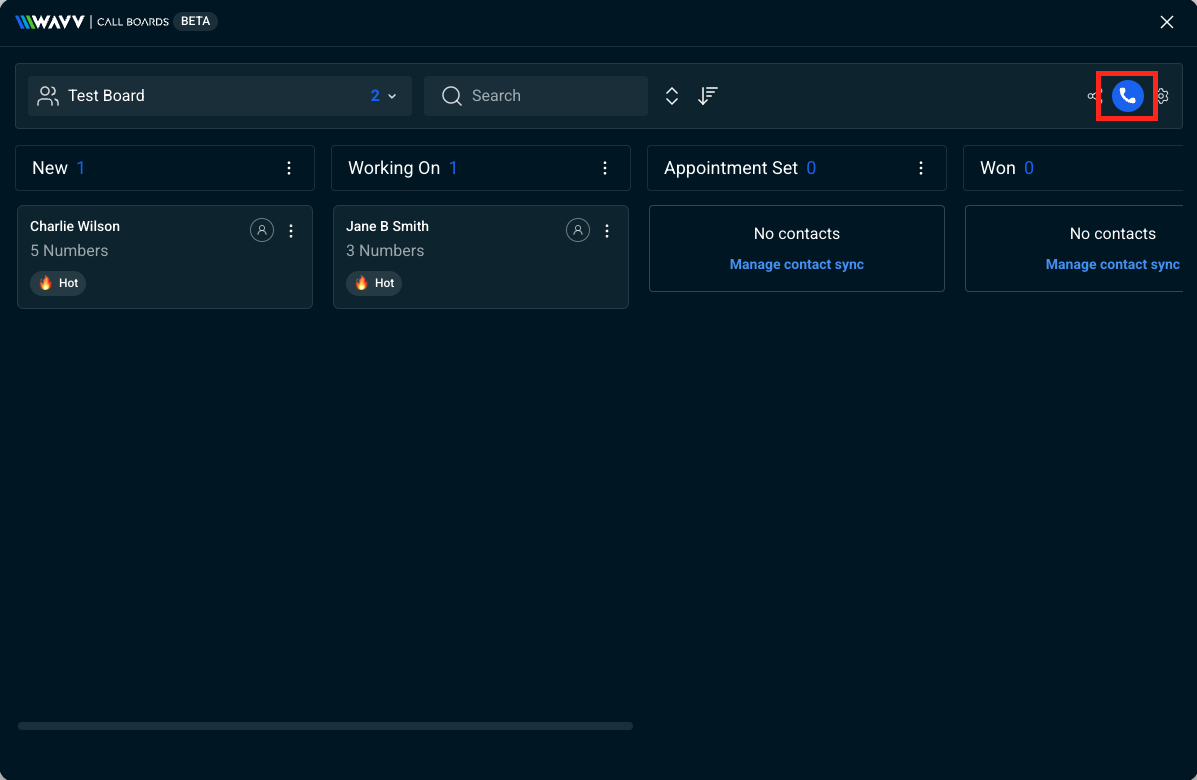
You can also click the blue call button in the top right corner to dial the whole board. It will start calling leads from the "New" Stage.
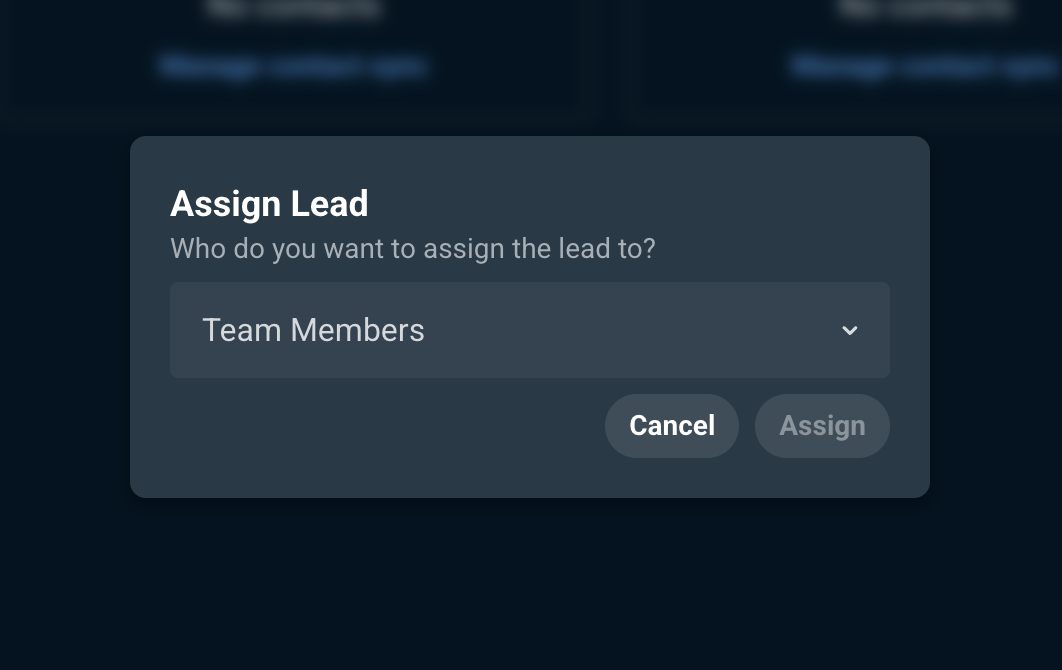
Assigning Team Members to Leads
You can assign a team member to a specific lead by clicking the person icon:
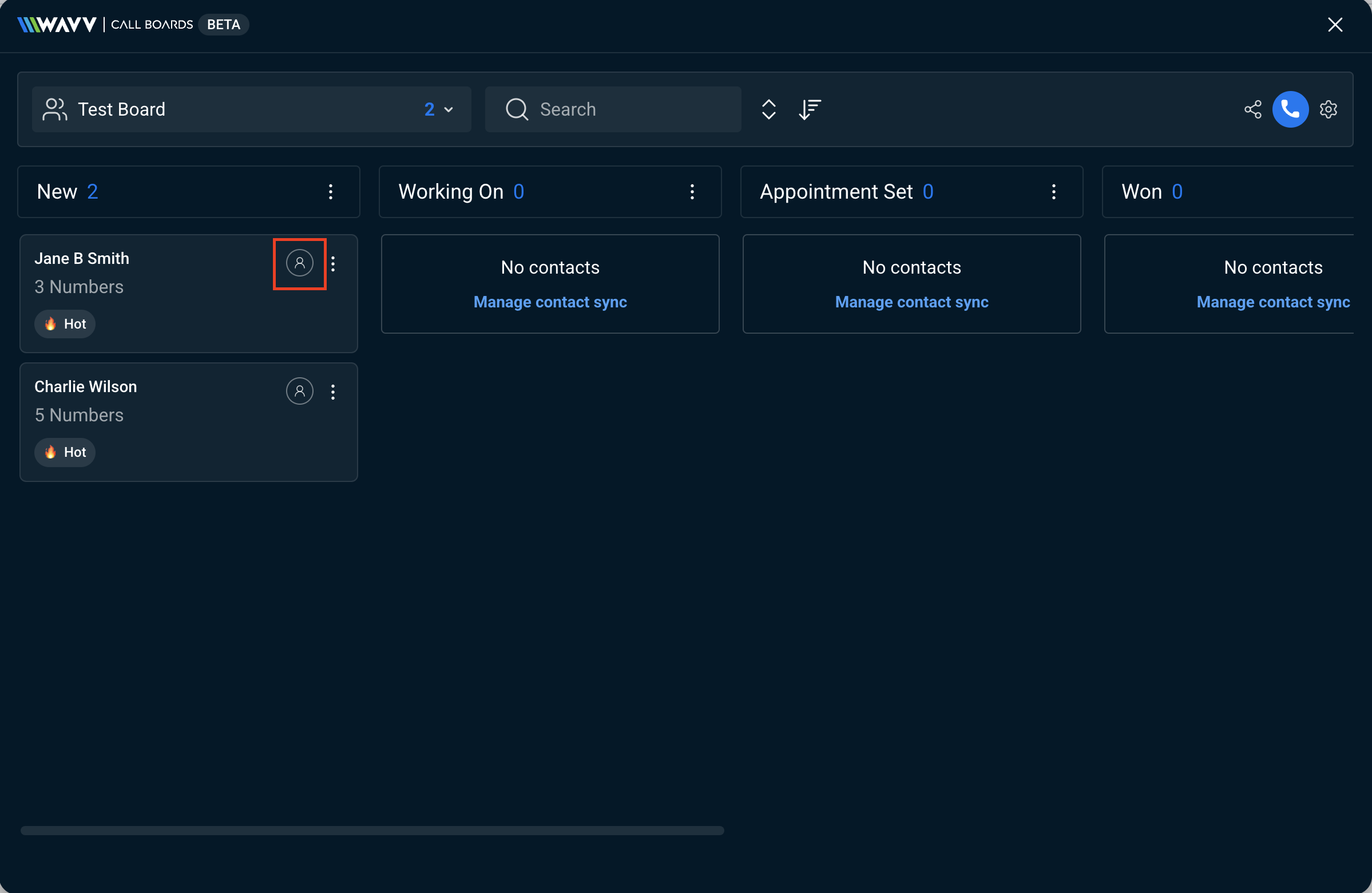
Then select the team member(s) you want to assign to the lead.
Individual Lead Settings
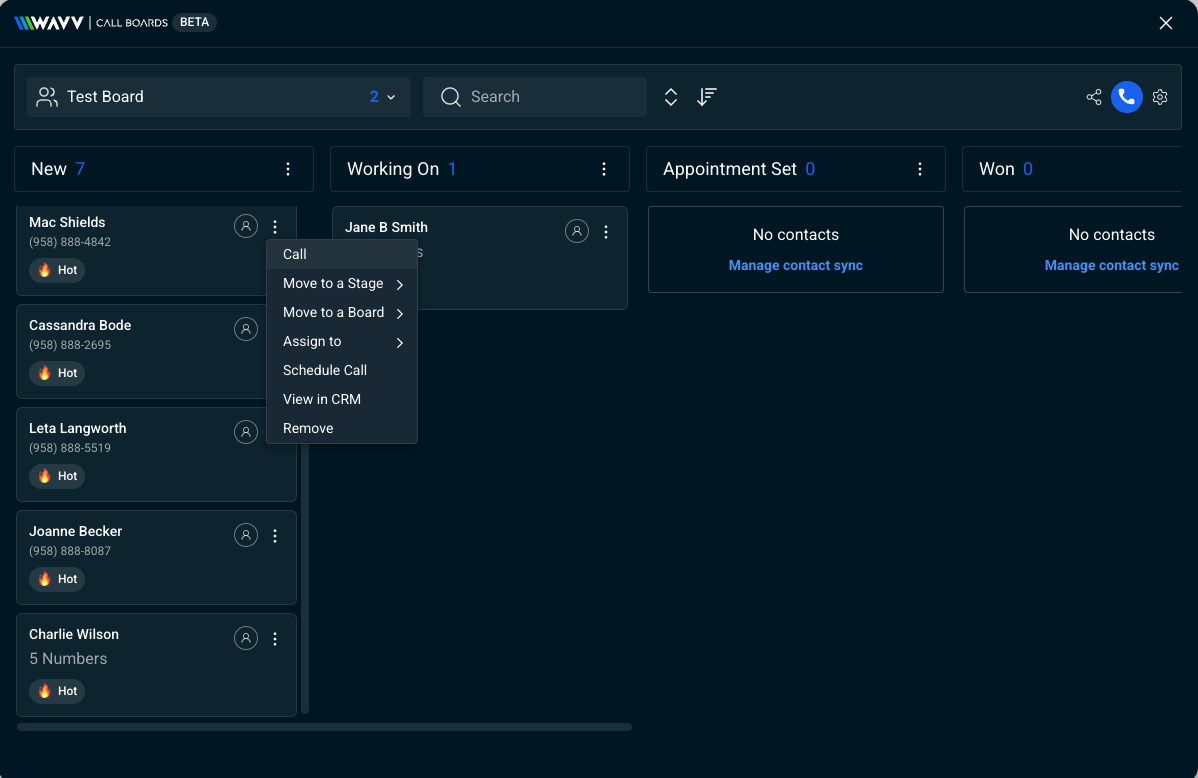
If you click the 3 dots next to a specific lead, you can see some additional actions:
Call (just that lead)
Move to a Stage
Move to a Board
Assign to
Schedule Call
View in CRM
Remove
Scheduling Calls
When you schedule a call while dialing in WAVV, it auto assigns that contact to the agent who scheduled it.
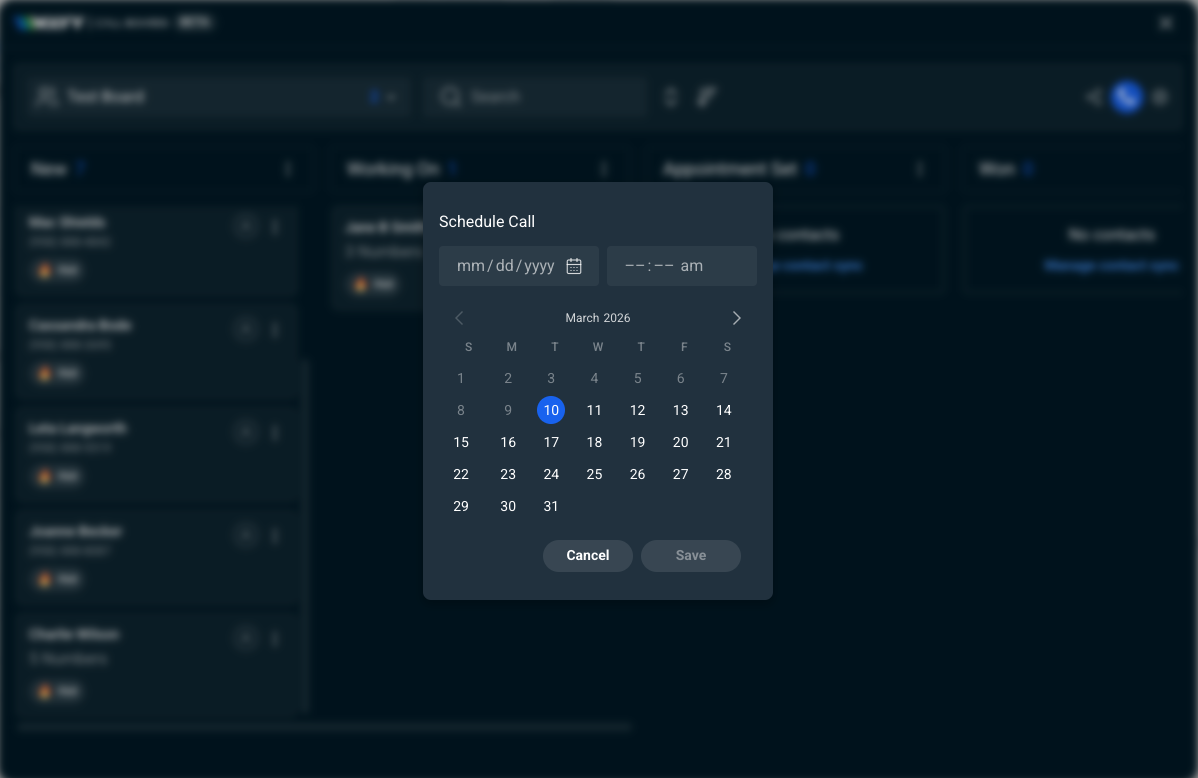
There are a couple ways to schedule a call:
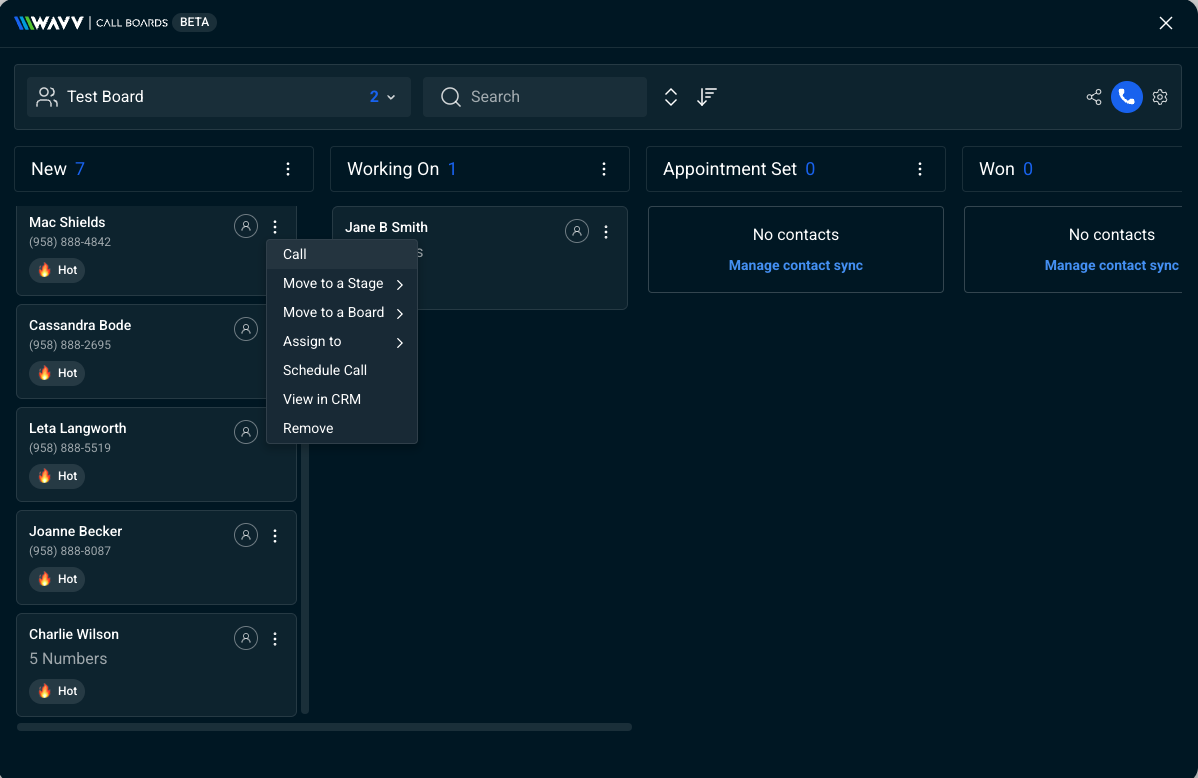
From call boards contact card kebab menu
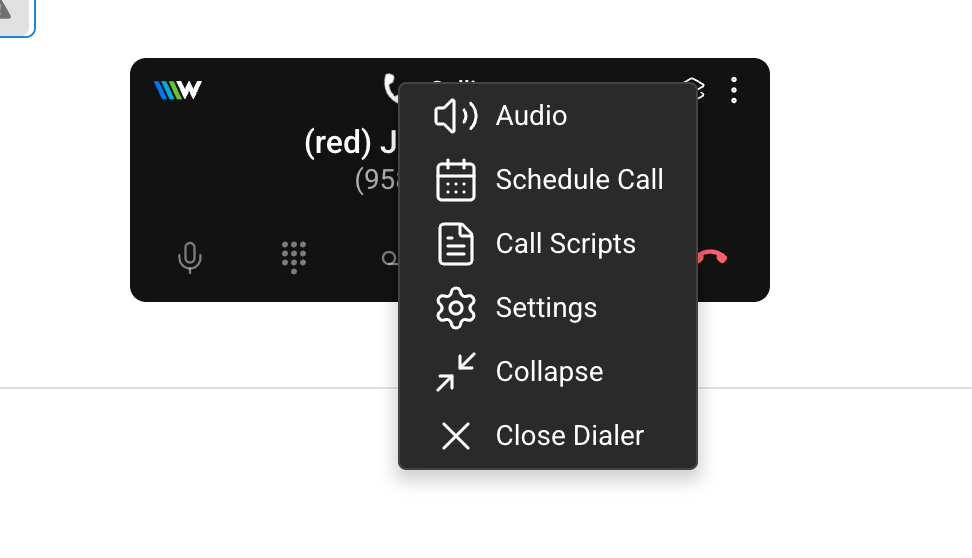
From the mini dialer while making calls:
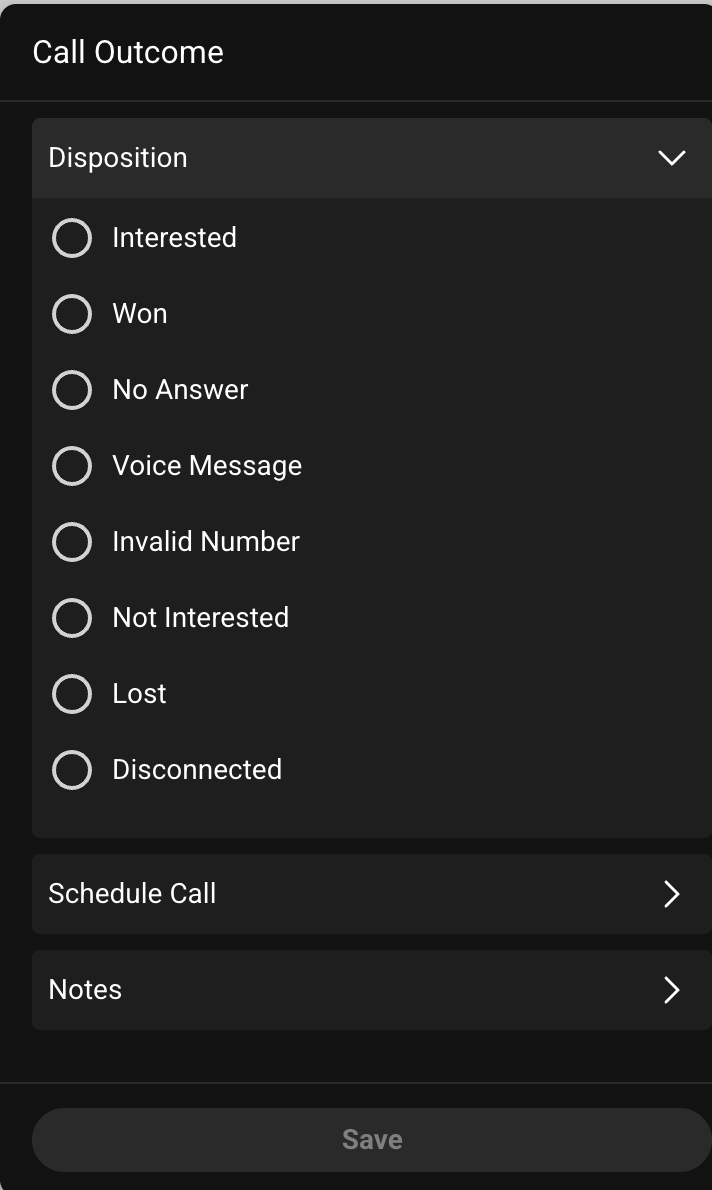
From the disposition modal
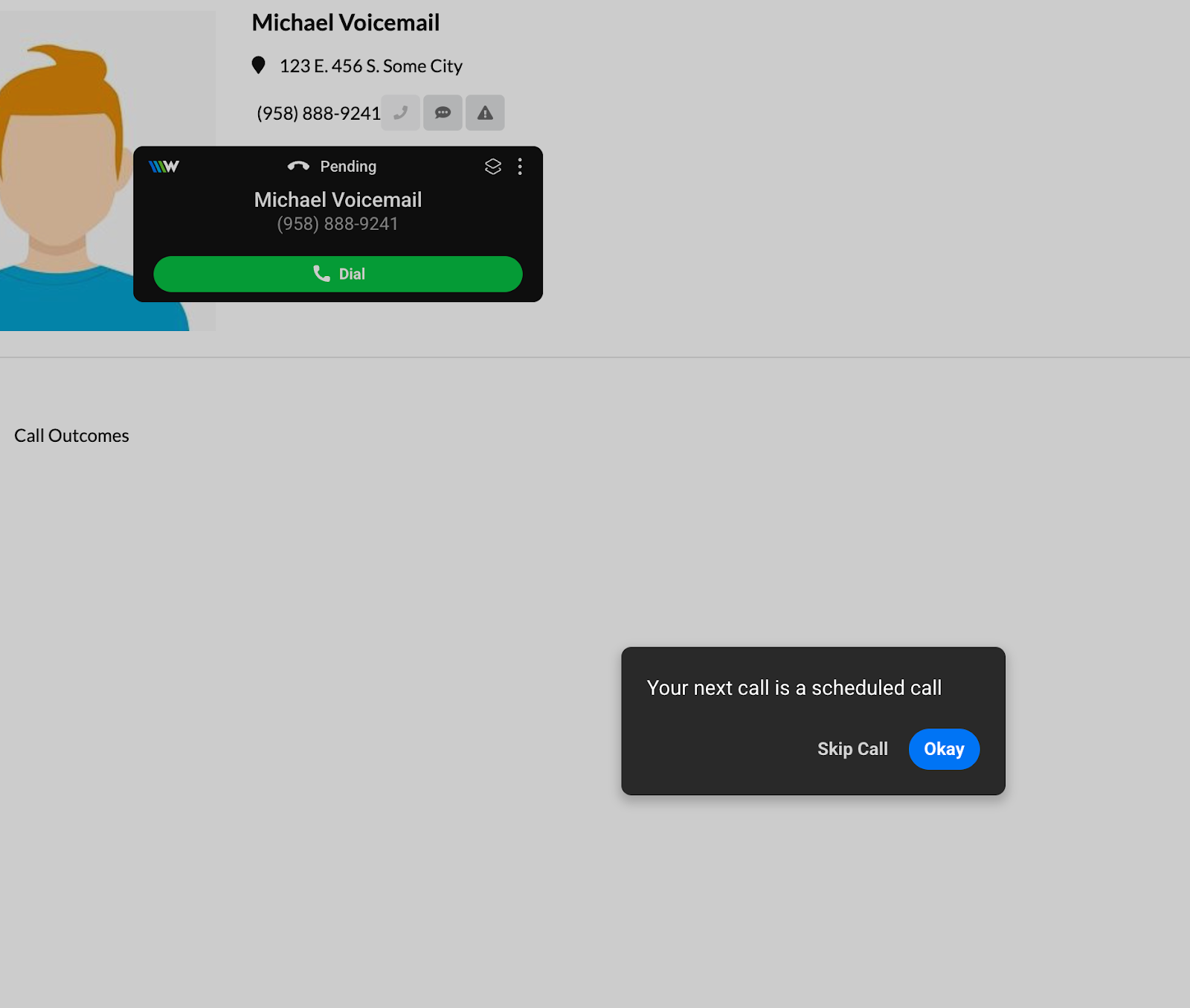
Getting a Scheduled Call
Scheduled calls will pop into your dial session. If a scheduled call becomes active while you are not dialing, it will be missed and turn into an overdue scheduled call. Notice, you can also skip a scheduled call.