
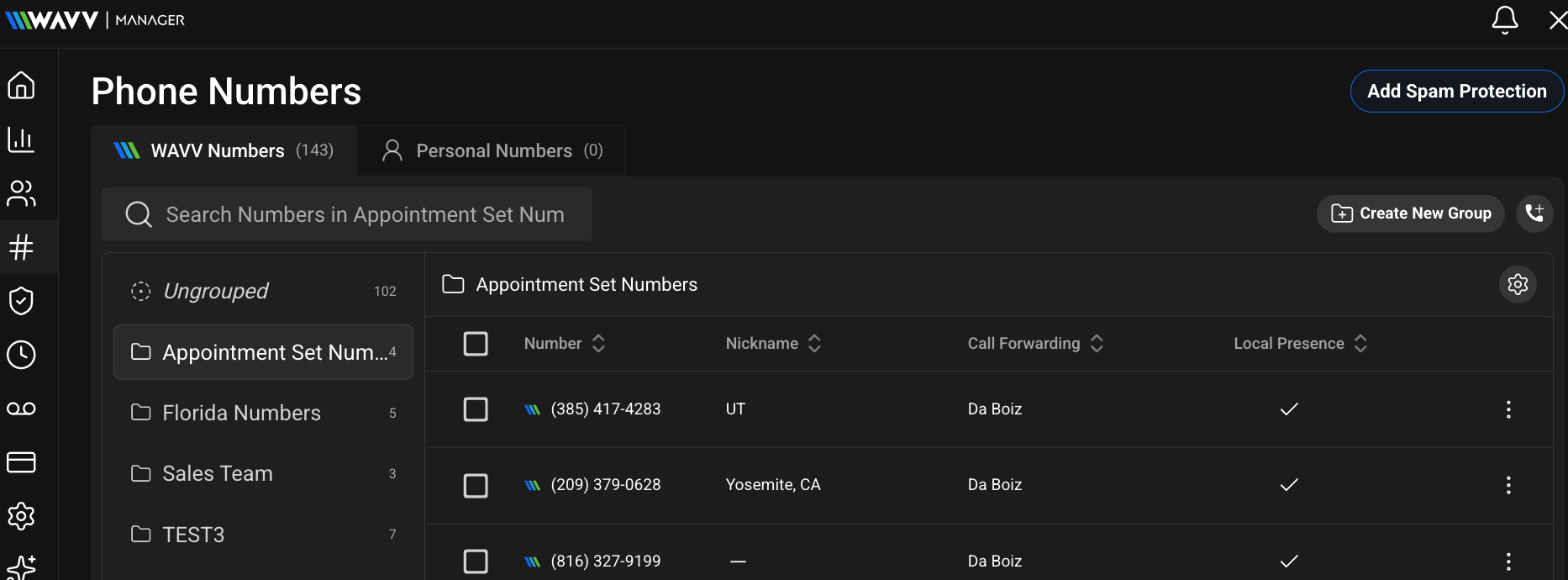
Number & Team Level Groups allow users to organize and manage phone numbers and team members using labels, making it easier to configure and control large volumes at once.
What are Number & Team Level Groups?
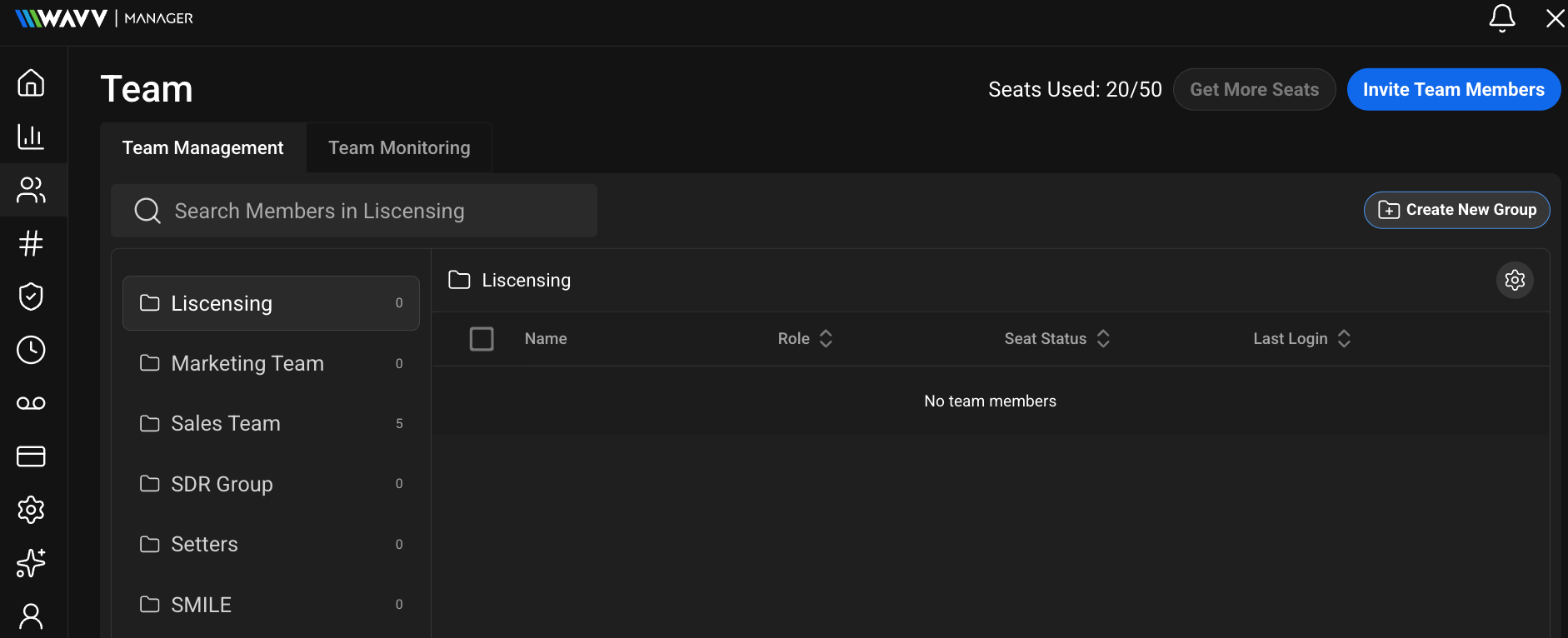
Groups act as labels that can be applied to both phone numbers and team members.
With Groups, users can:
Organize phone numbers by use case (e.g., Sales, Outbound, Local Presence)
Assign team members into logical groups
Apply actions and settings across multiple phone numbers at once
What can you do with Number Groups?
Users can select one or multiple numbers and:
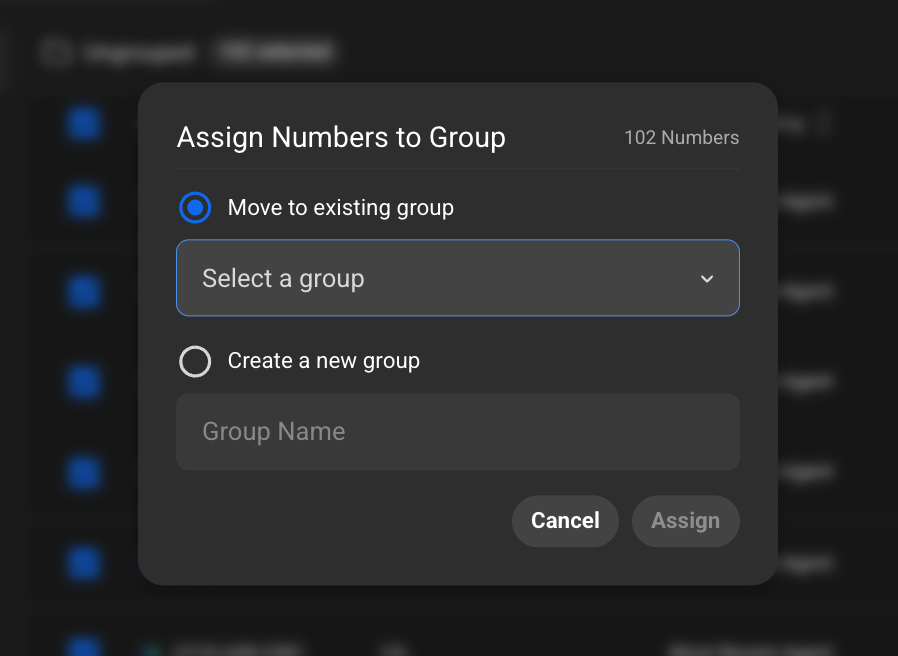
Assign numbers to a group
Move numbers between groups
Remove numbers from a group
Delete numbers
Once grouped, numbers display a visual label so users can quickly identify how they are organized.
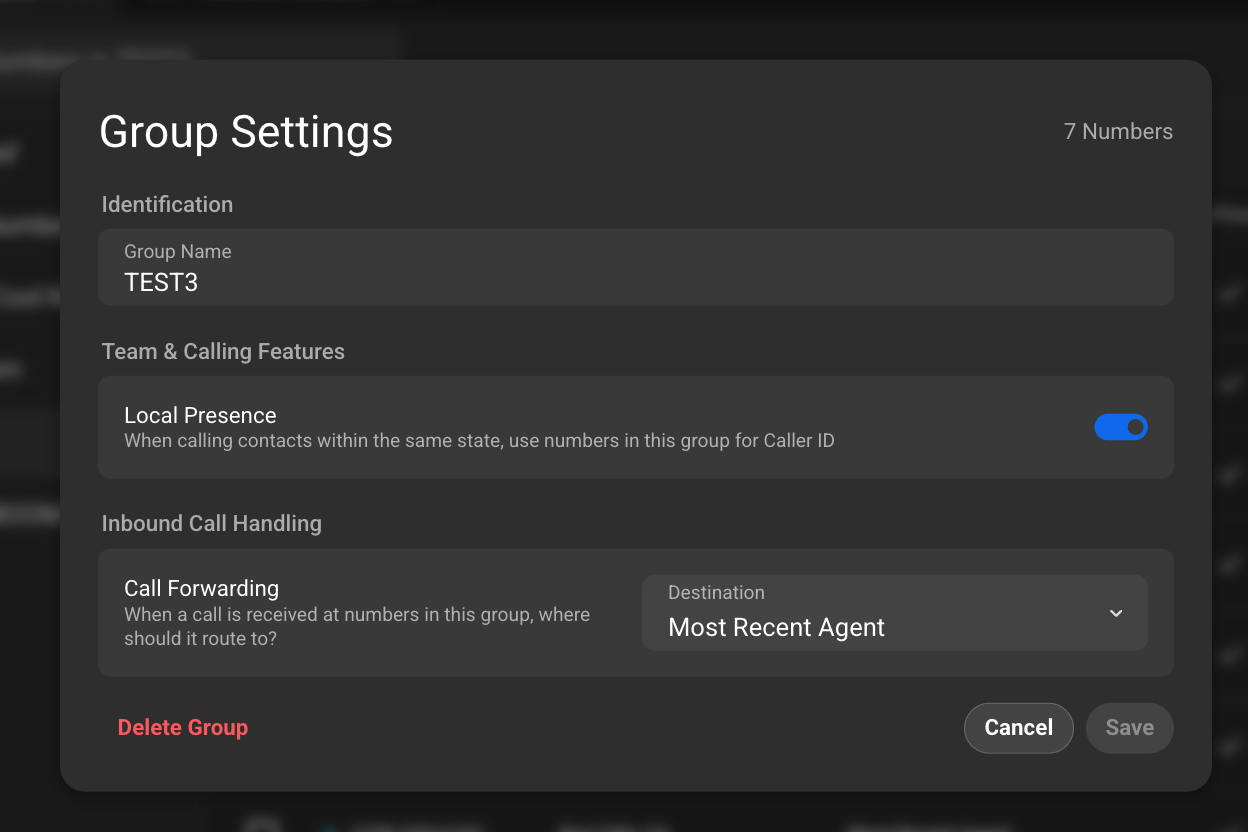
Instead of configuring each number individually, users can apply settings at the group level:
Call forwarding
Local Presence (on/off)
Share with team
Group name and nickname
Number removal
When a number is moved into a group, it automatically inherits that group’s settings.
What can you do with Team Groups?
Team Groups allow users to organize team members into structured units.
Users can:
Assign members to a group
Move members between groups
Create a new group during assignment
This makes it easier to manage access, organization, and workflows across teams.
The following roles can create and manage groups:
Owner
Admin
Manager
These roles can:
Create and edit groups
Move numbers between groups
Assign team members to groups
How does it work?
Numbers
Select one or more numbers using checkboxes
A bulk action menu appears
Assign or move numbers to a group
Numbers display a group label in the table
Group-level settings apply automatically
Team Members
Select one or more team members
Click “Move to Group”
Choose an existing group or create a new one
Members are reassigned instantly
Considerations
Personal numbers cannot be grouped
Group call forwarding currently supports browser call pop only
Local Presence still uses all numbers across the account (not limited to group-level numbers)