As an Account Owner, you’ll be able to make changes to your subscriptions and manage the wallet. This could be upgrading or downgrading your plan, adding on services, or changing payment information.
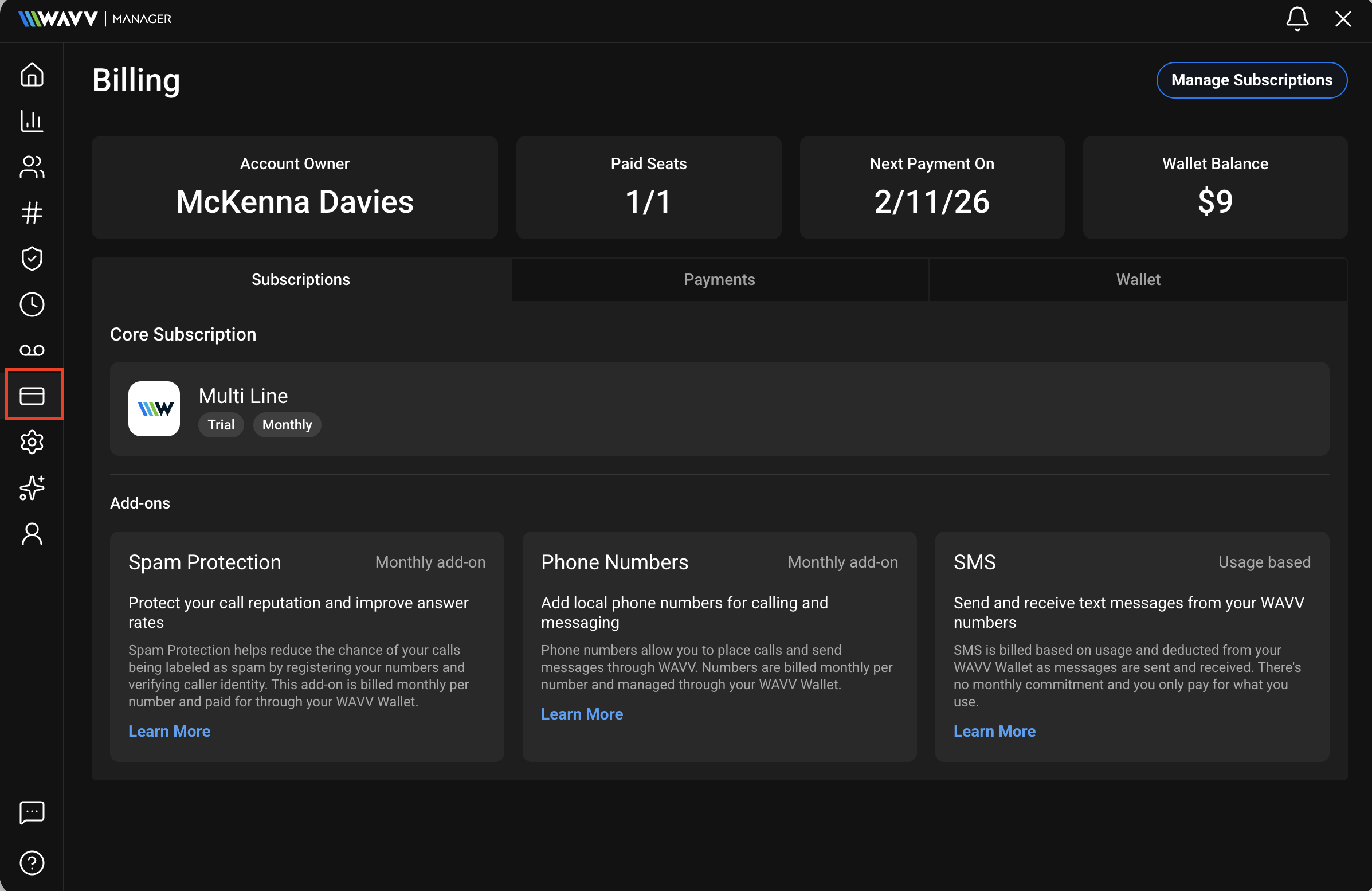
Manage Subscription
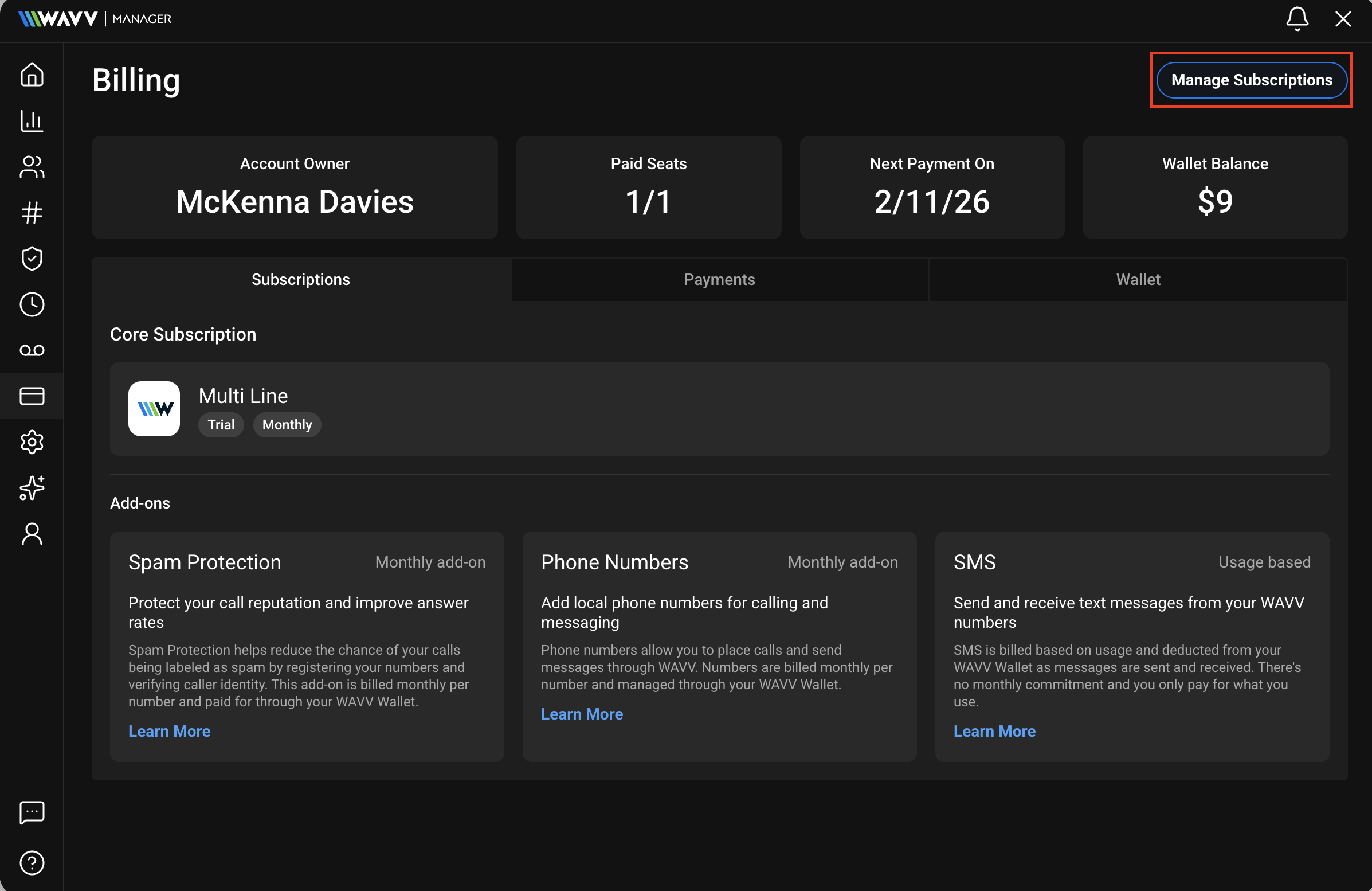
If you want to make changes to your subscription such as the number of paid dialer seats you have, upgrading or downgrading, etc., click "Manage Subscriptions" in the top right corner.
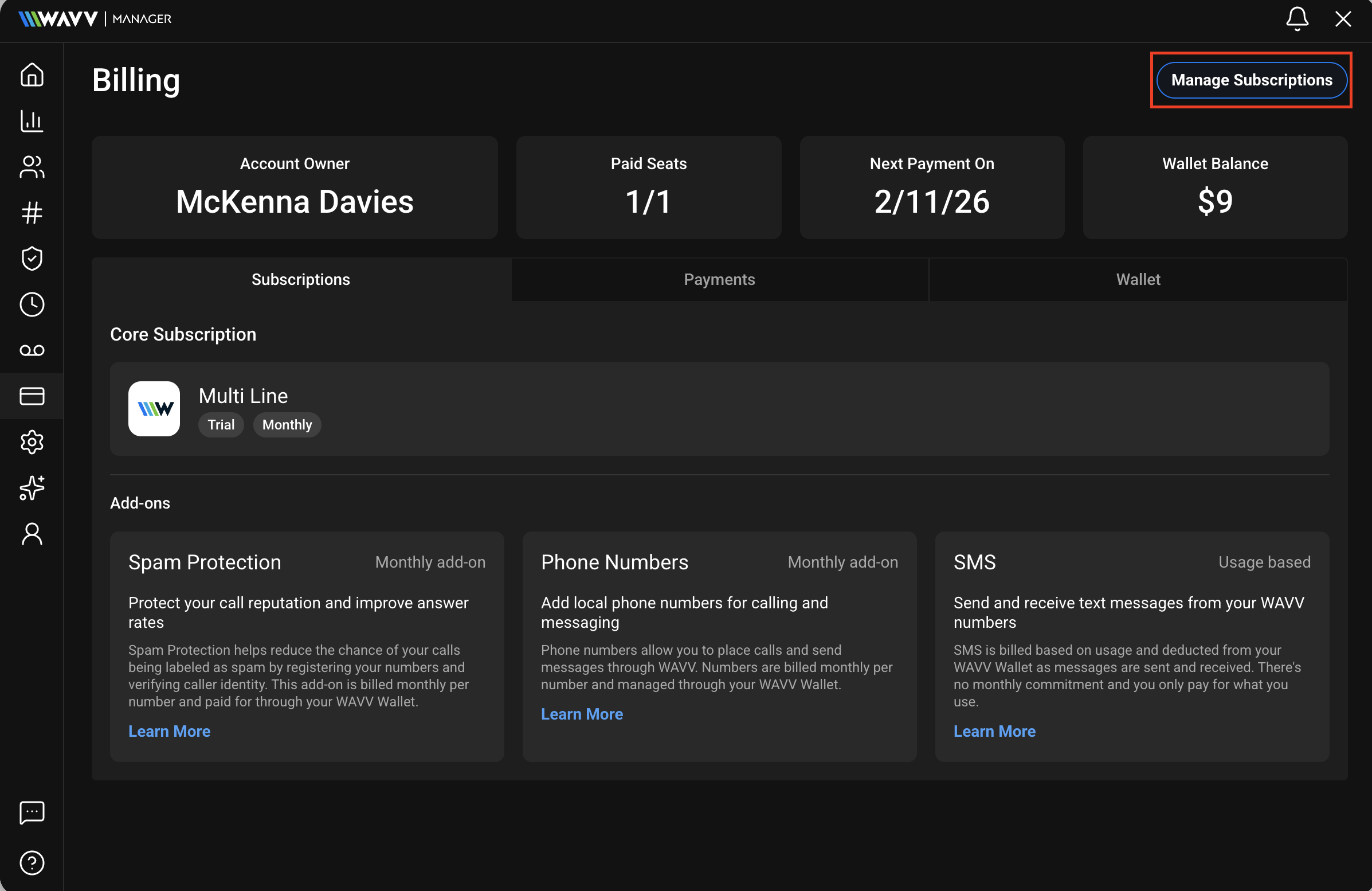
You will be redirected to Stripe, our billing service. From here, click "Update subscription."
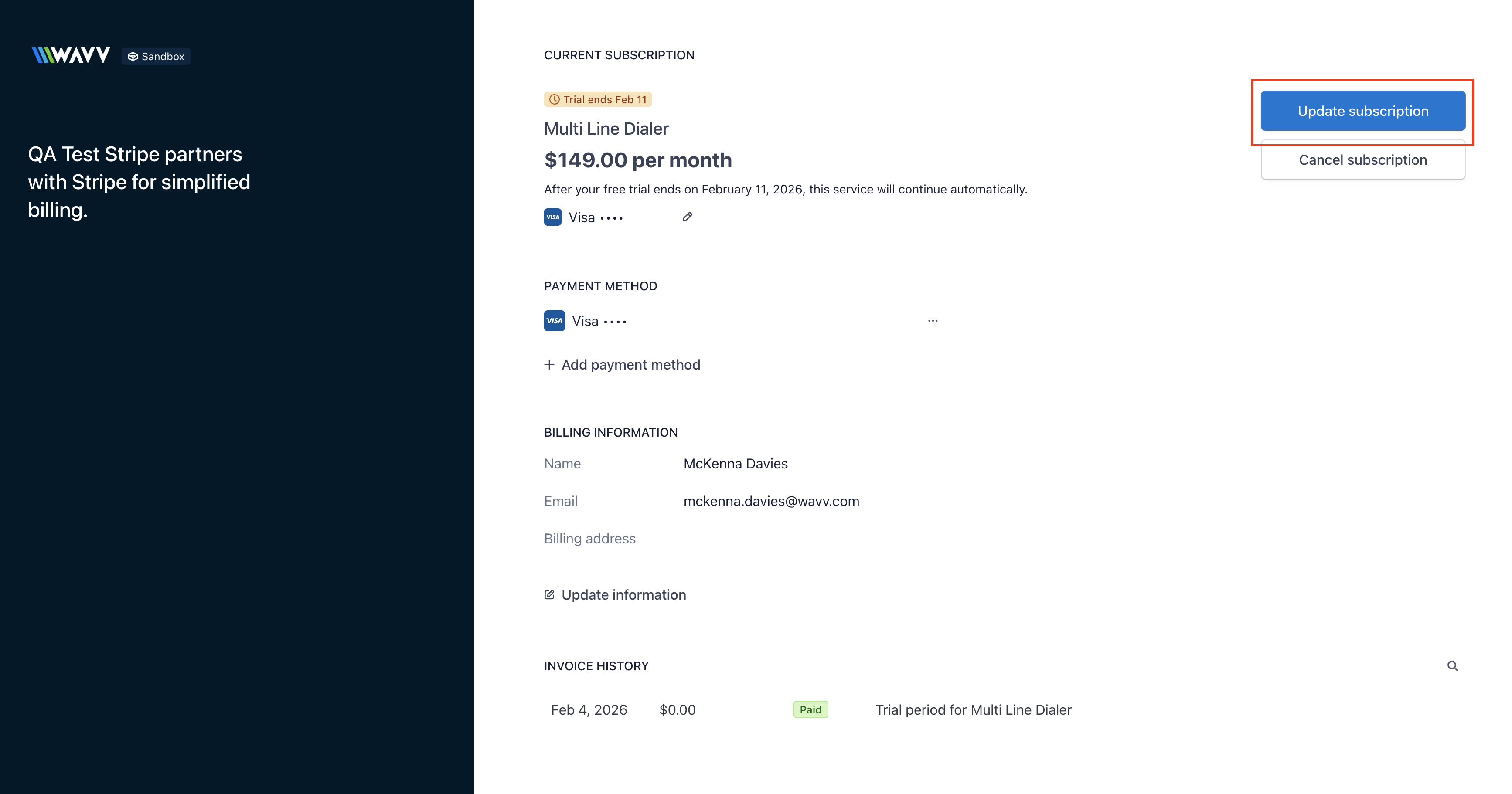
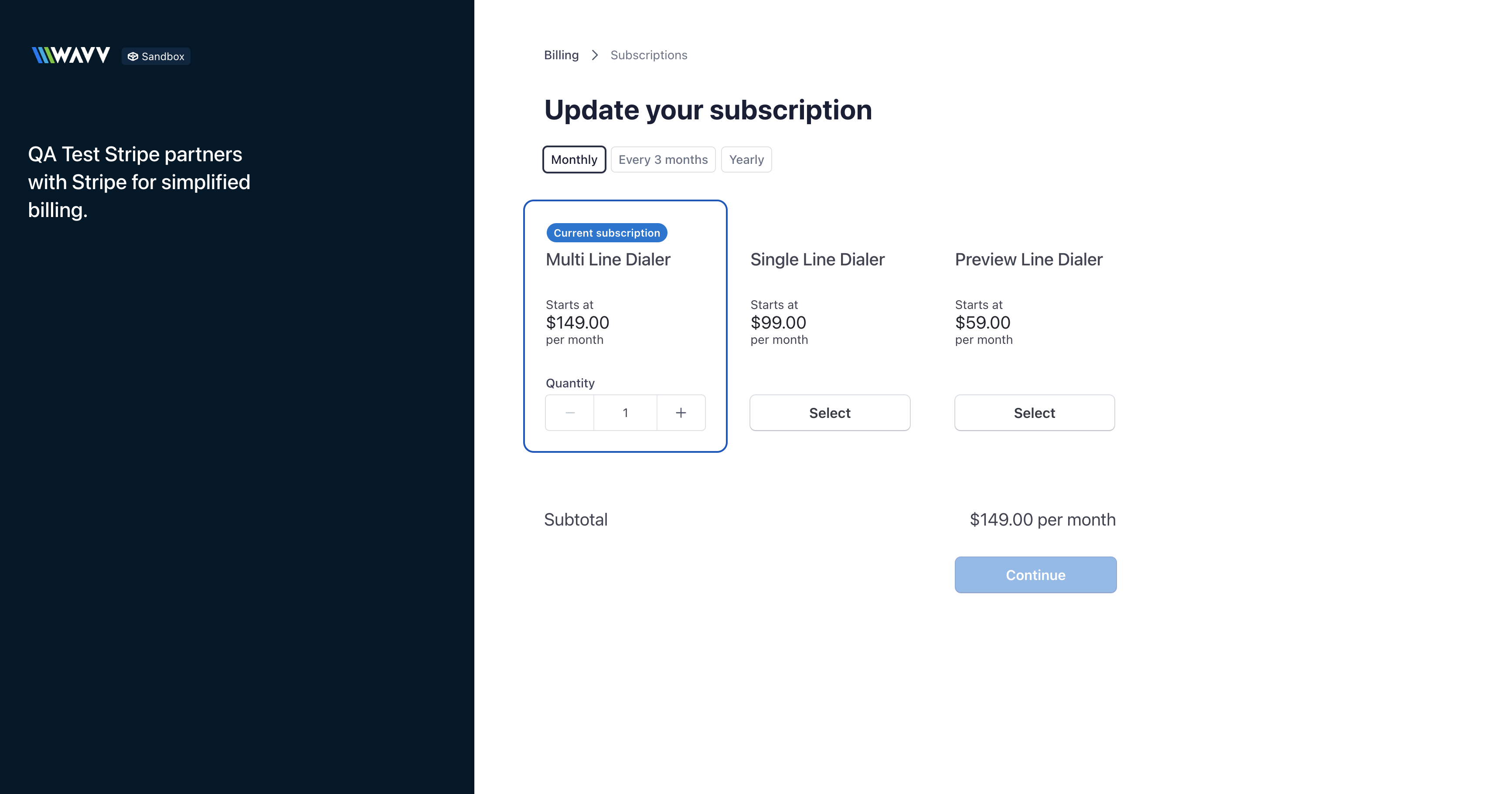
From here, you'll see your current subscription and the quantity (or number of paid seats you currently have). You can increase or decrease those seats, or select a different Dialer subscription.
Adding Spam Protection
For more information on adding Spam Protection, check out this article.
Adding Additional Numbers
You can purchase additional phone numbers in the numbers tab. For information on adding phone numbers, check out this article.
To learn about configuring setting for your numbers, check out this article.
Editing Payment Method
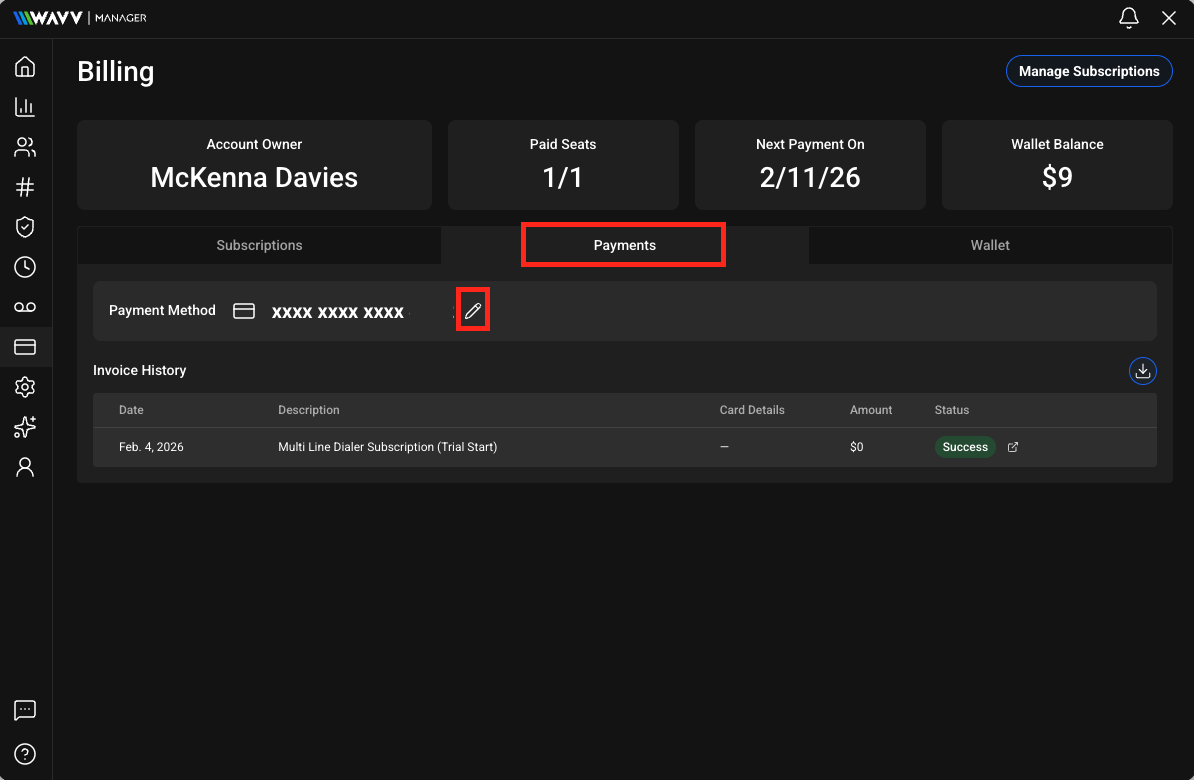
To edit your payment method, again, you must be the Account Owner. Navigate to the "Payments" section and click the pencil icon to edit your payment information in Stripe.
Canceling your Subscription
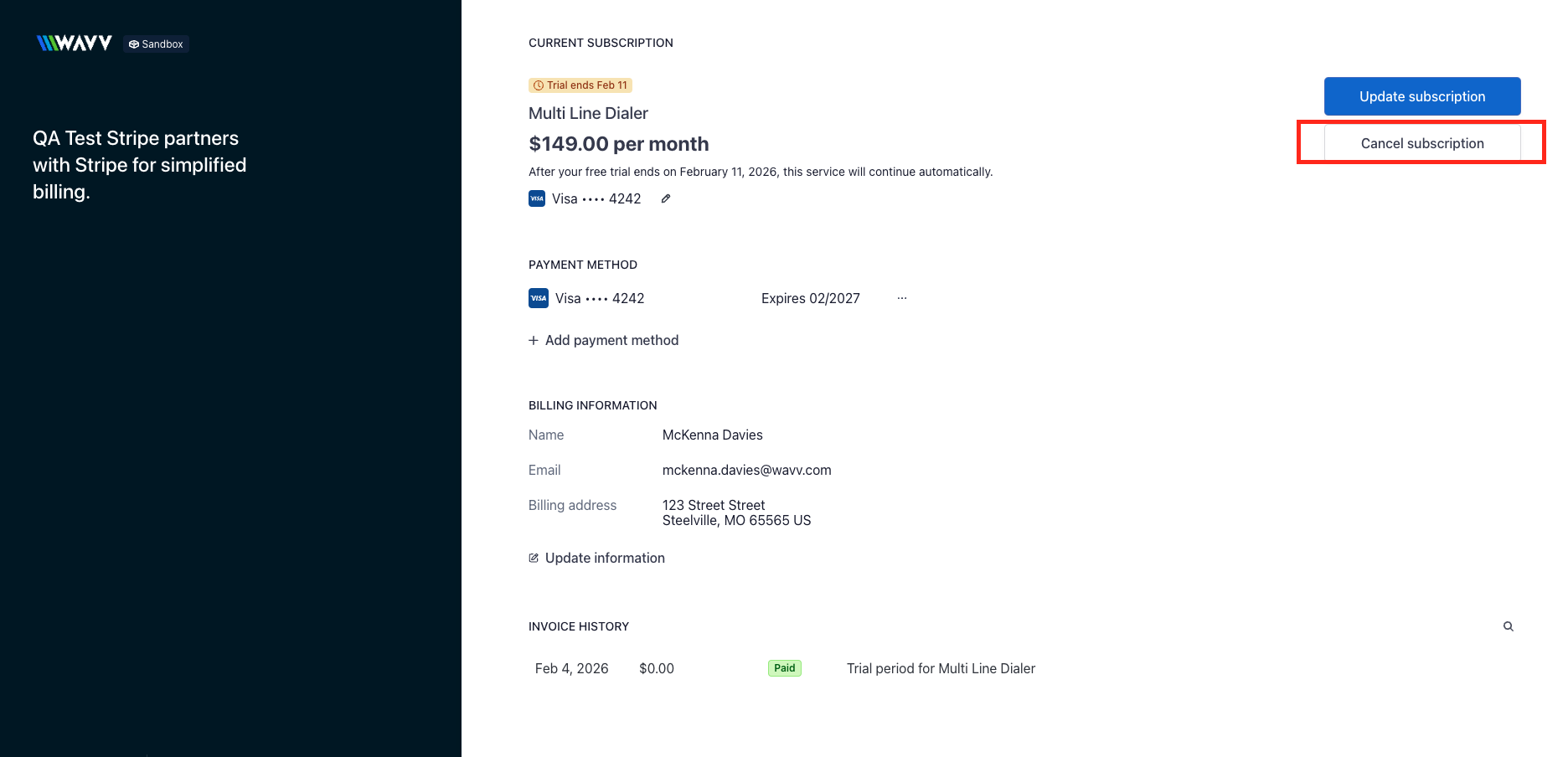
To cancel your WAVV subscription, click "Manage Subscriptions" in the top right corner.
You will be redirected to Stripe, our billing service. From here, click "Cancel subscription."