
WAVV's dialer settings let you customize how the dialer behaves—so you can call the way that works best for you.
As a Team Admin or manager, you’ll have two additional settings which will be explained in this article. Something to keep in mind is that most settings will need to be set individually by each team member. For instructions on how to set individual dialer settings, check out this article.
Where to Find Dialer Settings
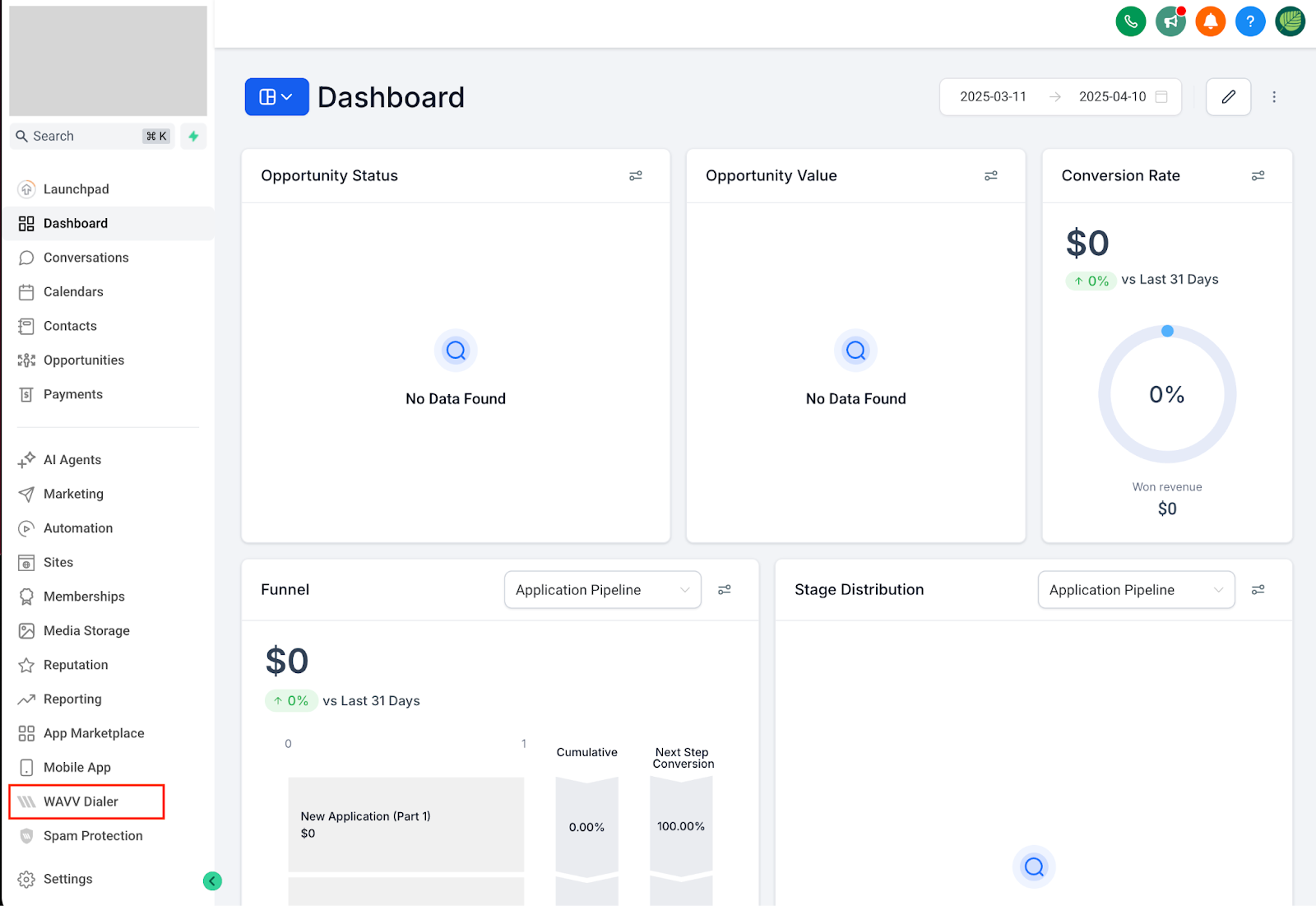
Open WAVV Manager
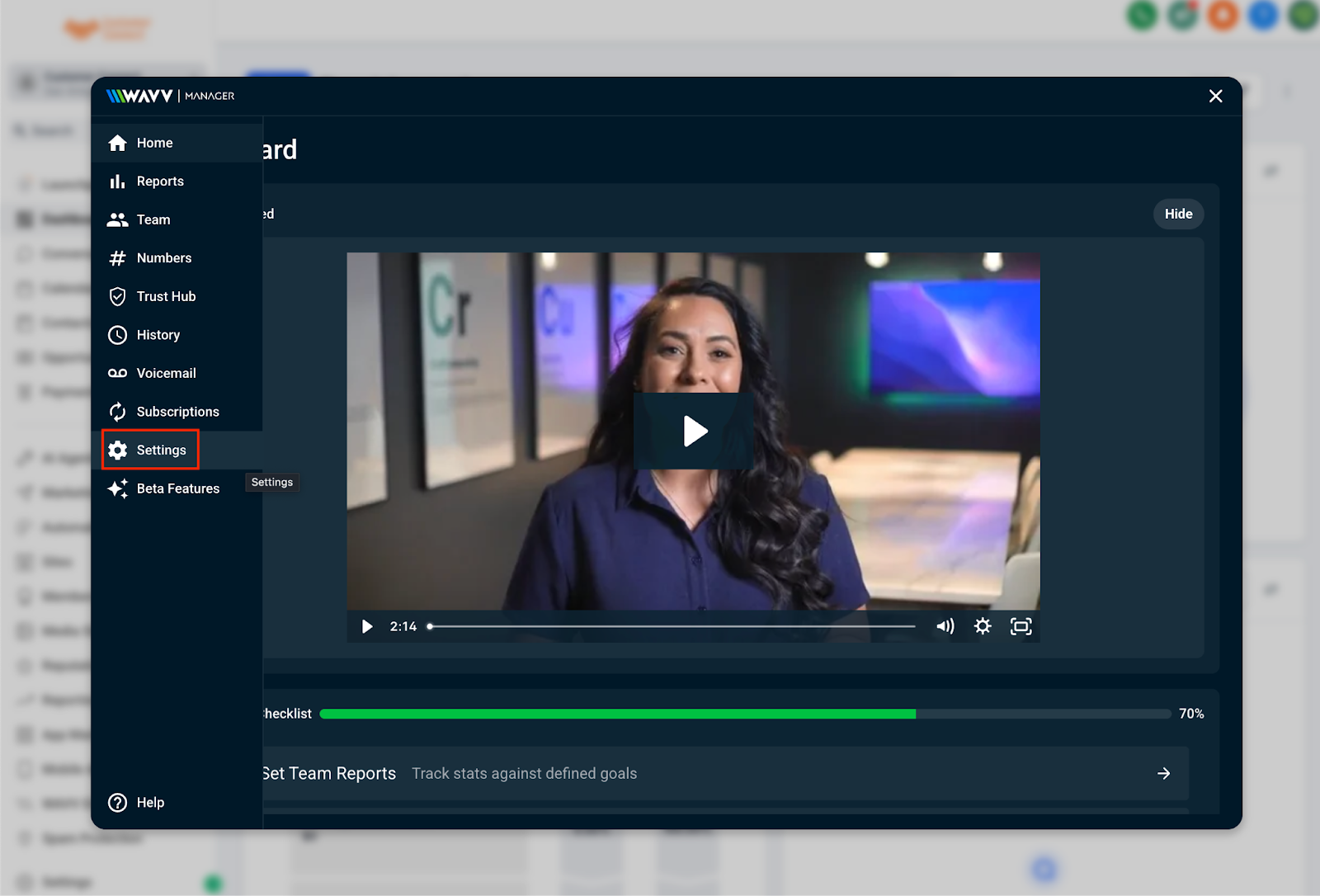
Click the Settings icon (gear) in the left-hand menu
Click Dialer Settings
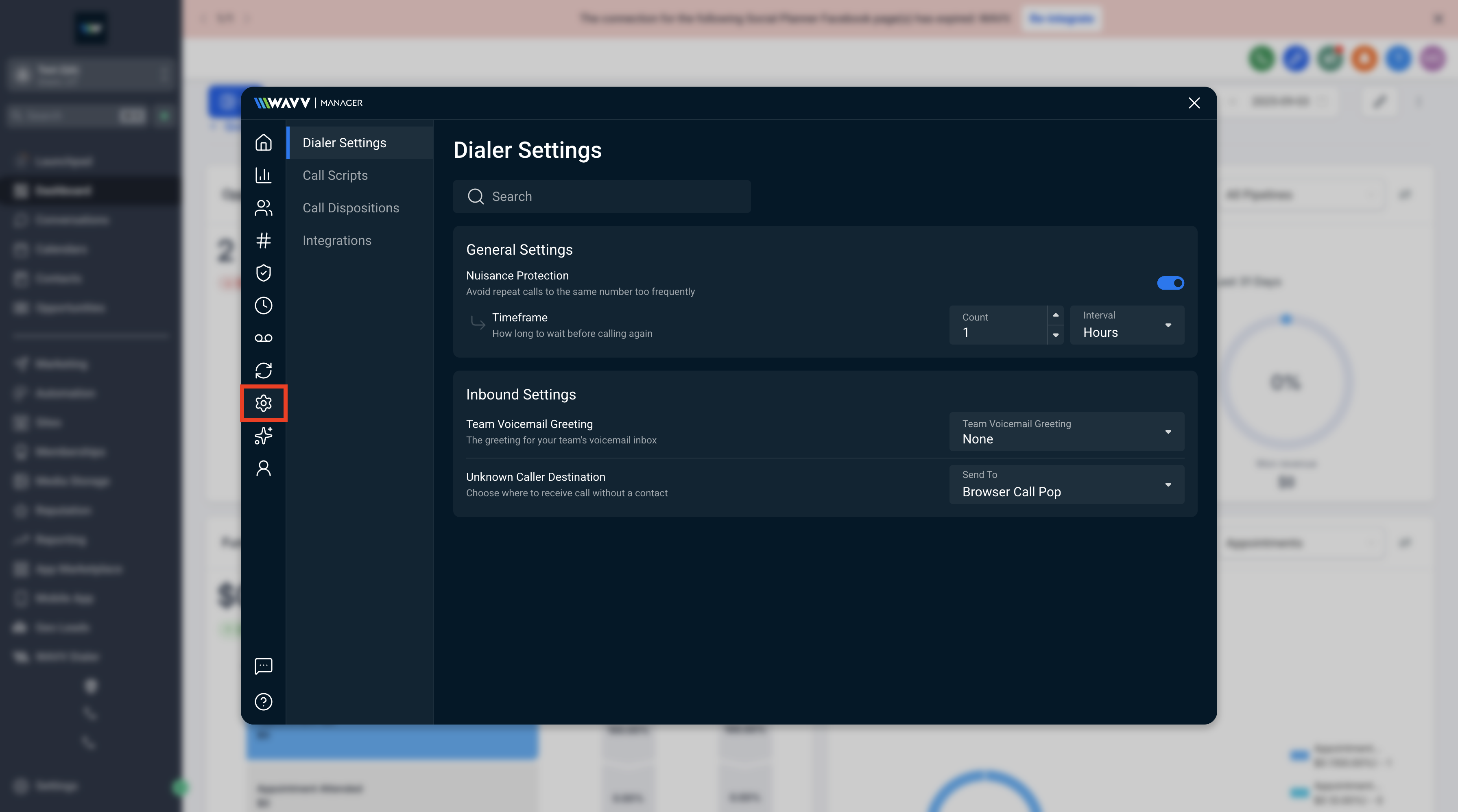
As an Admin, you'll see just a few team-specific settings. If you have also claimed a dialer seat, you'll have all of the additional dialer settings as shown in this article. This is where you’ll manage everything related to your dialing experience.
Dialer Settings Overview
As an Admin, Coach, or Manager, you’ll have these three settings:
Nuisance Protection
Team Voicemail Greeting
Unknown Caller Destination
Nuisance Protection
Avoid calling the same contact too often.
Set a wait time (like 1 day or 3 hours), and WAVV will skip that lead if it’s too soon to call again.
You can still manually call them if needed by going to their contact profile and clicking the WAVV dial button from there. Otherwise, if you load the contact into a campaign, WAVV will skip them.
Team Voicemail Greeting
In case you want everyone on your team to have the same voicemail greeting, you can record that by clicking the pencil icon.
When you get a voicemail, you can find those in the voicemail tab. There are Team Voicemails if you’re using that team voicemail greeting, as well as personal voicemails in case each team member is using their own voicemail greeting.
Unknown Caller Destination
Back in the dialer settings, you’ll see "Unknown Caller Destination.” This would be if you got an inbound call from a phone number that’s not saved in your CRM. This could happen if one of your team members called a lead and the lead called back from a different phone number that isn’t saved in your CRM. Wavv needs to know where to send that call.
You can choose to send all unknown calls to a specific team member or phone number
You could send it straight to voicemail
You could choose “Browser call pop,” which will cause a window to pop up in all team members’ browsers and whoever is available can answer it
Next Step: