
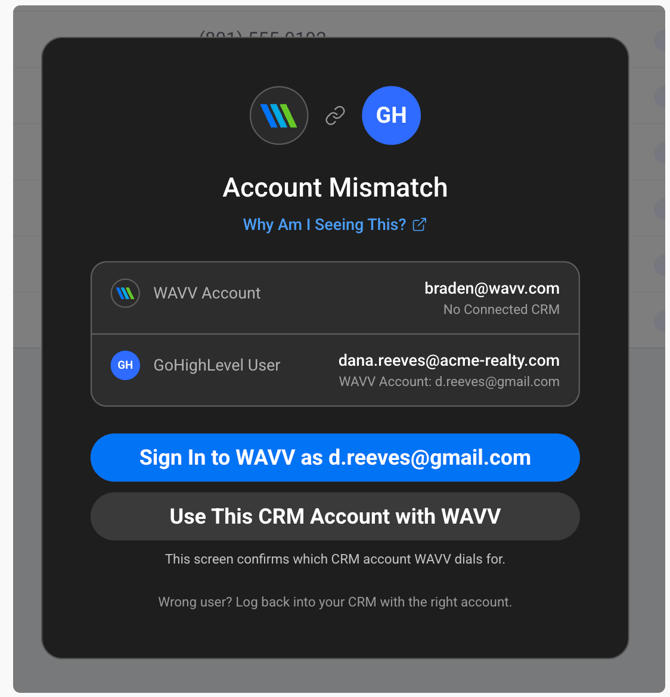
This screen appears when the person signed in to WAVV and the person signed in to your CRM don't match. Each WAVV login works with one CRM user, so WAVV checks with you before connecting them. Find the situation below that matches yours, then follow its steps. Each one tells you exactly which button to click.
Before you start
- Look at the card at the top of the screen. It shows two emails: your WAVV Account (who you're signed in to WAVV as) and your CRM User (who you're signed in to your CRM as).
- Check that the CRM email is really yours. If it's a teammate's, an admin's or your VA's, start with Situation 5.
- Have access to your CRM email inbox. Most fixes send a code there.
| Your situation | Click this |
|---|---|
| 1. I use a different email for WAVV than for my CRM | Link this account |
| 2. I'm signed in to WAVV as someone else | Sign In to WAVV as [email] |
| 3. I switched to a new CRM, GHL account or agency | Use This CRM Account with WAVV |
| 4. I joined a team and had my own WAVV account before | Use This CRM Account with WAVV |
| 5. I'm signed in to the wrong CRM account | No button. Sign out of your CRM first |
| 6. My VA or teammate and I share one CRM login | No button. Each person needs their own CRM user |
Situation 1: I use a different email for WAVV than for my CRM
Example: you sign in to WAVV with your Gmail, but your CRM login is your work email.
You'll see a screen titled Link with WAVV that says "Connect your CRM account [CRM email] to your WAVV account [WAVV email]."
1. Check that both emails are yours.
2. Click Link this account.
3. You'll see You're all set, and WAVV opens. No code is needed.
What happens: Your WAVV login is now connected to this CRM user. You'll keep signing in to WAVV with the same email, and you won't see this screen again.
Situation 2: I'm signed in to WAVV as someone else
Example: you used a teammate's computer, signed in with their WAVV login to test something, or your browser saved an old login.
You'll see Account Mismatch with two buttons. The CRM User section shows that this CRM user already has their own WAVV account.
1. Click Sign In to WAVV as [email]. That's the WAVV account that belongs to this CRM user.
2. Check that email's inbox for a code from WAVV.
3. Enter the code. WAVV opens with the right account.
What happens: You're signed out of the other WAVV login and into the one that belongs to you. Nobody else's account changes.
Note: Don't click Use This CRM Account with WAVV in this situation. It moves your CRM user onto the other WAVV login, and your own WAVV account loses access.
Situation 3: I switched to a new CRM, GHL account or agency
Example: your WAVV account was set up in your old GoHighLevel account, and you're now opening WAVV from a new one.
You'll see Account Mismatch with one button. The WAVV Account section shows it's still connected to your old CRM user.
1. Click Use This CRM Account with WAVV.
2. Check the inbox for your new CRM email. We send a 6-digit code there.
3. Enter the code and click Verify.
4. You'll see Connected. Click Continue to WAVV.
What happens: Your WAVV account, numbers and call history move with you to the new CRM user. Your old CRM account will no longer open WAVV.
Situation 4: I joined a team and had my own WAVV account before
Example: you used WAVV on your own, then your manager invited you to their team.
You're signed in to WAVV with your new team login, but your CRM user is still connected to your old individual account. You'll see Account Mismatch with two buttons.
1. Click Use This CRM Account with WAVV.
2. Check the inbox for your CRM email and enter the 6-digit code.
3. Click Verify, then Continue to WAVV.
What happens: Your CRM user now dials with your team seat. Your old individual WAVV account is no longer connected to this CRM user.
Situation 5: I'm signed in to the wrong CRM account
Example: you're signed in to your CRM as an admin, a teammate or a shared office account.
WAVV can't change who's signed in to your CRM, so none of the buttons will fix this.
1. Close the WAVV screen.
2. Sign out of your CRM.
3. Sign back in to your CRM with your own login.
4. Open WAVV again. If the emails still don't match, find your situation above.
Situation 6: My VA or teammate and I share one CRM login
Example: you and your VA both sign in to GoHighLevel with the same username.
Each WAVV login can only connect to one CRM user, so two people can't dial from the same CRM login. Every time one of you connects, the other loses access.
1. Close the WAVV screen. Don't click either button.
2. In your CRM, create a separate user for each person who dials.
3. Each person signs in to the CRM with their own user, then opens WAVV.
Note: If you already clicked Use This CRM Account with WAVV and someone lost access, contact support and we'll get each person connected to the right account.
Still stuck?
Chat with WAVV Support using the chat icon in the bottom-right corner of the Help Center. Include a screenshot of the screen, your WAVV email and your CRM email. Not sure which situation is yours? Send the screenshot before clicking anything, and we'll tell you which button to use.
Related: Account Mismatch screen: linking your WAVV account to your CRM · How can I move my WAVV account to a different CRM?
Frequently asked questions
What if none of these situations match mine?
Don't click anything yet. Take a screenshot of the screen and contact support. We'll tell you which button to use.
I never got the code.
For Sign In to WAVV as [email], the code goes to that WAVV email. For Use This CRM Account with WAVV, it goes to your CRM email. Check spam, then click Resend Email (available every 60 seconds). The code works for 24 hours.
I closed the screen and now WAVV won't open.
Closing the screen doesn't fix the mismatch. Click Review on the WAVV banner to bring it back, then follow your situation above.
I clicked the wrong button.
Contact support with both emails. We'll help get each person reconnected to the right account.
How do I avoid this screen?
Use the same email for your WAVV login and your CRM login. WAVV then connects them automatically.